

What is Heartisan Studio?
Heartisan Studio is the desktop application for your media content. It records and broadcasts services from the booth, and turns a raw recording (a talk, an episode, an interview, a live stream) into finished media content that's transcribed, credited to the right people, encoded for streaming and published to your apps and website. The AI runs on your own computer, and your files stay in a folder you control. Nothing is uploaded to a third party to be processed, and there's no per-minute transcription bill.
Where Heartisan Studio fits
Your Heartisan setup has three parts, and Heartisan Studio is the one that lives on a computer in your office, studio or sound booth:
- The app — your branded member app on phones, tablets, desktop and web, where people watch and listen.
- The portal — the web dashboard where you manage people, events, giving, branding and everything else.
- Heartisan Studio — the desktop application that records, imports and processes your audio and video, then publishes it to the app and website.
So when someone asks "how do I get a video into the app?", the answer almost always starts in Heartisan Studio. It's the front door for media content.
Finding your way around
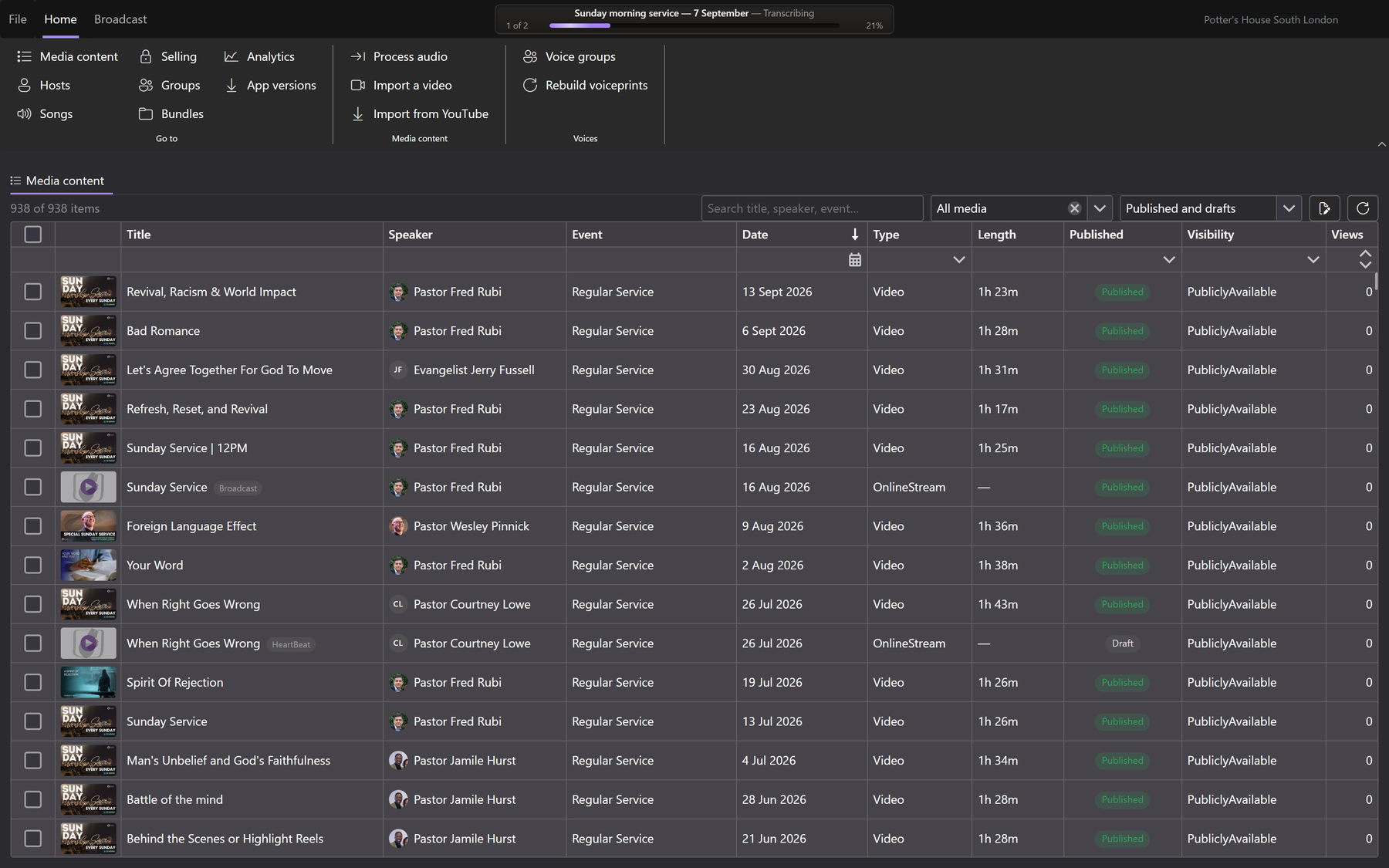
- Home → Go to
- The screens: Media content, Hosts, Songs, Selling, Groups, Bundles, Analytics and App versions. Beside them, Process audio, Import a video and Import from YouTube bring recordings in, and Voices holds the voice groups.
- Broadcast
- Go live, Record now, Now broadcasting, Schedule, the Recordings kept on this computer, and the Fleet.
- Media content tab
- Appears while the media content list is in front and carries the commands for whatever is ticked. See Managing & publishing media content.
- Ques editor tab
- Appears while a recording's ques editor is open. See Slides, music & alignment.
- Help
- The small ? beside a screen's name on its tab opens that screen's guide in your browser. Point at it to see which guide; where a screen has more than one, pressing it lists them. F1 opens the first guide for the screen in front, and each File menu page has its own ? beside its heading. The guides open already showing your own organisation's details.
- File menu
- Account (sign out), Storage, Sound, Processing tools, Processing, Jobs, Updates, About, Licences and Close.
You only see the screens and buttons your Studio user is allowed to use. A Recorder, for example, opens straight onto Recordings. See Studio users & permissions.
The jobs display
Long work (transcribing, finding music, importing) runs in the background as jobs. The display in the middle of the header shows what's running and how far it has got. With nothing running it shows the Heartisan wordmark. Press it, or use File → Jobs, to open the jobs list from anywhere:
- Each job shows what it is, which step it has reached, how far through it is and how long it has been going.
- A job that failed says so, with the reason. Choose a job to see what it has been doing, line by line.
- Stop a job from here; it says Stopping… until it actually has. Clear finished rows away.
- Jobs keep running after the screen that started them is closed.
What it does, step by step
Bring a recording in and Heartisan Studio runs the jobs you'd otherwise do by hand. Each step happens locally:
- Ingest — record the desk feed directly, go live with sound or video, import an audio or video file, or import a finished YouTube live stream.
- Transcription — speech-to-text across the whole recording, producing a timed transcript you can search, correct and publish.
- Diarization — separates the audio into distinct speakers (who spoke, and when), so a long panel becomes a navigable, attributed transcript.
- Host matching — matches each detected voice to your hosts, so "Speaker 1" becomes a real name, and it gets better as it learns your regulars.
- Descriptions — writes a designed description page from the transcript, illustrated from your slides, the video itself or pictures drawn on your own machine.
- Slides — where a live event was captured from ProPresenter, lines the slides up with the recording so they appear in the app's transcript, and names the music from what was on screen. See Slides, music & alignment.
- Categories & tags — suggests categories from what was actually said, keeping a large library consistently organised.
- Music — finds the songs in a recording and cuts each into a clip of its own, linked back to the recording. Showing them to members is optional. See Music clips & songs.
- Translation & dubbing — writes the transcript in other languages, and can produce a spoken track in a voice cloned from the person who gave the talk. See Translating & dubbing.
- Encoding — generates the stream files your app plays, locally, from your master, on every graphics card the computer has.
- Publish — pushes the finished media content to your apps, member web app and website embeds.
Your machine, your storage, your data
Most "AI content" tools take your recordings onto their servers, process them there and charge per minute. Heartisan Studio does the opposite: the models run on your own computer, against files on your own storage.
- Processing is local. Large master files never crawl up a slow upload to a third party.
- No per-minute AI bill. Transcription, diarization and description drafting run on hardware you already own.
- Nothing to hand over. Sensitive or unreleased recordings are never sent anywhere to be "analysed".
- Your library is just files. Your media content is ordinary files in a folder you choose. See Storage, NAS & sync.
- Publishing is the only network step, and only the finished item you choose goes out.
It keeps working offline
Once it has signed in the first time, Heartisan Studio doesn't need a connection to do its job. Record, import, transcribe, edit and encode with the network unplugged. Changes are saved on the computer and reach the app on the next sync, and the screens say so rather than claiming a success they didn't have. It can also run in the background from the icon by the clock and install its own updates when the computer is idle: see Running in the background, updates & working offline.
On a booth computer it can also send ProPresenter to Heartisan, and be controlled from the office or a phone through Devices.
The essentials
- Platform
- Windows 10 or later (64-bit) and Apple-silicon Macs (macOS 12 or later). Self-updating, and never during a broadcast.
- Where the AI runs
- On your own computer. Several computers, Macs included, can share the work; see the processing fleet.
- Graphics cards
- NVIDIA, AMD and Intel, built-in and dedicated. An import's streams are shared across every card at once, and cut at identical moments whichever card made them, so playback stays smooth when the player changes quality.
- Signing in
- Your church id once, then a Studio user. You stay signed in, offline too, until you sign out.
- Version on screen
- Shown at the top of the window. Quote it when you report a problem.
- Licences
- File → Licences lists the software from other people that Heartisan Studio includes, with every licence in full, readable with no internet.