

The bottom navigation bar
On a phone the app can show a row of two to five buttons along the bottom, each opening a page in one tap. You choose the starting buttons for everyone; each member can swap them for their own. Changes reach phones the next time the app syncs, with no app update.
Choosing the buttons
- Open Your app → Navigation bar in the portal (owners).
- Pick a page for each of up to five buttons, in order from left to right. The preview beside them shows the bar. Choose at least two.
- Press Save.
- Until you choose, the four buttons are Home, Give, Media and Events. Give only appears where Giving is switched on. Use the standard four puts these back.
- The switch at the top turns the bar off for everyone. It then also disappears from members' Settings.
- Any page in the app's main menu can be a button, including your own collection menus (with the names you gave them) and Media (all media content), which the menu itself doesn't list. Pages use your own words from Terminology, so Events, Groups or Music read as you call them. Admin can't be a button.
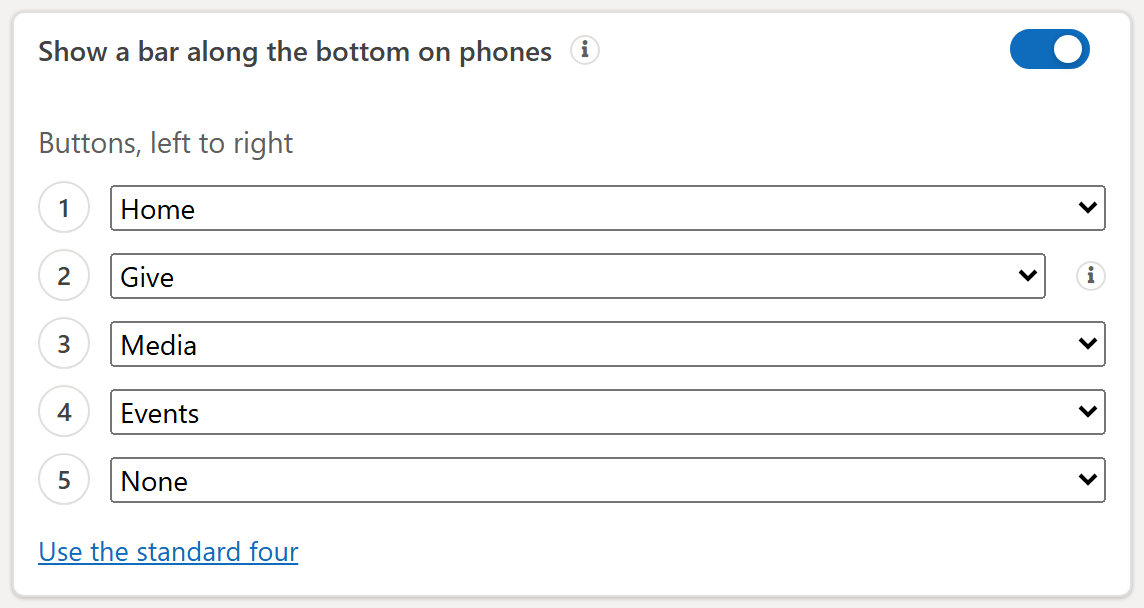
What members see
A member's Settings → Bottom bar has Show the bar on my phone and Use <your app's name> buttons. The second is on to start with: members follow your buttons, so every existing member gets whatever you set. A member who switches it off can choose their own five from a list, and switching it back on returns them to yours. Their choice is kept on their own phone. See Your account & app settings.
What is left out of someone's bar
A page a member can't see is left out of their bar instead of being shown as a dead button: Give when Giving is off, My rota for someone on no team, Music when it is off, Clips when it is off for that member, and so on. If too few buttons remain, the standard four stand in, and if even those leave fewer than two, no bar is drawn.
Where it shows
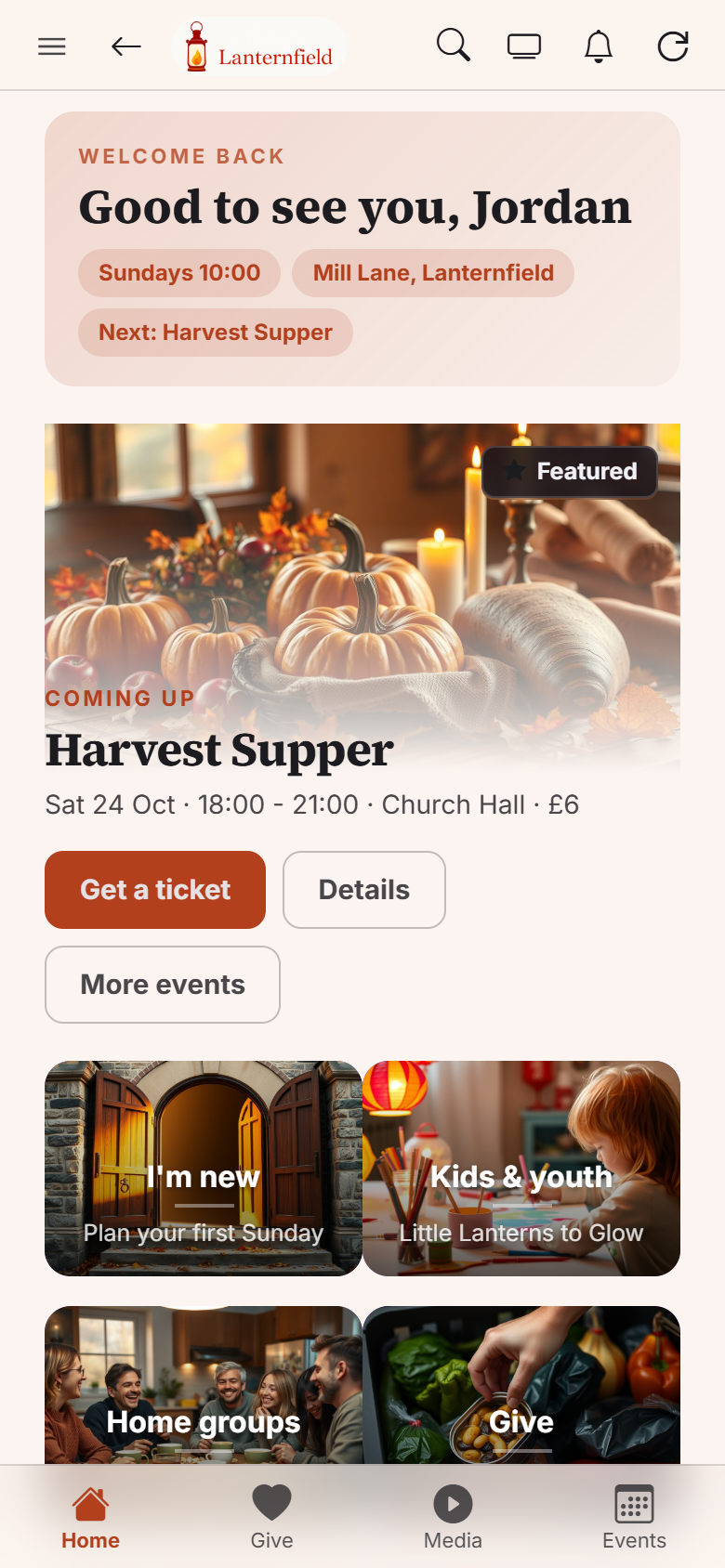
- Phones only: the bar appears when the screen is narrower than 768 pixels. Tablets, computers and landscape phones keep the menu button and side menu.
- It steps aside on sign-in screens, while the side menu is open and while the keyboard is up, and the mini player sits on top of it.
- Members need the current version of the app to see it. Your choice of buttons needs no new build.