

Giving, funds & statements
Giving runs through your own payment account, so money goes directly to you. Members can give once or set up regular giving, from the app, from your website, or from a link you share.

The Giving page
Giving in the portal pulls it together. At the top, two controls:
- Show Give in the app switches the Give section on or off for your members.
- Copy public Give link copies the address of your giving page, to put in an email, a message or a printed slip. See how members give.
Four figures sit under it: This month, Year to date, Monthly givers (how many regular gifts are active) and Recurring / month (what they add up to). Beside the funds, This year by fund splits the year's total by fund, and Monthly givers lists each regular giver with the monthly amount and whether it is Active or Cancelled.
Donations, Gift Aid and gifts you record yourself
The Donations list shows every gift with its Date, Donor, Fund, Amount, Method, Type (one-off or regular) and whether Gift Aid was declared. Set From and To dates and press Apply to look at a period.
Gift Aid CSV
Gift Aid CSV downloads the Gift Aid gifts in the period you have chosen, one row per gift with First name, Last name, Home address, Postcode, Donation date and Amount: the columns a Gift Aid claim is built from. If there are none in that period it says so rather than giving you an empty file. See Gift Aid in Sign-ups and giving for what it adds up to.
Record manual gift
For gifts that arrived outside the app, such as a bank transfer, cash in the plate or a cheque, press Record manual gift. It is saved as a completed donation, so every total, statement and Gift Aid claim stays right.
- Enter the date and amount.
- Choose the method (Bank transfer, Cash or Other) and the fund; leave the fund blank for General.
- Choose the donor: search People and press Pick (Change to pick someone else), or type a name and email.
- If the donor has signed a Gift Aid declaration, switch on Gift Aid declared and fill in their first and last name, address and postcode. That is what appears in the Gift Aid CSV.
- Press Record gift.
Gifts taken through Zeffy are recorded for you: see Taking gifts and tickets through Zeffy.
Funds
A fund is something people can give towards — General, Building, Missions, and so on. Manage them in the Funds box on Giving. Gifts that name no fund go to General.
- Add fund adds a row. Type its name and press the save icon. Rename a fund the same way.
- Untick Active (the tick box beside the name) and save when a campaign ends: existing records are kept, but nobody can give to it any more.
- The bullseye icon opens the fund's thank-you message and goal (below). The bin deletes the fund.
A thank-you message for each fund
The page a person lands on after giving can say thank you in your own words. On Giving, the bullseye button beside a fund opens its Thank-you message, and Default thank-you message above the funds is shown for any fund that hasn't got one of its own. Leave both empty for the standard “Thank you” wording.
- Write it as normal formatted text. Put
{name}(the giver's first name),{amount}(what they gave) and{fund}(the fund's name) where you want them, for example “Thank you {name}! Your gift of {amount} to {fund} makes a real difference.” - Only plain formatting is kept (bold, lists, links); scripts and anything unsafe are removed before it is shown.

Fundraising goals
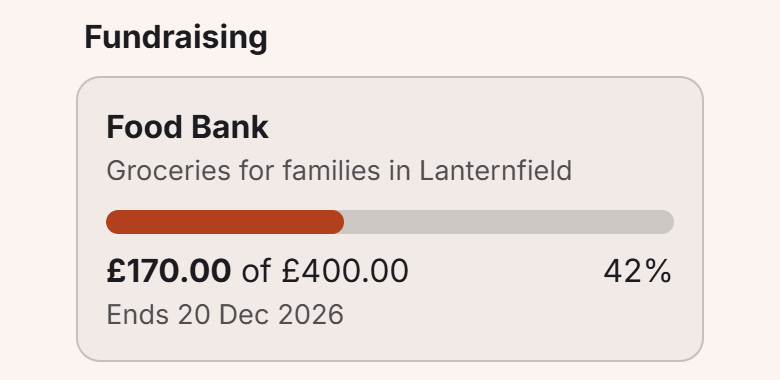
A fund can have a fundraising goal: an amount, and optionally a date to start counting from and a date it ends. After giving, the person sees a progress bar that already includes their own gift. It adds up every completed gift to that fund in those dates, including gifts you record by hand.
- Goal
- Leave the amount at 0 for no goal. A fund with no goal and no message behaves exactly as before.
- Counts gifts from / Ends
- Both optional. After the end date gifts are still taken; the bar just says the goal has ended.
- Show the progress bar on the thank-you page
- On by default once there is a goal.
- Also show it on the giving page and in the app's Give section
- Off by default. On, people see how far the goal has got before they give, on the giving page and under Give → Fundraising in the app. Older app versions don't show that section.

Pledges: promising an amount to a fund
For a building fund or a giving campaign, people can pledge: promise a total and give it over time. A pledge is a promise only. Nothing is charged, and it fills up by itself as that person gives to the fund, so there is nothing to reconcile.
- On Giving → Funds, press the bullseye beside the fund and tick Let people pledge to this fund. Save. (A fundraising goal on the same fund shows the campaign's progress beside the pledge button.)
- Share the giving page, or point people to Give in the app. On that fund they now see Give now and Make a pledge.
- Making a pledge asks for the total, how they'll give it (monthly, weekly, yearly, in one gift, or as they're able) and by when, and shows what that comes to each time ("about £50 a month"). Afterwards they're offered Give £50 now, which opens the form for the first instalment.
The Pledges list appears above Donations once any fund takes pledges: who, which fund, the amount pledged, given so far, the due date, and the state.
- Active
- Still being given.
- Kept
- The whole total has been given.
- Behind
- The due date has passed with something still to give.
- Cancelled
- Withdrawn.

Add pledge enters one for someone, such as a card handed in on a pledge Sunday: choose the fund and total, then search for the person (they need an email address on their record, so their gifts can be matched) or type a name and email. Untick Email them a note to add it quietly. Pledges can also be cancelled, deleted, and downloaded as a CSV.
Letting givers cover the card fee
The giving page can offer a tick box: Add £0.36 to cover the card fee, so the full £10 reaches you. The extra is worked out so that, after the card company takes its cut of the whole payment, the gift arrives whole.
- On Giving, in the Funds box, open Card fees.
- Switch on Offer "add the card fee" on the giving page.
- Enter your card rates: a percentage plus a fixed amount, as on your payment provider's pricing page. A worked example shows what a giver would see.
- Press Save.

- The giver sees the exact figure before paying, and the button shows the total. On the payment page and the receipt, the gift and the fee are two lines.
- The fee is never counted as part of the gift. Gift Aid, statements, goals and fund totals all use the gift alone. In Donations, a covered fee shows as "+ £0.36 fee" under the amount.
- A monthly gift adds the fee each month. Sign-ups and giving' "after fees" figures take it into account.
- The rates are shared with the fee estimate on Sign-ups and giving, so changing one changes the other.
When a monthly gift's card is declined
When a monthly gift can't be taken (usually an expired card), it is marked Payment failed beside the giver in the monthly givers list, and a Payment failed tile at the top of the Giving page shows how many gifts and how much a month are at risk. The giver is emailed once at the first failure, and once more if the payment provider gives up, with a link to pay now or change the card.
- The payment provider keeps trying for a few days by itself. The gift goes back to Active as soon as a payment lands, and to Cancelled if it gives up. How many tries, over how long, is set in your own Stripe dashboard (Billing → Revenue recovery).
- Failing gifts aren't counted in Monthly givers until they recover.
- In the app, the giver sees Payment failed on the gift, with a line telling them to check their email.
What the giving page looks like
The page people give on looks like your organisation, with nothing more to set up: your wide logo at the top (the square one if there is no wide one), your colours, and your fonts and text sizes, all from Branding. The dark version follows the visitor's device if you have set dark colours. The thank-you page looks the same.
- Members are already known. Signed in to the app or the member website, the page says Giving as <name> <email> instead of asking, and for Gift Aid Gift Aid will be claimed for <name>, <address>, <postcode>, taken from their profile. Change opens the fields, filled in. A member with no address on their profile is asked for it when they tick Gift Aid and can add it under Account for next time; the giving page never changes their profile.
- Visitors are remembered on their own device. Someone who has given before gets their details back (“Welcome back”), with Not you? Clear them, and can untick Remember my details on this device. They are kept in that browser only, so they don't follow a person to another device, and a returning guest's Gift Aid box comes back ticked with the declaration in view, so they confirm it as they give.
- Any amount. Beside the quick amounts there is an Other button for any amount from 1 up to 100,000. The last amount, one-off or monthly choice and fund are remembered on that device.
How members give
- In the app — the Give section opens a secure payment page, pre-filled if they're signed in.
- On your website — embed a Give button on any page. Embedding →
- By link — share your giving page directly.
Signed-in members can also set up regular monthly giving, and see their own giving history in the app.
Giving statements
Generate giving statements from the Giving page for a chosen period — for year end, or for anyone who asks for a record of what they've given. Where Gift Aid applies, it's included.
- Under Statements, press This year or Last year, or set your own From and To dates.
- Press Generate. Each donor is listed with their Gifts, Gift Aid and Total. A period with no giving says so.
- Then, for the whole list: Download CSV, or Email N donors to send each of them their own statement (it reports how many were sent, failed or skipped for having no email address, and needs email set up). For one donor, Print opens their statement ready to print.
Automating thank-yous
Use a Flow to acknowledge giving — for example, a thank-you email, or a task for someone to follow up personally with first-time givers.
Advice
- Test with test payment keys before going live, and check the money lands.
- Put the Give button somewhere obvious on your website — not buried in a menu.
- Encourage regular giving. It's far more predictable than one-off gifts.
- Say what the fund is for. People give more readily to something specific.