

Music in the app
Music is a library of the songs and performances your organisation has clipped out of its recordings: each song with every time it has been performed. Each clip is a short recording of its own, and it still links back to the full recording it was cut from. Music is optional, so it only appears if your organisation has switched it on for you, and it may be called something else.
Who sees Music
Music is off until your organisation chooses who sees it. They can offer it to everyone, or try it with their own team first, so you may not see it even when a colleague does. Nothing is wrong with your app. When it is on, Music appears in the menu, with a page, search results, song suggestions and a Music from this recording link in the player for recordings that have music cut from them. When it is off, none of those appear, and a link to a clip somebody sent you still opens.
Your organisation may also have given the section its own name, such as Songs, Sessions or Worship. That name replaces "Music" in the menu, the page heading, search results and the player. Everything below applies whatever it is called. If you are one of the team and cannot see it, see Who sees Music for what staff access needs.
Finding a song
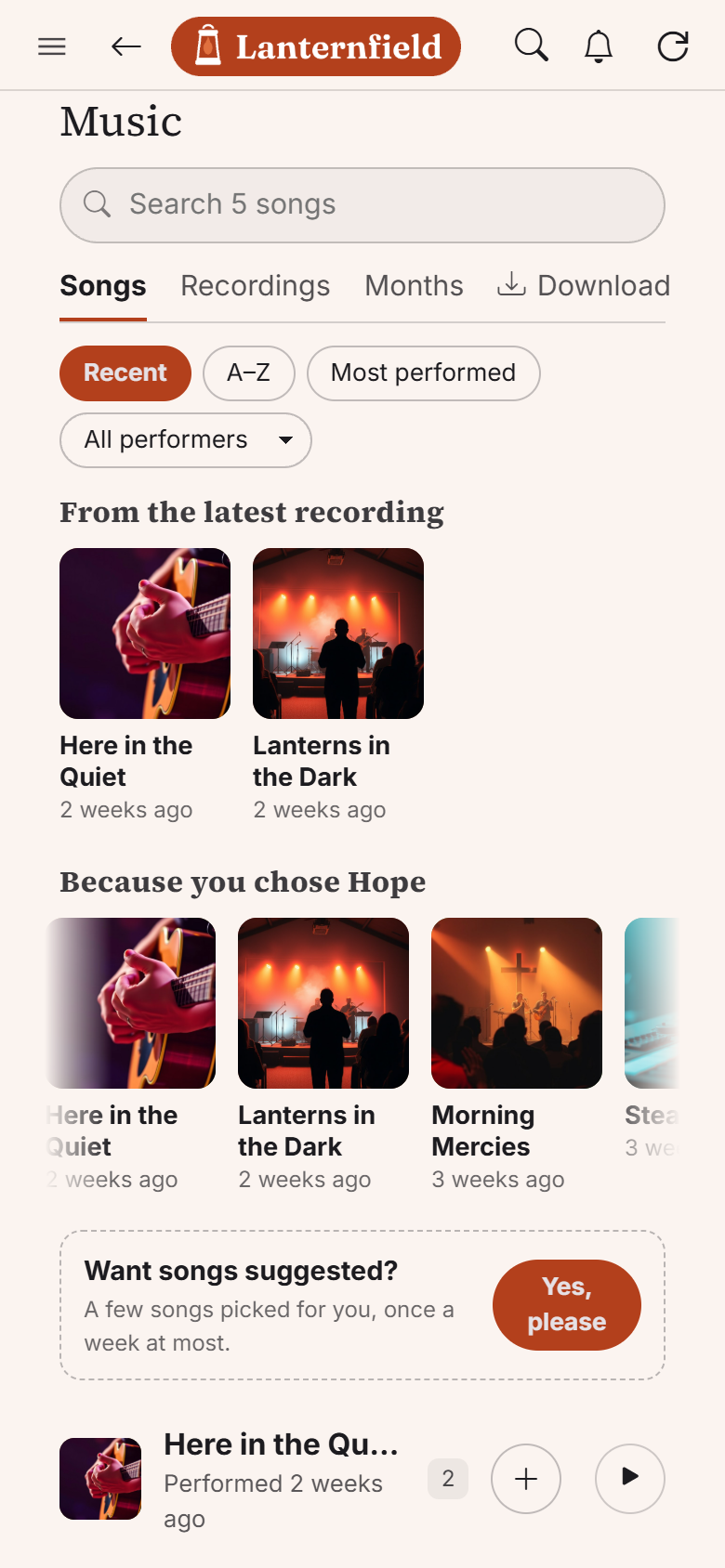
Open Music. It opens on the Songs tab.
- Search songs at the top filters by name as you type, ignoring capitals and matching anywhere in the name, so "grace" finds "Amazing Grace (My Chains Are Gone)". The ✕ clears it.
- Reorder the list with the chips: Recent (most recently performed first, the default), A–Z, Most performed (the songs performed most often), and Loved (the most-saved songs, once any song has enough saves).
- All performers narrows the list to the songs one person was heard performing. It only appears when more than one person is credited.
- With a big library, a Recently performed row appears above the list (from 15 songs), and with A–Z chosen, letter headings and a row of letters to jump with (from 40).
Playing
- Tap a song's row to play its most recent performance straight away, in the mini player. The rest of the list below it follows on, in the order the chips are set to, so Most performed then the top song plays the favourites in turn.
- Tap the › arrow to open the song's own page: every time it has been performed, newest first. Tap one to play that performance.
- + beside a song adds it to the end of your queue without interrupting what's playing.
- The small number on a row is how many times it has been performed (shown once it's more than one).
A whole recording's music

The Recordings tab groups music by the recording it came from, in the order it was performed, with the date and who was heard performing. ▶ Play all plays that recording's songs one after another. Tapping a song part-way down plays it and the songs after it. Watch the full recording plays the whole recording instead (and clears the queue, so songs lined up earlier don't start once it ends). The Months tab groups the same music by month.
What's coming up shows in the player's Queue; see The queue. A song queued is queued as a song: when it's reached, it plays the most recent performance of it.
A song's page
- Its cover shows the song's own lyrics drifting slowly up behind the title, over a still from the recording where there is one.
- Save, under the cover, adds it to your saved songs (tap again to unsave).
- How many times you have played it, beside how many times it has been performed.
- ♥ N: how many members have saved it, shown once five or more have. Below five, no number is shown, so nobody in a small group can work out who.
- The copyright line and licence number, beneath the lyrics and attachments, where your organisation has recorded them.
- Each performance names the recording it was cut from and links back to it, so you can watch what happened around it.
Saving the songs you love
Once you've saved a song, a ♥ Saved chip appears beside the sort chips. Tap it to show only your saved songs; search, sort and the performer filter still work on top. You need to be signed in: saved songs belong to your account and follow you to other devices. Saving works offline too, and is sent when you're next connected. Nobody can see which songs you've saved, only how many people saved each one.
Your listening
Signed in, a strip above the tabs shows Songs played (how many different songs), This year (time spent listening since 1 January) and Saved. It appears once you've played at least two different songs. A play counts after thirty seconds, or a quarter of the clip. These figures are yours alone: they're never shown to other members or to staff. If you cleared your listening history in your account settings, they start again from then.
Songs picked for you
Signed in, above the song list:
- From the latest recording
- The songs from the most recent recording. The same for everyone.
- Songs picked for you
- Headed with the reason: "because you chose Grace" when you picked that interest, or "because you keep coming back to Grace" when it's worked out from what you play. Songs you've already played aren't offered again.
- Something different
- Themes that come up often that you haven't listened to yet.
They're hidden while you search or filter to ♥ Saved, when there's nothing to suggest, and when personalised suggestions is off in your account settings.
Being told about songs you might like
Under the suggestions, Want songs suggested? offers a notification naming up to three songs you haven't heard, once a week at most. Tap Yes, please. Nothing is sent if nothing new has been published, if you've played music in the last two days, or outside 8am–9pm. After three go unopened it stops, and the prompt comes back as "Still want songs suggested?". Turning personalised suggestions off stops these too. They are sent only while Music is offered to you.
A performer's songs
A host's page has a Songs section: the songs they were heard performing, most first, each with how many of its performances were theirs and when they last did, for example "Heard in 9 of 22 · last 23 Aug 2026". Tap a row to open the song.

Downloading music
At the end of the Songs / Services / Months row, Download queues every song the list is currently showing, including whatever you've searched or filtered it down to, up to 50 at a time. They download one after another as audio, and you can put the phone away. Follow them in Menu → Downloads; see Downloads. When Music isn't offered to you, downloads and saved queues are still there, under Downloads and queues in Settings.
Finding music in search
Search results have their own Songs and Music sections, so searching for a title finds the song itself as well as its performances. Search works offline too, over what's already on your device. When Music isn't offered to you, neither section appears.
In the car
Car mode lists Music in its library too, when it's offered to you, and plays it as audio. See Car mode.
Where this comes from
Nobody uploads these clips by hand. When a recording is processed, the music is found and each song is cut out and named from what was on the screen at the time, so the library builds itself as recordings are published. Each clip stays linked to the recording it was cut from. If a song is named oddly or filed under the wrong song, your media team can correct it.