

Music clips & songs in Heartisan Studio
The music in a recording can become a library of its own in the app: each song or performance cut out as a clip, grouped with every other time that song was performed, with a cover and themes, and still linked to the recording it came from. Heartisan Studio does the whole job, from finding the music in a recording to cutting the clips. Members then find them in the app's Music section.
1. Find the music in a recording
- Right-click a recording in the media content list and choose Review detected music….
- Press Find music (or Find music again). It asks two things:
- Shortest music to keep, in seconds (8 unless changed). A sting or a few bars under a prayer are dropped.
- Join music across gaps up to, in seconds (3). A quiet bridge doesn't split a song in two.
- It runs as a job. The screen stays usable, the jobs display shows its stage and percentage, and closing the tab doesn't stop it.
- When it's done, the regions appear on the timeline and in the list, named from the slides where there are any.
Refine each region with Start here, End here, Merge with next, Play region, Add here and Delete. Finding again keeps your names: each name stays on the region that still matches it; a region that no longer exists takes its name with it, and a new one starts blank.
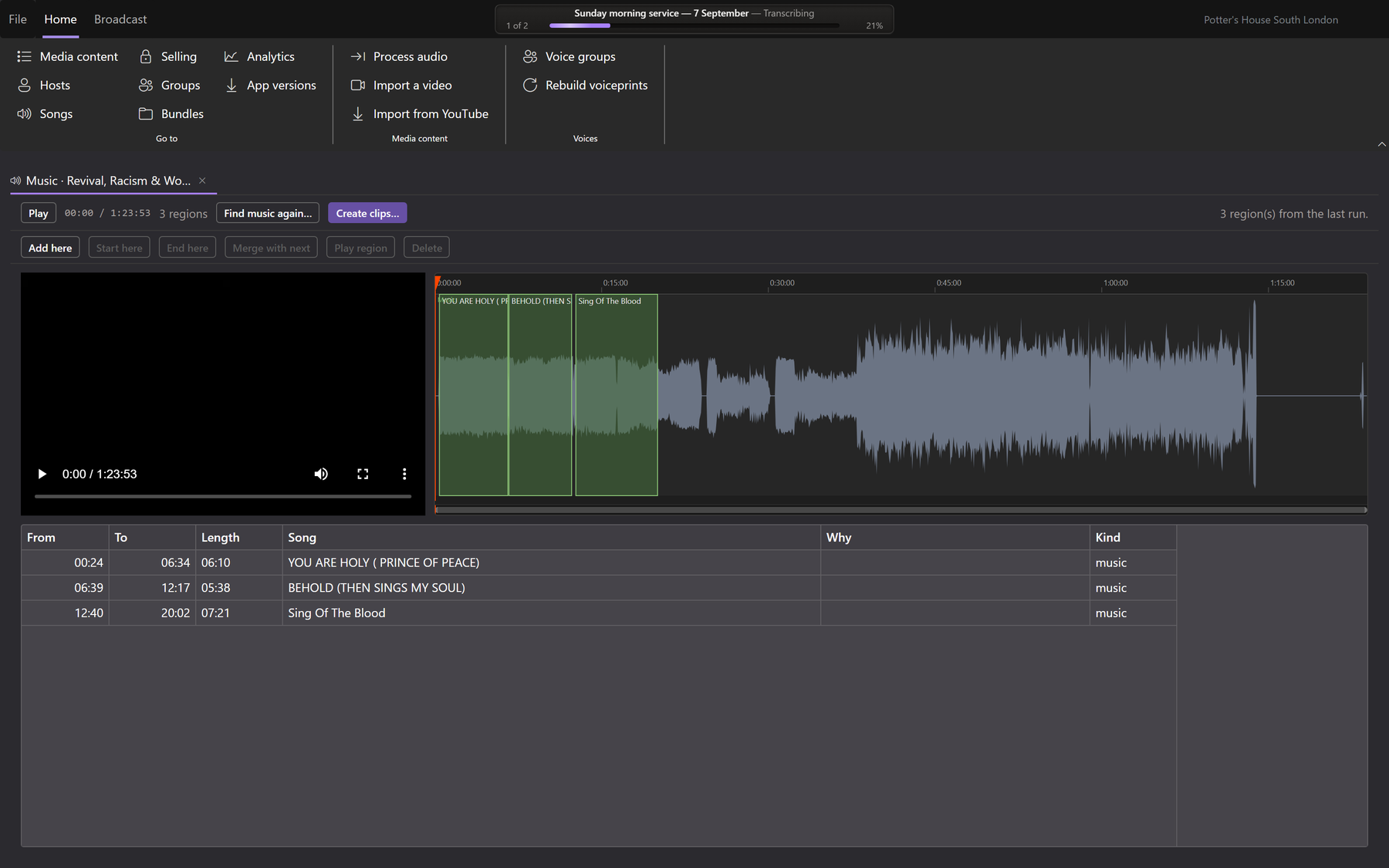
2. Cut the clips
Press Create clips. Before anything happens it says what it's about to do: how many clips, how many have names (the rest are named by ear where the app already knows the song, otherwise "recording — Music n"), and, if clips have been cut from this recording before, how many and how many of those are published.
- Delete the clips cut before and replace them
- Ticked by default, so cutting again after refining the regions gives one good set, not two.
- Captions and speakers for each clip
- The slow part.
- Publish each clip to the app
- As it's made.
- Take the music out of the recording itself
- Removes the songs from the full recording.
If your other computers can be reached, the cutting is handed to them, so this screen comes straight back and the clips appear as they're cut. Otherwise it cuts here, one clip at a time, naming each as it goes. Cutting stays on this computer when Take the music out of the recording is ticked. When it finishes it says how many were made and replaced, and the new clips are in the song library straight away.
Each clip credits the singer rather than the speaker, copies its ques, teaches the song gallery, and gets a song cover. Clips made during a YouTube import go through the same steps.
3. The song library
Home → Go to → Songs lists every song, with every clip of it. A song is the group of every time it was performed.

On a song
- Save song
- After changing its name or details.
- Merge into
- Two songs that are really one.
- Delete song
- Removes the grouping.
- Suggest themes with AI…
- See Themes. Works on several songs at once.
- Group clips by sound…
- Puts clips that sound like the same song together.
- Match ungrouped clips
- Tries to find a song for every clip that has none.
On a clip
- Put on a song…
- Moves a clip to a different song, for one that was matched wrongly. The change reaches the app. A clip that was named after the song it turned out not to be is renamed to the new song, so the player, page title and lock screen stop showing the old name; a clip someone typed a name for keeps it.
- Ungroup
- Takes the clip off its song.
- Make song covers…
- See Covers.
- Open its recording's music review
- Back to where the clip was cut.
- Open clip folder
- The files on disk.
Song covers
Every song has artwork of its own in the app, rather than the recording's poster repeated against every song from the same recording. Its own page shows the song's lyrics drifting slowly up behind the title. Where a clip has video, a still frame of the song being sung sits behind the words.
New clips get a cover when they're cut. For older ones, select clips and choose Make song covers…. Tick Upload them to Heartisan as they are made, or leave it unticked to make them here and send later with Re-upload files…. Five frames are taken from across the middle of the clip (never the first or last tenth, where the cut lands on a fade), and the brightest, busiest, most colourful one wins. If every frame is too dark, the song keeps its coloured tile. Audio-only clips are skipped, so it's safe to select broadly, and clips that already have a cover are skipped too.
Themes
Suggest themes with AI… works out what a song is about (for example Grace, Lament, Celebration or Home) from the words that were on screen while it was performed. Select several songs, or all of them, and run it once.
- The AI model loads once for the whole run, then each song takes a few seconds. It runs on this computer, offline.
- Each song is read from its slides, pooled across every performance and de-duplicated, so a chorus sung forty times is read once.
- One review list comes back, each suggested theme against its song, with brand-new categories marked. Nothing is written until you tick what to keep and confirm.
- Accepted themes go onto every performance of the song, because categories live on the clip. New categories are registered on Heartisan, so they can be browsed and picked as interests in the app.
Songs whose slides were never captured on this computer have nothing to read, and are listed at the end rather than guessed at. Themes feed the app's Something different suggestions.
What members get
Each clip carries the slides that were on screen and the words that were sung, taken from the recording it was cut from, so they arrive already lined up. It's credited to whoever was actually heard performing during that stretch, not the recording's speaker, and still links back to the recording. In the player, viewers can switch the transcript, slide text and slide images on and off, and music clips remember those choices separately from full recordings. See Music in the app.