

Going live from Heartisan Studio
Heartisan Studio can broadcast a service itself, from the computer in the sound booth. It records the desk feed losslessly to that computer and streams it to your app and website at the same time. The two are kept separate: if the internet drops mid-service, listeners stall and catch up, and the recording carries on without a gap. When the service ends, the same item your listeners heard becomes the recording they play back. Nothing to re-upload, and no link breaks.
Before the service
Where Go live starts
Broadcast → Go live opens on a start screen: the next broadcast in the diary with Get ready, then Go live now, Put one in the diary and Record only, what's coming up, and anything unfinished (a broadcast never stopped, a recording not sent) as a list with the same choices as before.
- Put one in the diary asks what is this broadcast for? and lists the calendar's events and the service plans for the next 14 days. Picking one fills the broadcast in, each value labelled with where it came from: title, time, description, picture and who can watch from the event, the host from the plan (whoever leads its longest segment that isn't a song), and the event's Go live template. Then put it in the diary, get ready, or change other details. An event and a service plan that start within half an hour of each other are one row, even if the plan was never linked to the event; leaving Also for the service plan ticked links them, and the broadcast, together (see an event and a plan at the same time).
- Get ready has the title, a sound (and picture) check, a list of checks — sound arriving, Heartisan reachable, where it's sent, ProPresenter linked, the service plan and any presentation missing from ProPresenter — and one big Go live. From a diary entry, going live starts that entry. Start the service plan when I go live is there, off to begin with.
- Go live now goes to Get ready with a Template beside the title: choose one and everything else is filled in from it. Templates are set up under Broadcast → Templates; see Broadcast templates.
- The whole form is behind More details on Get ready; the sections below describe it.
- Diary and Templates at the top of Go live open those screens.

Choose the input
In the form, the Going live tab starts with Broadcast: Run on (this computer, or another Studio computer) and Sends (Sound only, or Sound and video, see Going live with video). Under Sound, pick the Input: the audio interface carrying the desk feed.
- The input you chose is remembered next time. If it has gone (unplugged, say), it's left unchosen rather than swapped for whatever the computer lists first.
- Plugged an interface in after opening Heartisan Studio? Press Refresh beside the list. It says what appeared and what has gone.
- The Input line shows what the device is actually sending, for example "44100 Hz, mono". That's the first question to ask about any sound problem.
- Choosing the computer's own microphone gives a warning: it picks up the room, is usually mono, and the operating system processes it in ways that sound thin or crackly. Use the desk feed through an audio interface for anything you're keeping.
Check the sound: the Preview tab
Go live → Preview, then Start preview, opens the input (and the camera, on a video broadcast) and shows what's arriving: a waveform, the level and a clipping warning, or a plain "no sound is reaching this computer" if nothing is. Nothing is recorded, uploaded or announced.
- Listen plays it through the computer's speakers or headphones, so a hum, a distorted feed or a dead channel can be heard. It's off until you ask, because a computer with no headphones will feed back into the room.
- The preview stops by itself as soon as you go live. Once a broadcast is running, the tab shows what is actually going out.
Sound in one ear
A mono desk feed plugged into one side of a stereo interface arrives on the left channel only, so it's heard in one ear: by you, and by everyone listening. After about five seconds of real sound, the sound check and the on-air board's Sound tile say what the two channels turned out to be: Stereo, Mono — both sides carry the same sound, or Mono — sound on the left channel only (or the right). Room noise and a few seconds of music panned to one side don't count.
The drop-down beside that line chooses what happens, and this computer remembers it:
- Automatic
- The default. A one-sided feed is sent to both ears; stereo, and mono already on both sides, are left as they are. The line says what's being done, in amber while one ear is still missing out.
- As received
- Nothing is changed.
- Left channel to both ears / Right channel to both ears
- Always use that side.
- Mix to mono
- Both channels mixed into one, in both ears.
It changes the stream listeners hear and what you hear with Listen. The recording keeps what arrived, exactly as received. A single microphone on one input shows as "sound on the left channel only", and is sent to both ears. The portal shows this computer's verdict on its on-air board, but the route is changed here.
A recording that's already one-sided can be put right afterwards: see Fixing sound that is in one ear.
Get the level right
The meter warns when the level has no room left above it, not only once it has clipped, so you can turn it down before the loudest part of the service. An input driven too hard distorts on the loud parts, and that distortion is in the recording, the stream and the archive for good. It sounds like crackling that gets worse as it gets louder.
On a Mac, Input volume beside the meter is the same setting as System Settings → Sound → Input. macOS keeps one input volume, normally for the device you've chosen but not guaranteed to be, and the page says so. Windows has no single input level to move, so on Windows turn the gain down on the desk or the interface.
Fill in the broadcast
The Go live form has three tabs:
- What it is
- Title, host, event, categories, description (or a designed description), and the cover and background pictures. The picker at the top fills the whole page from a template or a previous broadcast.
- Going live
- The input and sound, Record to this computer, whether it streams and at what Quality (changeable while live), Telling people, When it ends, and which ProPresenter to take slides from.
- Exclusivity
- No charge, a One-off price point, a Subscription plan, Restrict to Group, and Visible in the app. See what "No charge" means.
- Linked event: pick the service from your calendar, or tick Work it out from the date and time. The tick box shows what it's going to link before anything starts. It handles repeating events, and a broadcast started up to 45 minutes early or part-way through still matches. Use the event's picture as the cover saves finding the artwork again.
- ProPresenter is only offered when your church has more than one. Leave it to take slides from every machine, or pick one so an overflow room's slides aren't mixed in.
- Tell everyone when this starts is on by default and sends the go-live notification once per broadcast (never again on a resume). Each member chooses how they hear it; see Listening live.
Putting it in the diary first
Put one in the diary, on the start screen or on Broadcast → Diary, fills one in from an event or a plan, or Something else — start blank opens the form with Starts and Put it in the diary at the top. The item is created straight away, so it appears in the app with its day and time, can be shared, and counts down for anyone who opens it. It starts playing on its own for them when you go live. A title and a start time are needed. The Diary screen lists everything booked, and service plans and calendar events can fill it by themselves. See Broadcast templates & the diary.
During the service
Press Go live, and Go live turns into the on-air screen. A red bar across the top shows ON AIR (or RECORDING for a record-only session), the time and the title, with Stop and Stop broadcasting, keep recording, which takes the service off the internet without losing the recording. The form is put away; Edit details brings it back. An On air indicator also sits on the ribbon on every screen; click it, or use Broadcast → Now broadcasting, to come back here.
- Sound: the waveform (more of the service fits as the window gets wider), the level now, the loudest moment so far, and a warning if the feed is too hot.
- Recording and Broadcast are reported separately, because they can fail separately. The recording is the one that matters. Broadcast also shows how many are listening.
- Picture on a video broadcast, and Destinations when it's being sent on.
- Choose another Studio computer under Run on while it's broadcasting and you get the same screen for that computer, drawn from what it reports, with Stop on <computer>.
Live slides: the room and the app
While the broadcast streams and ProPresenter is sending slides, Slides is first on the board: In the room now beside In the app now, the same slide the church's delay later. Hold slides stops new slides reaching the app (the room carries on), Hide this one from the app takes the slide on screen off phones and the recording, Send as a message sends its words to listeners, and App delay changes the church's delay for everybody. The rest of the presentation runs along the bottom. It shows what Heartisan is sending the app, whichever computer is linked to ProPresenter, and never changes what ProPresenter shows. See Live slides for each control.
The running order
When a service plan is on today, the running order sits down the left of the on-air screen: each segment with its time, who's leading it, ticks for what's done and NOW on the current one, with its notes underneath. The top says whether the service is on time, ahead or behind, and how the plan is being moved on: following ProPresenter, following the running order's times, or set by hand by someone.
- Start the service starts the plan. Going live and starting the service are separate on purpose, so walk-in music can be on air first.
- Next and ‹ move one segment on or back; click a segment to jump to it. A bell marks a segment that tells people when it starts.
- follow ProPresenter now hands it back after a move by hand. End the service… asks first, and the broadcast and recording carry on.
- Moving the plan needs the Run the service plan permission (Operators and Administrators have it). Without it the running order is shown but not moved.
- The app, the portal and Heartisan Studio share one place in the plan, so a move in any of them shows in all of them.
Stop while the plan is still running asks whether to End the service as well, ticked to begin with.
Studio never sends anything to ProPresenter. A song or presentation that isn't in ProPresenter yet only gets a warning, so someone can add it there.
Looking at the plan ahead: Service plans
Broadcast → Service plans (or Service plans at the top of Go live) lists the plans for the next fortnight. Pick one to see its service plan: times, who's leading each part, the songs and presentations, and a segment's notes beside it. A Booth check at the top lists anything that isn't in ProPresenter yet. The screen only reads; plans are written in the portal or the app.

Changing the input mid-service
Started on the laptop's own microphone, or on a desk feed nobody had switched on? While broadcasting, a Capturing from picker appears on Go live under the input readings, with Refresh for an interface plugged in after the service began. Choose the right one: listeners hear a second or two of silence while the old device closes and the new one opens, and the broadcast carries on. Nobody's player closes, the item stays live, and the recording continues and is stitched back into one at the end.
- If the new input can't be opened, Studio goes back to the one that was working and says so.
- The new input is remembered for next week, and every screen watching the broadcast updates to name it.
- From the portal, Change input on Go live does the same. The camera can be changed too: see Changing the camera.
Changing the mix while it's on air
When a broadcast is on air with a channel mix, you can move the faders and put a different mix on air without stopping the stream or splitting the recording. A level, a pan or a channel switched in or out is heard within a fraction of a second.
- Moving the faders
- Under Sound from, press Mix faders…. A window opens that leaves the board behind it usable. Each channel of the mix is a row: the switch puts the channel in or out, Meter shows what is arriving, Volume and Pan move at once, and The mix at the foot shows the left and right of what the stream carries. Only the channels in the mix are listed; Show all N channels lists the rest of the hardware so one can be switched on. A channel you switch off stays in the list so it can be switched straight back on.
- Keeping the changes
- What you change is heard on the stream and in the recording but is not saved. Back to the saved levels puts the faders back; Save to this mix (saved mixes only) keeps them for next time.
- Going to another mix
- Choose it under Sound from. If it uses only hardware the mix on air already has open, it is on air at once: no silence, and the recording stays in one piece. If it needs hardware that is not open yet, a box says which, and warns that the sound from it arrives about a second late, may click at first, and that a misbehaving card can disturb the others. Switch now goes ahead; Keep this mix leaves things as they are. If the hardware will not open, nothing changes and the mix on air carries on, with the reason shown.
Sound warnings while live
- No sound is arriving
- Silence. Check the desk, the cable and the input.
- Clipping
- Too much is arriving and it's distorting. Turn the gain down.
- This computer dropped incoming audio
- The computer couldn't keep up with its own audio device. It's heard as clicking, and it damages the recording as well as the stream. Close other programs.
- Listeners lost audio
- Only the stream fell behind, usually the connection. The recording is complete.
Nobody needs to be watching this screen. Your live stream admins are sent a notification when the broadcast starts and ends, when it goes quiet or shows nothing, and when this computer loses contact. That last one is sent by Heartisan, so it still arrives if Studio itself has gone offline.
Messages to listeners
Messages to listeners sends a line to everybody listening: a welcome, the giving link, the name of the song. It's one way: listeners read them and can't reply. While a service is running the panel sits in a rail down the right of the window, with a toggle to put it back in the page.
- There's no switch to turn on: messages can always be sent, because mid-service is exactly when nobody has time to find a setting.
- The box is several lines tall and keeps line breaks. Enter sends; Shift+Enter starts a new line.
- Listeners see each one in the player with the sender's name, a verified tick and the time.
- Edit corrects a message without moving when it was said; you can also remove one. Either change reaches everyone already listening.
- Every message is kept with the recording and reappears at the second it was said, for 30 seconds. Write them as announcements rather than chat.
Correcting details on air
A wrong title or speaker can be fixed while you're live, with Save details on Go live, from Heartisan Studio on another computer, or from the portal. Everyone listening sees the correction within a couple of seconds. The live item and the finished recording are the same item, so it's corrected on both. A change made elsewhere appears on the broadcasting computer, which says so.
From another computer, the portal's Live now page can also stop the broadcast or change its quality. Revoking the broadcast's key there is the hardest stop: it takes the service off the internet immediately even if the booth computer can't be reached, and the recording carries on.
When it ends
After Stop, the When it ends choice decides what the finished item is built from:
- Send this computer's recording (recommended)
- The lossless copy, with no gaps even if the broadcast stuttered. Its waveform and true length come from it too. It has to upload: a few minutes on a long service, longer on a poor connection.
- Build it from the broadcast
- Heartisan assembles it from what listeners already heard. No upload, ready almost at once, but lower quality and missing any audio the broadcast dropped.
Either way, the item is playable within a minute or two of ending. The recording on the computer is never deleted, so you can send it later and it replaces the quicker copy with the better one. The same choice is offered if an upload fails.
Under the controls, up to three progress bars show how far it has got, each with a percentage and only when it applies: sending the recording up, Heartisan assembling the finished media content, and sending it on to the library. The portal's Go live page shows the same figures, so it can be watched from the office.
If the computer crashes mid-service
Next time Heartisan Studio opens, Go live offers every unfinished broadcast, each by name and start time, and the Broadcast screen says how many are outstanding. The audio already recorded is intact.
- A broadcast was left running: carry it on. It opens the broadcast screen, so the first thing you see is the waveform confirming sound is arriving again.
- A recording has not been uploaded yet: nothing goes back on air; this finishes sending it.
- Nothing ever resumes by itself. A crash ten seconds into a service and a broadcast abandoned a fortnight ago look the same to the software, and very different to a person.
Record now
Broadcast → Record now starts recording the moment it opens, on the input used last time. No title, no speaker, no network: for when something is already happening and every field would cost you the first minute. It shows the elapsed time large enough to read across a booth, a live waveform with the level and peak in dB, warns if no sound is arriving, and has one Stop. It's hidden while a broadcast is running, since one computer can only record one input. The recording lands in Recordings like any other, and goes up to Heartisan by itself as a draft for someone to review. See Recordings that upload themselves as drafts.
Every recording is lossless and written in five-minute pieces, so a crash or a power cut costs at most five minutes rather than the whole service. A recording made with the network down is an ordinary recording.
A recording made without streaming arrives in the app ready to play and scrub through once it's published, the same as a broadcast. If ProPresenter was capturing in the room, the slides come with it too, at the right minute, and it's filed under the day it was recorded, not the day it was sent. Nothing extra needs to be running while recording, and no network is needed.
Recordings on this computer
Every broadcast and recording keeps a full-quality copy on the computer that made it. Broadcast → Recordings lists them. For each one you can:
- Edit… it: cut parts out and add an intro or outro before it goes up. See Editing a recording.
- Send it to Heartisan, replacing what its item is built from.
- Add as new media content in its own right: title, host, event, and which ProPresenter was in the room (asked only when you have more than one; the choice is remembered).
- Export the recording as FLAC (an exact copy) or MP3.
- Delete it. That's permanent, and the screen says first whether Heartisan already has a copy.
- Add to the library, on a video broadcast that isn't in this computer's library yet: see Finished broadcasts into the library. Its line says Waiting to be added to the library, Being added to the library or In the library.
Clearing out old recordings
Clear old… removes recordings older than a number of days you choose, showing how many will go and how much space that frees before anything is deleted.
- Only recordings Heartisan already has are ever cleared. Anything not yet sent exists only on that computer, so it's kept however old it is, and named on screen with its size.
- Recordings Heartisan rebuilt from the broadcast are a separate tick, off by default.
- A file that's in use is reported by name, and the rest still go.
Many-channel inputs: Dante Virtual Soundcard and mixers
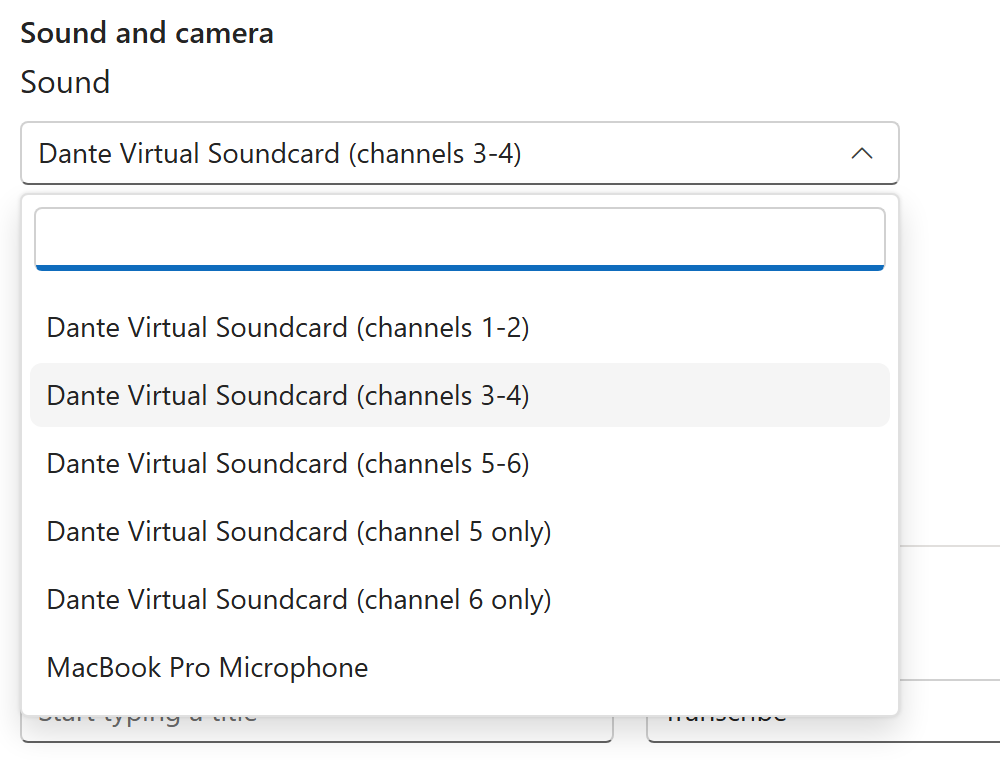
A sound input with more than two channels, such as a Dante Virtual Soundcard or a mixer that returns 16 channels over USB, is listed once for each stereo pair and once for each single channel, instead of as one input of which only the first two channels could be used. On Windows and Mac.
- A pair
- Dante Virtual Soundcard (channels 3-4) records or broadcasts Dante channels 3 and 4 as left and right.
- A single channel
- Dante Virtual Soundcard (channel 5 only) takes that one channel and sends it to both sides: a single microphone, or a mono mix.
- Where
- The same drop-down as before, on Go live → Sound input, Record now → Input and the sound check; and in Devices in the portal and the app, which choose by the same names. A microphone or a two-channel interface is listed exactly as it was.
- Channels are counted from 1, as on the device.
- With more than 16 channels, every pair is offered but only the first 16 single channels. An odd last channel is always offered on its own. For others, route the channel you want onto an earlier one in Dante Controller, or set the Dante Virtual Soundcard to fewer channels.
- A choice remembered under the device's plain name picks its first pair. If the device later has fewer channels than the one chosen, Studio says the input no longer has them and asks you to choose again.
- Dante itself still needs routing in Dante Controller. Studio hears only what is subscribed to the soundcard's receive channels, and the soundcard must be started before Studio lists its inputs.
Mixing channels into the stream
Pairs and single channels are fine when one microphone is all you need. When you want the pulpit and the choir from a Dante card and the band from a USB interface, build a channel mix: a small mixing desk inside Studio where you choose any channels from any of the many-channel inputs on the computer, give each a volume and a position between left and right, and save the result under a name. A saved mix is then an input like any other, and works the same on Windows and Mac. Studio does the mixing itself, so what you hear in the mixer is exactly what goes on air, and the sound check, the recording and the stream all use it.
Setting a mix up ahead of time
- Open File → Sound and find Channel mixes. It lists the mixes made on this computer, what each takes from, and a warning if an input isn't connected.
- Press New mix… (or Open… on an existing one).
- Tick the inputs to use under Inputs in this mix. Each shows its channels. The first input you tick sets the clock; the others are held in step with it by dropping or repeating a single sample now and then, which is inaudible.
- For each channel you want: switch it on, set Volume (−60 to +12 dB) and Pan (all left to all right; centre puts the channel on both sides equally), and give it a Name for your own reference (“Pulpit mic”). Meter shows what is arriving for every channel, switched on or not, so the sound can be found first.
- The mix at the foot shows the left and right of the result, and goes red when it is too loud. Listen to the mix plays it on this computer's speakers as you adjust (about a second to start; use headphones if the microphones are in the room).
- Give the mix a name and press Save. It appears in the Input list as “first input (mix: name)”. Reset volumes and pans zeros the faders.
The mixer opens roughly the width of the window. The hardware list on the left and the mix on the right are two panes with a bar between them: drag it if a device's name is long. A 2-channel input is one stereo strip, and the hardware list only shows what is in the mix (Add hardware brings in the rest, with a search box).
Using a mix
- On Go live, pick the mix like any other input. Adjust this mix… opens it with live meters to change a level or pan before going on air. Save keeps the change; Save as a new mix keeps the original beside it.
- A mix that needs an input which is unplugged won't start a broadcast, and says which one.
- If the first input stops while on air, the others carry on rather than stopping the recording.
- While it's on air, see changing the mix while it's on air.
On Windows
Many-channel inputs list their pairs (“channels 3-4”) and single channels exactly as on a Mac, and can be mixed. The number of channels is what the driver offers to ordinary programs: for a Dante Virtual Soundcard, the channels set in its own control panel for Windows audio. Channels reachable only through ASIO are not seen.
From another screen
Studio's Devices, the portal's Live → Live now → Studio computers and the app's Admin → Devices have a Sound and mixer tab for the chosen computer (see Devices & stream health). Pick a mix made earlier, or tick the inputs for a new one, and press Open the mixer: the same desk appears, with meters moving about twice a second. Changes go to the computer as you make them; Save, Delete and Listen to the mix work the same. A saved mix that uses other inputs opens them for you. Saved mixes can then be chosen as that computer's sound input (Use this one) or for a broadcast started from anywhere. Close the mixer (or leaving the screen) stops the metering, and it stops by itself shortly after nobody is looking. Only levels and, if asked, the listening sound leave the computer; nothing is recorded by the mixer. Remote screens follow the setting that turns sound previews off.
Sound settings
File → Sound is split in two:
- Recording
- FLAC (about a third of the size) or Record uncompressed (WAV) instead of FLAC. Both are lossless; WAV is the safer choice on a computer that struggles.
- What listeners get
- Four quality presets, from speech on low bandwidth up to best, or Choose my own bitrate, sample rate and mono/stereo. None of it touches the recording. Mono is the biggest saving there is, and free when the desk feed is mono anyway. Applied when a broadcast starts; quality can still change mid-service, but sample rate and channels can't.
- Channel mixes
- The mixes made on this computer, with New mix… and Open…. See Mixing channels into the stream.
- Capture (Windows only)
- An input buffer, a requested sample rate and channel count, and extra ffmpeg options. Leave them alone unless a recording is wrong. A Mac captures through CoreAudio, the same system Voice Memos uses, and doesn't have them.