

Importing a video file
Import a video brings in a recording that is a file on this computer. It does the same things Import from YouTube does: the right time on it, the day's slides matched to it, the start and end cut, and a link to the calendar event. This guide is about the first step, where you choose the files and check each one.
Choose the files and check each one
Press Choose videos… and pick one or more files. Each becomes its own item in the library. The file you choose is copied into Studio's media store; nothing is moved, changed or deleted. The files are listed in a table (name, recorded, calendar event, slides, clip), and the one you click opens in a panel beside it, asking in the order things depend on each other:
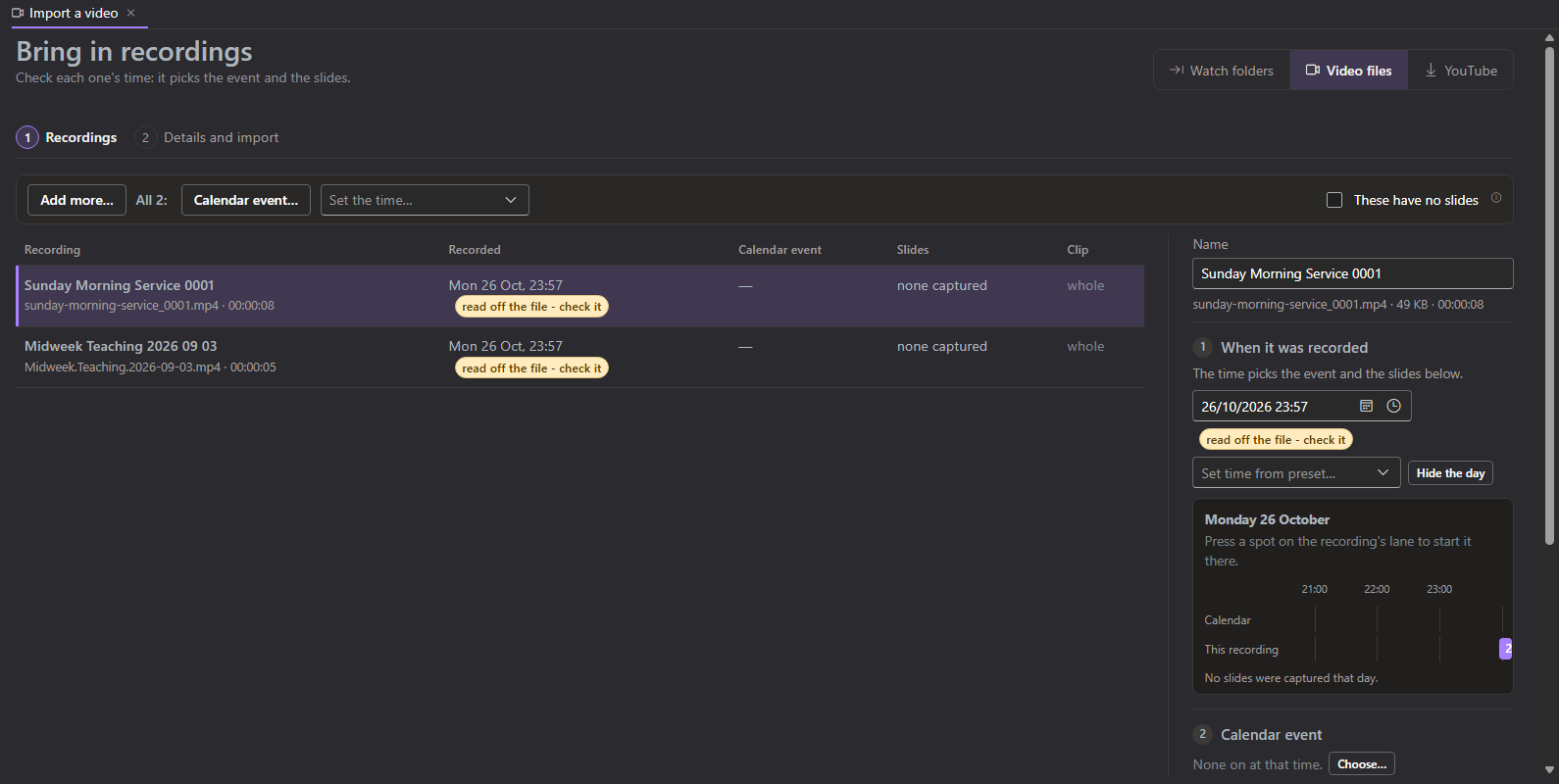
- The panel
- Drag the line between the table and the panel to make the panel wider or narrower; this computer remembers it, and double-clicking the line puts it back. Wide enough, the panel lays itself out in two columns. In a narrow window it moves under the table.
- Name
- Read off the file's name. Edit it at the top of the panel.
- 1 · When it was recorded
- The time the recording started, read off the file to begin with and marked read off the file - check it. It matters more than it looks: it picks the calendar event and the slides below. Type it, use Set time from preset… (your usual service times: the time of day changes, the date stays), or press Use it where the panel says The slides say 19:34.
- The day
- While the time is still the file's own, the day is drawn under it (Show the day / Hide the day): the calendar's events, a lane of ticks for each capture computer's slides, and the recording as a bar. Press a spot on the recording's lane to start it there, in five-minute steps. It is the quickest way to see that a recording belongs where the slides are.
- 2 · Calendar event
- Studio picks the event that was on at that time when there is exactly one. Choose… or Change… picks another. See linking to a calendar event.
- 3 · Slides
- As soon as a file is added, or its time changes, Studio looks for the ProPresenter capture computers that showed slides around that time, and lists them with how many: press one to bring its slides in, or No slides. The slides come in lined up against the time, and moved to fit any clip.
- 4 · Clip
- Edit clip… cuts the start and end (below). Remove from the list drops the file.
With several files, the bar above the table does it for all of them at once: Calendar event…, Set the time… (a preset) and Slides… (one capture computer, or (don't import); a file with no slides from that computer is left as it was, and named). Each can still be changed after. Then Next: details.
Videos with no slides
Studio picks a capture computer by itself whenever one showed slides around a file's time. For a video you know had none on screen (a wedding, a video from somewhere else), that would bring in slides from whatever else was on that day. Tick These have no slides at the right of the bar above the table and none are brought in for any file in the list, including ones added after the tick. Untick it and each file goes back to the computer it would have picked. For one file only, press No slides in its panel.
Details and import
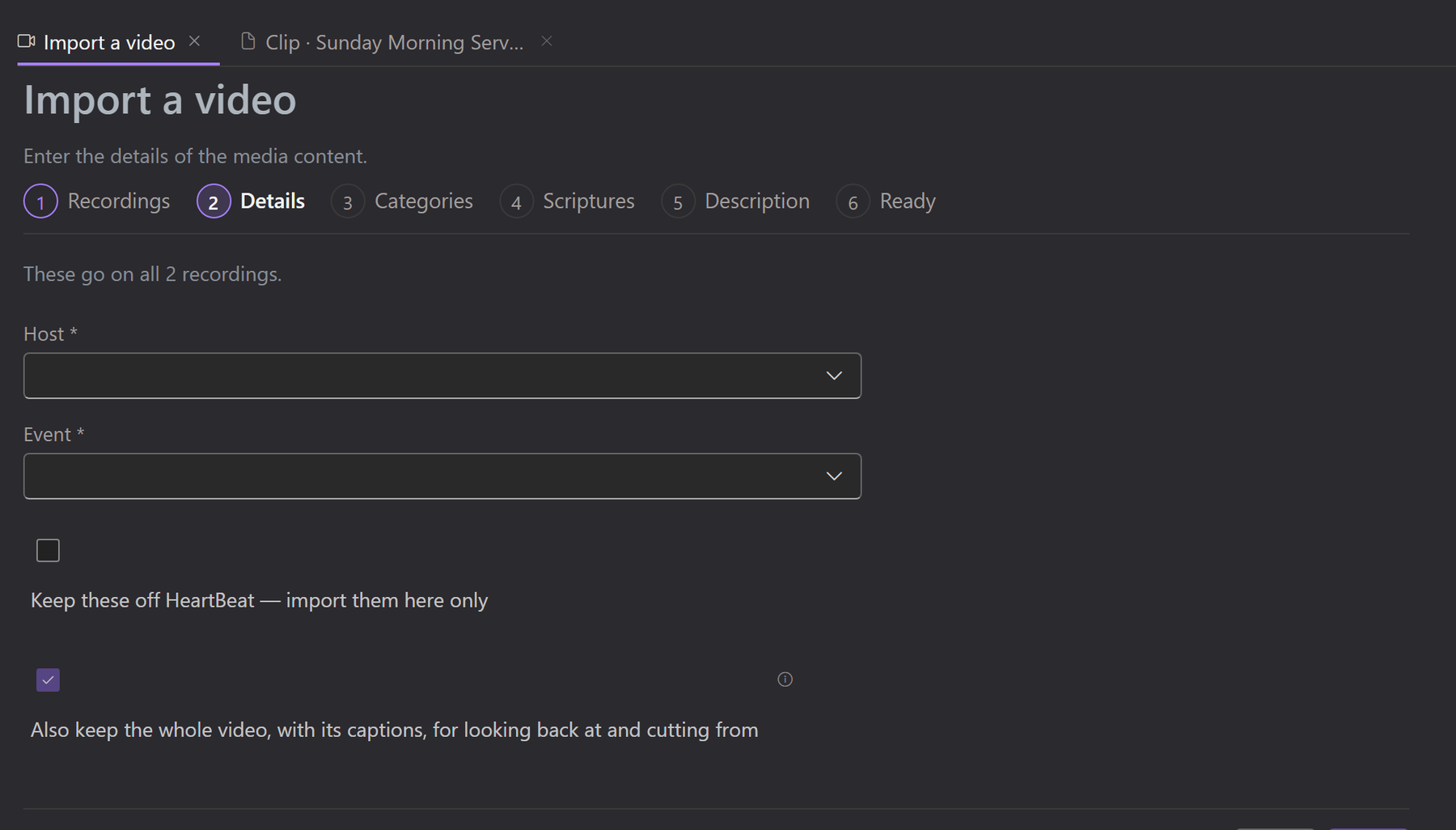
The second step is one page: Host and Service type (the kind of occasion, such as Sunday Gathering; the calendar event is per recording, on the first step), then categories, Bible passages, the description and Keep these off Heartisan. They go on every file. Beside them, What will happen says before anything runs whether this computer transcribes or hands it to the others, lists what is going in, and has the Import button.
Cut the start and end
A recording often has the room filling up before the service and the people leaving after it. Edit clip… in a file's panel opens the same editor used for recordings, on the file, as its own tab Clip · <name> beside the import list.
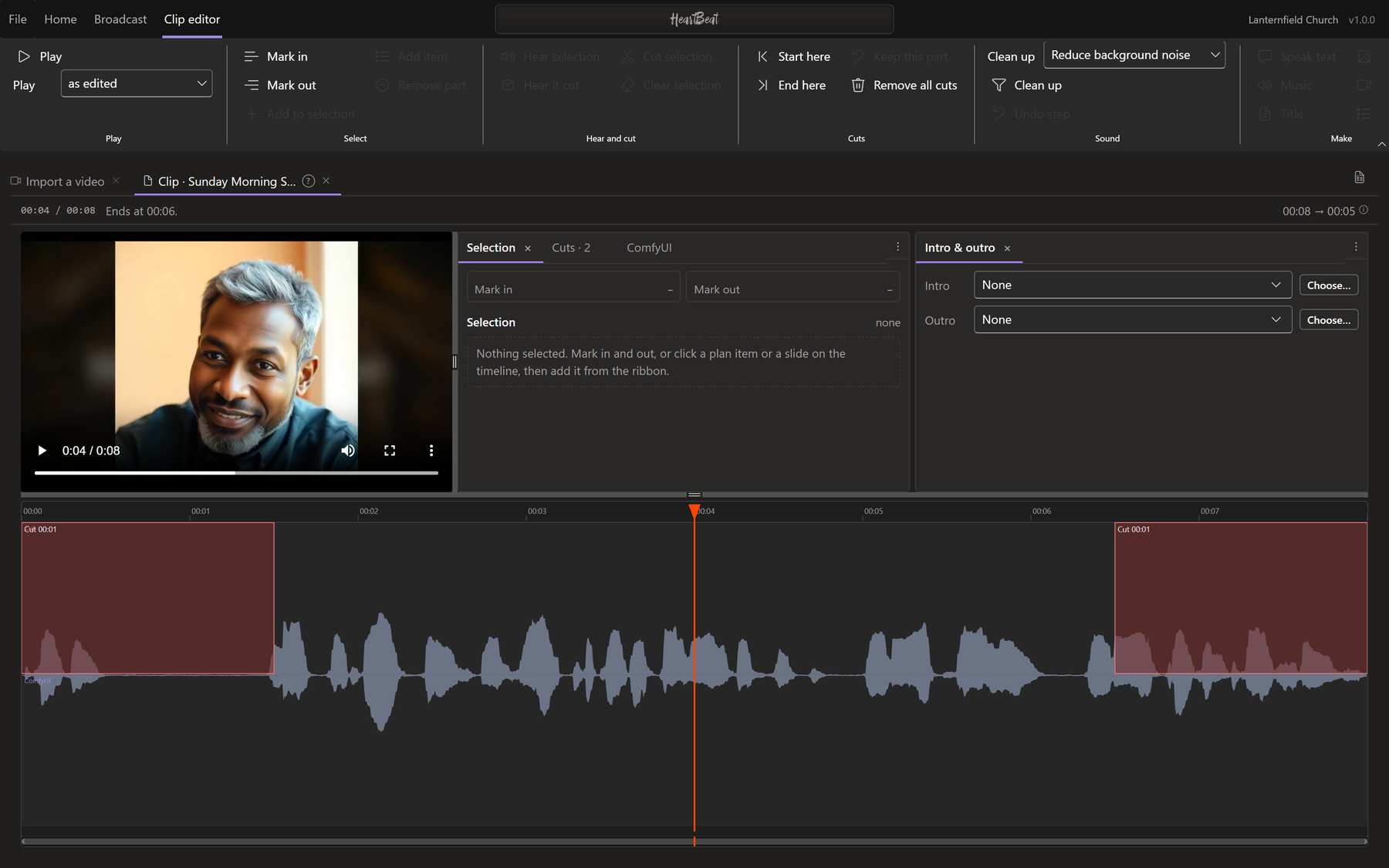
- Every button is on the Clip editor ribbon tab, which comes to the front while the clip is open. The tools beside the video are tabs: drag a tab to move it, or the handles between them to resize; see arranging the panels.
- Start here and End here cut everything before or after the moment you have played or clicked to. Press either again to move it; at the very beginning or end they put it back.
- For a part in the middle, use Mark in and Mark out, then Add to selection and Cut selection.
- An intro and an outro can be added from your library or a file. A still picture needs a sound chosen to say how long it stays on screen.
Back on the list the row says clipped · 00:02 to 00:06. Nothing is cut until the import runs; then the video is built from what is kept and only that part is transcribed, processed and sent to Heartisan. Only the slides inside it are brought in, moved to where they now sit.
Keep the whole video beside the clip
When at least one file is clipped, the Details and import step shows a tick: Also keep the whole video, with its captions, for looking back at and cutting from. It is on by default.
- It is still one row in the library. Length is the clip's; a Full video column shows the whole video's.
- The whole video is transcribed once, with speakers, and the clip's captions are cut out of that transcript, so the clip is never transcribed a second time.
- It has only its picture and its transcript: no streams and no audio file. It is never translated, dubbed or sent to the app. It is there to look back at what was said before or after the clip, to cut other clips from, and for the archive.
- Right-click the row → Clips… lists the main clip and every clip cut from the same video since, each with Edit ques…. Make a clip from the whole video… opens the whole video in the editor to choose another part; it is made as a job, with its own streams, speakers and slides, and nothing is transcribed again.
- A clip made this way is not a row of its own: like a music clip it is reached from the recording it was cut from, under Clips…, where it shows as a Draft with Publish and Remove.
Things worth knowing
- The copy of your file that Studio makes is used to build the clip and is deleted when the import ends.
- If you abandon the screen, a clip you had chosen stays in Studio's recordings folder as
import-file-…. It is safe to delete. - The slides lookup needs the file's time to be right, which is why the time is the first thing to check.