

The processing fleet & jobs
A recording is not one piece of work — every quality of a video, and every language, is its own job. The processing fleet lets more than one Heartisan Studio or Heartisan Studio installation work on the same media at the same time, so an evening's work for one computer is shared across all of them. Macs can join in too.
Switching a machine on
File → Processing, in Heartisan Studio alike. (The Windows Processing Fleet window's This machine tab now leads there.) On that page you set:
- Whether this computer takes work. Off until switched on, per machine. Joining means that computer's graphics card gets used for other people's imports, which is a decision for whoever owns the machine. The choice is remembered across restarts, and switching off lets whatever is already running finish.
- The kinds of work it will take. A laptop in a sound booth can be set to encode and package without also being given transcription and dubbing.
- What it's called, and how many jobs it runs at once.
- The shared folder it collects files from. A shared folder (Nextcloud, Syncthing, Dropbox) speeds up machines on the same network but is not required: a machine without one downloads what it needs.
The page says plainly what this particular computer can do, because it differs. A Windows computer with an NVIDIA card also transcribes, translates and produces spoken audio; a Mac does video encoding and stream packaging. Nothing is sent to a machine that can't do it: work needing a graphics card, a model, or a tool a machine doesn't have is never offered to it.
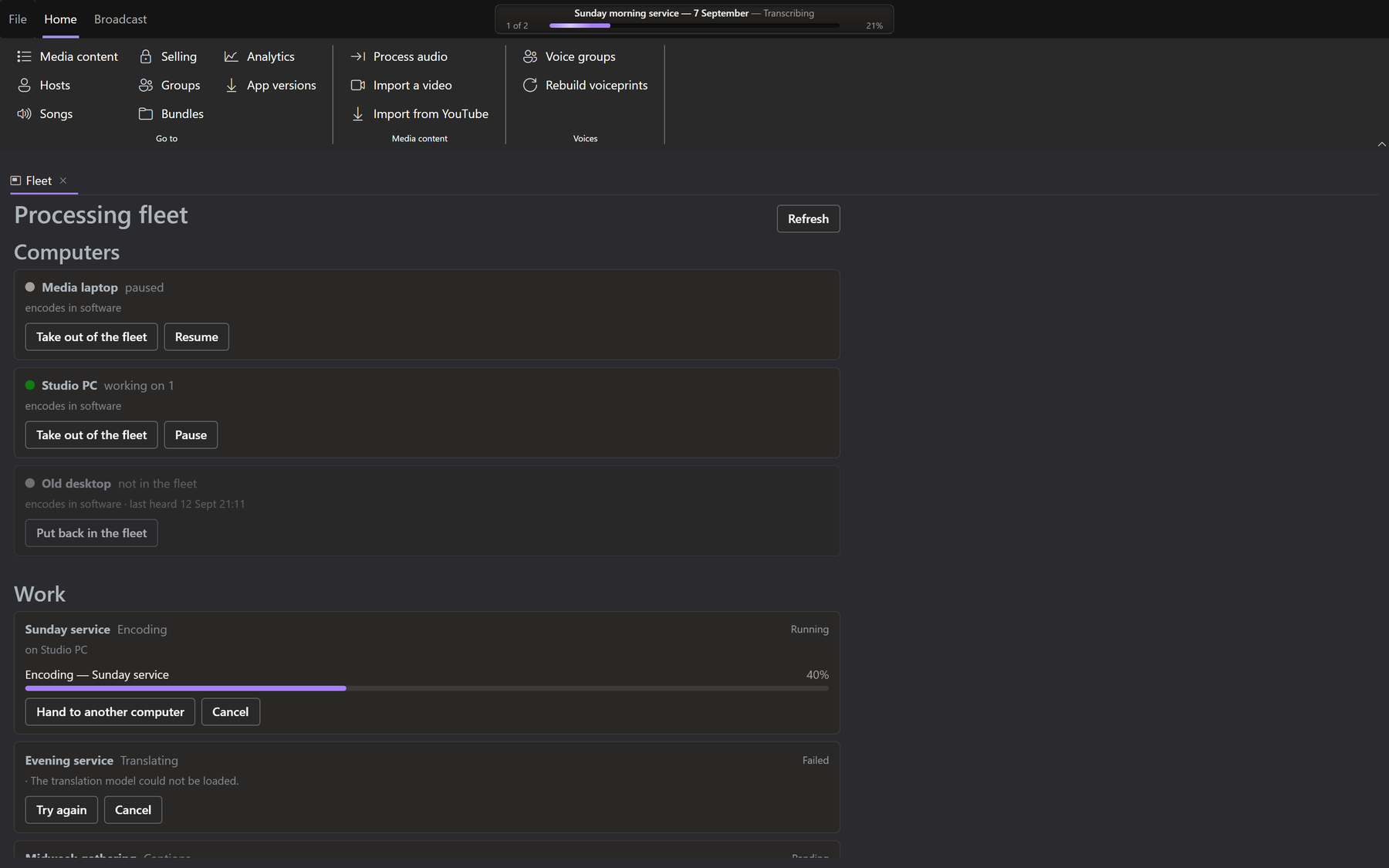
To see every machine, open Broadcast → Fleet in Heartisan Studio.
Watching and steering it
Any installation shows what every machine in the fleet is doing — including ones in another building — and can act on it:
- Pause a machine.
- Retry something that failed.
- Put a job to the front of the queue.
- Install a model on a machine remotely.
Models, and the Issues tab
Models are installed per machine, and a machine is never given work whose model it does not have. When nothing in the fleet can take a job, the Issues tab says so and offers to install the model that would fix it.
Every graphics card in the machine, not just NVIDIA
Encoding hardware is detected and tested rather than assumed. AMD and Intel graphics are used where they work, and a computer with more than one card encodes a different quality on each at the same time.
The acceleration choice on Import from YouTube now reads Every graphics card.
On Windows, an import's streams are shared across every card at once, and are cut at identical moments whichever card (or whichever computer) made them. That's what lets NVIDIA desktops, AMD cards, laptops and Macs share one import's encoding while the player still changes quality smoothly.
What the fleet picks up
- Imports hand their transcript and streams to the other machines, even when no caption languages are set.
- Create clips in the music review hands the cutting over, so the screen comes straight back. See Cutting clips.
- Translate… and Dub… on a selection of recordings are spread across every machine and carry on after the computer that asked is closed.
- Anything that finds no machine available is done by the computer that asked.
- Finished work publishes itself. If "upload when done" was ticked, work that comes home from other computers is uploaded and its record created automatically, the same way as uploading by hand. Clips cut elsewhere publish themselves once their video exists, and anything interrupted by a shutdown is asked for again.
Long jobs run in the background
Starting an import doesn't tie you to the import screen. The run appears in the Jobs list as soon as you press Start: what kind of job it is, which item it's on, which step it has reached and how far through it is.
In Heartisan Studio, press the jobs display in the middle of the header or use File → Jobs (which shows the same queue as its main window's jobs panel). A job that failed says so, with the reason; one asked to stop says Stopping… until it actually has. With nothing running, the header shows the Heartisan wordmark.
- Closing the import window asks whether to let it finish in the background, stop it, or stay and watch.
- A job can be stopped at any point by right-clicking it in the Jobs list. A stopped job finishes the step it is on first, so nothing is left half-written.
- "Cancel after current video" can be ticked or unticked mid-run.
- Where an upload used to stop and ask "retry or skip?", it retries a few times on its own and then leaves the item pending — so an unattended run can't sit waiting on a question.
- Finished rows stay until cleared: right-click → Clear Finished Jobs.
- Check voices… appears on a video import once its transcript is done, while the streams are still being made: it opens that recording's voices, matched to your hosts, so you can confirm or change them. What you change goes up with the recording when it finishes.
Seeing an import shared across your computers
An import that has been handed to the other computers draws itself in the Jobs list, under its progress bar. A strip of four steps says where each one happens — Get ready and Collect and Upload on the computer you started it on, Shared out on the others — with the current one highlighted. Beneath it is a line for every job: the transcript, the captions, each translation, each size of the video, and putting the streams together. Each line shows which computer has it, a bar for how far along it is, and whether it is waiting, working, done or failed.

- A job that is waiting says why: it needs another job to finish first, or no computer that is switched on can take it (a transcript needs a computer with an NVIDIA card).
- If the other computers can't finish, the strip says so and this computer makes the rest itself — the import is never left half done.
- When the import finishes the row goes back to one line. Click it to see the same picture, and who did what, again.
- An import only spreads out when a shared folder is set on the computer you start it from and at least one other computer is switched on to take processing work from the other computers. Otherwise it runs on the computer you started it on, which is the same as before. Bringing an item over from Heartisan to finish it (Bring over, finish and update Heartisan) always runs on the computer you start it on.
When an import stops part-way
Hours of work done by the other computers are no longer lost when an import fails near the end. Everything the fleet finishes is kept in its shared folder, and an import leaves a note there saying which recording it was. Import the same recording again, cut the same way, and the new import takes over where the old one stopped:
- The jobs whose files are all there and whole — the transcript, the captions, a translation, a size of the video — are not made again. The Jobs list shows them as done, marked Kept from the earlier attempt.
- Only what was missing is queued: a size that had not finished, a translation that failed, the spoken audio.
- If the other computers cannot finish everything in one go, what they did finish is brought home before this computer makes the rest, so the transcript and the sizes of the video are not made twice.
- It only applies to an import that never created its recording. Once a recording exists, importing again starts from the beginning. A recording that was cut differently, or whose file has changed, also starts from the beginning.
- To make an import start from nothing on purpose, delete that recording's folder from the shared folder (Fleet, named by a long code).
- You do not need to tidy that folder. When Studio starts it removes the folders nothing has touched for 14 days. One from an import that never finished is kept for up to 30 days so it can still be picked up.