

Translating & dubbing
Translation and dubbing are ordinary processing steps: pick recordings, pick languages, and let the machines work. Each language sits alongside the original rather than replacing it, so your English transcript — and anything a producer has corrected in it — is never touched.
Translating a back catalogue in one go
- Select any number of recordings in the media list. In Heartisan Studio, tick them and press Translate… on the selection bar (it works the same on a Mac).
- Choose the languages and start.
- Only languages set to produce captions on the portal are offered; a language set to spoken audio only has no transcript to write.
- A language already finished for every selected recording starts unticked, so the default is never redoing work.
- Broadcasts are left out until they've been through processing, and the dialog says how many.
- Song lyrics stay in the language they were sung in unless your organisation has switched lyric translation on; see Song lyrics and translation.
- Each language says how many of the selected recordings it has already been done for, so a run that fills in gaps does not redo finished work.
- Recordings with no transcript yet are listed as skipped rather than silently ignored.
- Where several computers are set up to work together the jobs are shared across all of them and carry on after Heartisan Studio is closed. On a single machine it does them there and then.
Producing a spoken track
In Heartisan Studio, tick the recordings and press Dub…. Only languages set to Spoken audio on the portal are offered, and a recording needs its transcript in that language first, so translate before dubbing. Each language shows how many of the selection already have it, and one finished everywhere starts unticked. The work is spread across your processing computers the same way as translation.
The voice is cloned from the person who actually spoke, the original audio stays underneath ducked, and music is never dubbed — over a song the original comes back at full volume.
To make the speaker's mouth match the dub as well, lip-sync it afterwards. See Lip-syncing a dub.

Naming a speaker no longer means translating again
Assigning speakers to hosts after a recording has been translated used to mean translating it all over again — hours of work to change a name. The translated words are now kept and only the speaker and timings are updated, which happens instantly on save.
This is the ordinary case rather than an edge one: speakers are matched automatically from previous recordings, so anyone new is always named by hand after the fact. Re-translating an edited transcript also only re-does the lines whose words actually changed.
What a producer corrects is what viewers read
Corrections made in the ques editor — a misheard word, naming who is speaking, removing a stretch — now reach the caption file that players read. Until this changed, those edits lived only in Heartisan Studio and viewers were always shown the first automatic transcript.
Asking whether a recording is finished
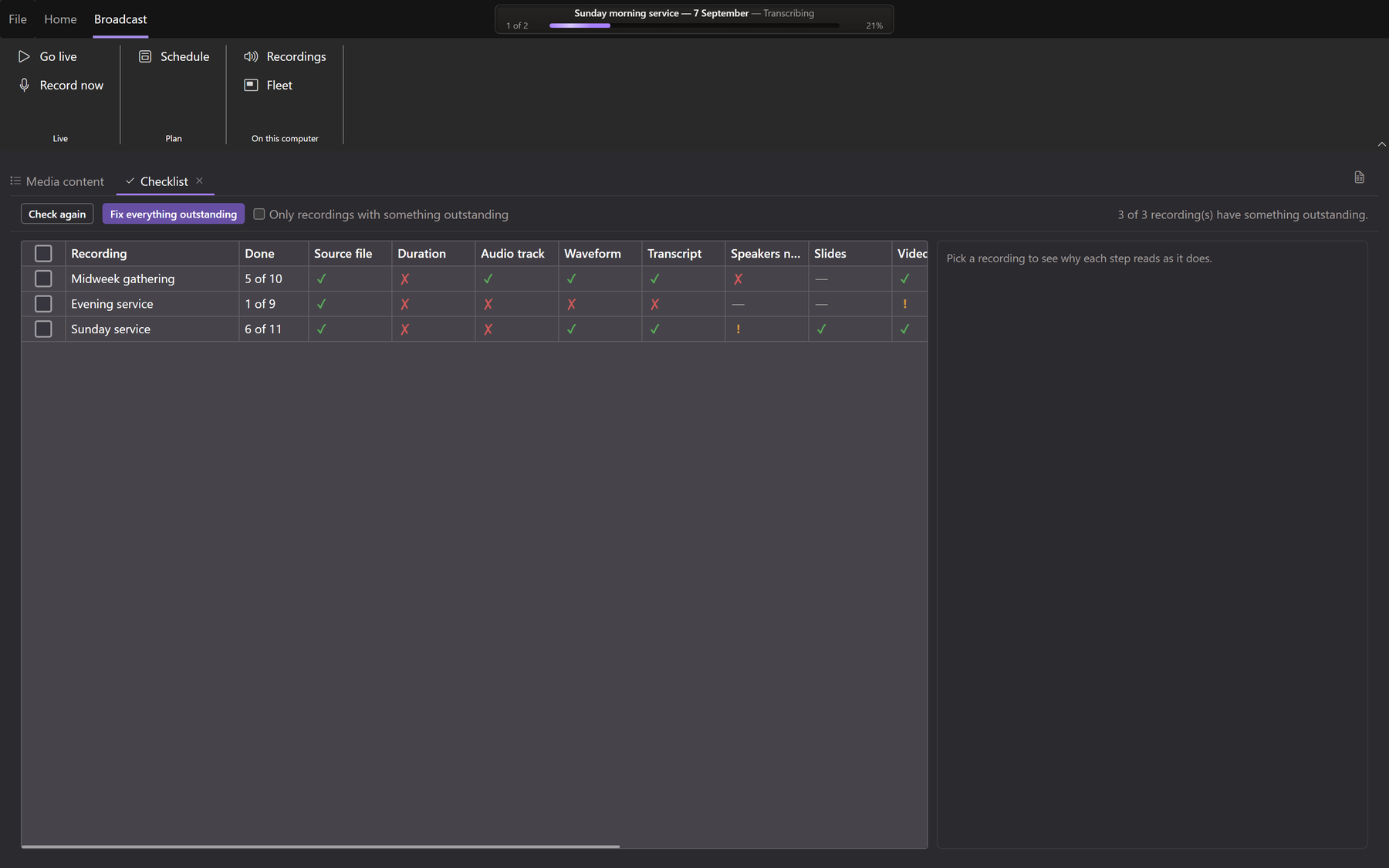
A checklist that goes through recordings and says what is unfinished about each one: a stream that failed to encode, a voice nobody named, a translation that produced an empty file, artwork that was never set, a recording never published. It is laid out as a grid, so a whole year can be read a column at a time.
Tick the recordings and press Checklist… on the selection bar, or Checklist in the Processing group of the Media content tab. To check the whole library, tick everything first.
Putting it right
Select rows and press Fix (it reads Fix this one, Fix N selected or Fix everything outstanding). It says what it's about to do first. The quick things happen on this computer, while the heavy ones (transcripts, video streams, translations) go across the processing fleet and are collected back when they land.
- Anything that genuinely needs a person is listed rather than silently skipped.
- Work that depends on something being rebuilt in the same run waits for a later one.
- A recording whose streams were never encoded at all gets the whole set encoded.
A companion command, Check streams in the same group, checks video streams alone and can rebuild playlists or re-encode what is missing.
If a language never produces anything
- Nothing is picked up
- No machine in the fleet has that model. The Issues tab says so and offers to install it — a machine is never given work whose model it doesn't have.
- The language isn't offered
- It isn't switched on for this client on the dashboard, or (for dubbing) it is switched on for transcripts but not for spoken audio.
- Recordings are skipped
- They have no transcript yet. Transcribe first.
- It produced an empty file
- The Processing Checklist flags exactly this, per recording and per language.