

Door check-in with QR code tickets
Every confirmed ticket has a QR code. At the door, someone on your team scans it with the app's camera and the person is marked as present. It works with no signal, nobody can be counted twice, and you can see who arrived, who didn't, and when, in the portal afterwards.
How it works
- Every confirmed sign-up gets a ticket code: twelve letters and numbers, shown as
XXXX-XXXX-XXXX, and the same code as a QR code. - Attendees see it on the event's page in the app and in their ticket email (paid, free and gifted tickets alike).
- The door team scans it from the app. The app tells them at once whether to let the person in.
- The QR code holds only the ticket code: no name, email or answers. Only a signed-in member of the door team can look up whose ticket it is.
Choosing the door team
The team is chosen by group, event by event. Make a group of your door volunteers first (see People & groups), then:
- Open the event in Calendar and go to the Sign-ups & tickets tab.
- Under the price rules, find Door check-in team.
- Choose one or more groups, and press Save. That panel has its own Save button.

- Who can check people in: members of the chosen groups, and any staff member whose level includes events. Everyone else sees the ticket card only.
- With no group chosen, only staff can.
- A different group can run each event, which suits a youth night and a conference with different volunteers.
- People must be signed in to the app on their phone to scan. The group membership is checked each time, so removing someone from the group stops them.
What attendees have
Attendees open the event in the app to find You're going! with their QR code, and the code in letters and numbers for when a screen is cracked or the camera won't focus. The QR code is drawn on the phone, so it shows without a signal. A booking for several people has one ticket for the whole party, marked "3 people", and is checked in once (or a few at a time), unless the form names each person, in which case each has a ticket of their own. Read Your ticket in the app, and the ticket email below.

People added to a booking
When the event's form asks about each person, every person on a booking has a ticket of their own, with their own QR code. They can arrive separately and each is checked in on their own: scanning Adult 2's code lets in Adult 2 and nobody else. The door list shows them by name, with Adult 2, booked by Marcus Webb beside it so staff can see who they came with.
- A person with an email address on the form is emailed their own ticket. If it matches an app account, the ticket is also in their app, so they can show their own phone.
- The booker keeps every ticket: the booker's app shows a card for each person under their own, and the booker's confirmation email carries a QR code for each, to show or forward. A person with no email has theirs only this way.
- The booker's own ticket covers the booker only (and anyone counted but not named). It no longer covers the people named on the booking.

The ticket email
The confirmation email for a paid ticket, a free ticket and a gifted ticket all carry the QR code and the typed code, so a guest without the app can show it from their email. People who bought tickets before this feature existed are given a code the first time they look at the event in the app. Someone added to another person's booking, with their own email, gets an email that says who booked them in.
At the door
Door staff open the event in the app and tap Check people in. The full walk-through, written for volunteers, is in Checking people in at the door. In short:
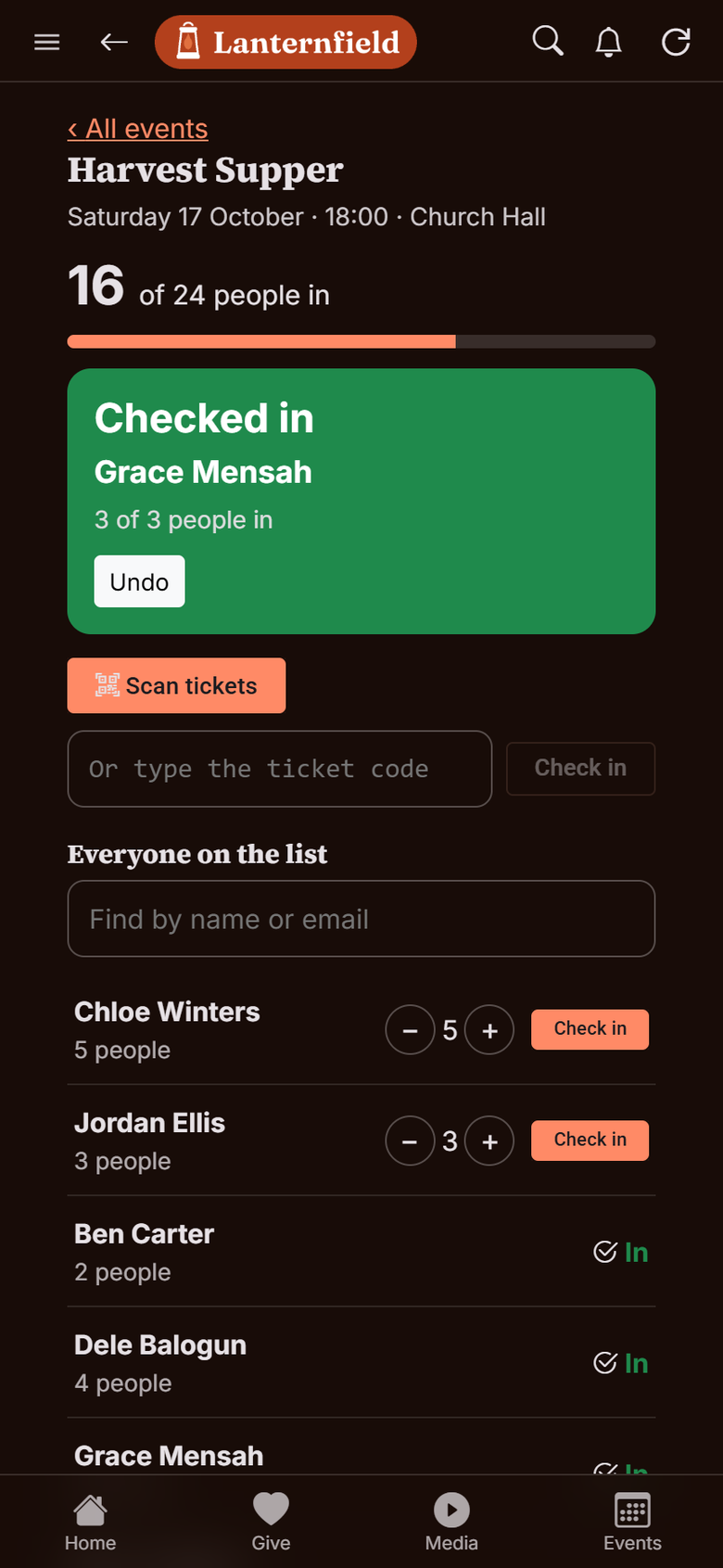
- Scan tickets opens the camera. The first time, the phone asks for permission to use it.
- Or type the ticket code, or find the person by name or email in the list and tap Check in.
- The answer is a colour: green (checked in), amber (already checked in, and who and when) or red (cancelled, not paid, a ticket for a different event, or not found).
- A booking for several people can be let in a few at a time: a stepper sets how many arrive now, and the rest can come later.
When there is no signal
The door doesn't depend on the venue's reception. The app keeps the event's list on the phone, decides each scan from it, and shows No signal — using the list saved on this device.

- Each offline scan is kept with the time it was scanned and sent automatically as soon as there is a connection (or press Try now / Send now).
- When it reaches your service it is checked again, so a ticket scanned on two phones, or already checked in from the portal, is never counted twice. The first arrival is the one that counts.
- A ticket that is not on the saved list (bought since the phone last updated) shows "Not on this device's list": try again once online.
- Undoing a check-in needs a connection.
Checking people in from the portal
Anyone with access to the Sign-ups page can also check someone in or undo it without a phone. Open Sign-ups (more), and press Check in on a confirmed row, or Undo check-in if they were let in by mistake. Refunded tickets cannot be checked in.

Under each name you will see Arrived 3 Oct 18:09; for a party it reads (2 of 4) until everyone is in. Hover it to see who let them in.
Every check-in and every undo is also written to the audit log with the name of the person who did it, whether that was a volunteer at the door or someone on the portal, so you can answer "who let them in?" even after an undo.
Attendance in Sign-ups and giving
Reports → Sign-ups and giving → Events (Administrator level and above) counts attendance for you.
- Arrived
- People let in, out of the people expected (confirmed places). Click the card to see who.
- No-shows
- People who were expected, whose event is over, and who were never checked in.
- Attendance
- Arrived as a percentage of the people expected.
- When people arrive
- A chart of arrivals by quarter hour. It helps to plan how many people to put on the door, and when.

The pivot table adds Arrived at the door, Arrival time (quarter hour), Checked in by and the measures People expected and People who arrived. See Sign-ups and giving.
Privacy
- Only members of the event's door team (and staff) can see the list of who is coming. The list is saved on that member's phone, under their own sign-in, so that the door works offline. It is the same sort of information as the Sign-ups page, so give the door team the same care you would give any list of names.
- The QR code itself reveals nothing. A photo of someone's ticket on social media can't tell anyone their name, though it could be used to check in once, so remind people not to share it publicly.
- Checking in is recorded with who did it and when, in the sign-up.
Troubleshooting
- "You're not on this event's check-in team" — the person isn't in a group you chose for this event. Add them to the group, or choose their group on the event.
- There is no Check people in button — the member isn't on the team, hasn't signed in, or the app is out of date.
- The camera won't start — the phone's camera permission is off for the app (turn it on in the phone's settings). The typed code and the name list always work.
- "Not paid yet" — the booking is awaiting payment. Staff can use Mark as paid in the Sign-ups page if it was paid some other way.
- "Ticket for a different event" — the QR belongs to another of your events. Open the right event and scan again.
- The count looks too low after an event — phones that were offline may not have reconnected yet. Open the door screen on each, and the waiting scans are sent.