

Managing & publishing media content
Home → Go to → Media content is the library: one row per recording. This is where you edit items, publish them to the app or take them off it, and tidy up. Every change reaches the app straight away, or at the next sync if you're offline.
Reading the list
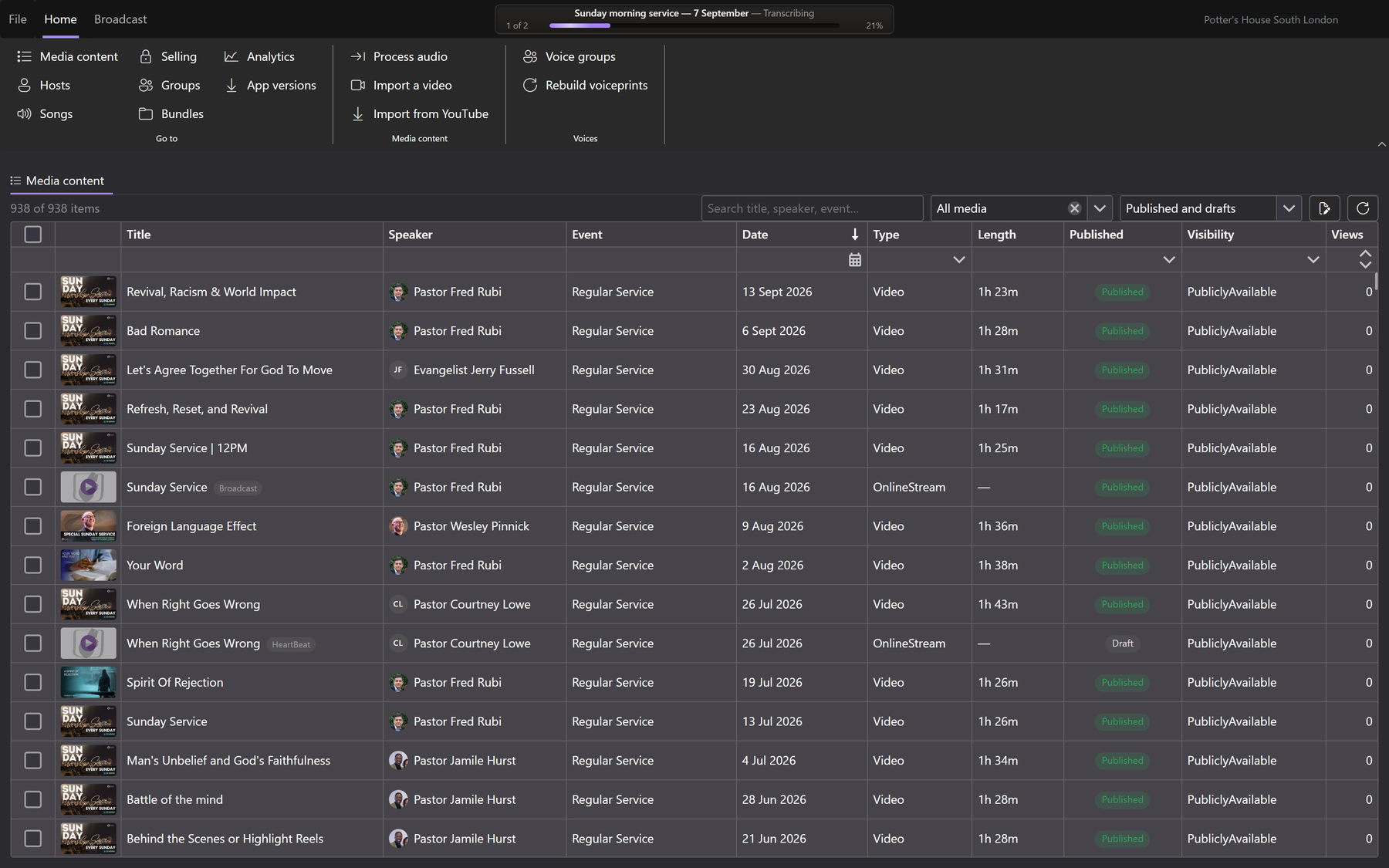
- Artwork is the first column: the picture beside the recording on this computer, or the app's copy for a broadcast or anything not held here. An item with no picture shows your placeholder artwork, the same picture the app shows members (set on the portal under Branding → Logos).
- Broadcasts made by going live appear alongside everything else, tagged Broadcast, or On air while still running.
- Speaker shows each host's photo, or initials in a circle.
- Views is plays in the app plus views on YouTube, the same figure the portal shows. See Views and YouTube.
Views and YouTube
Views adds the plays in your app to the views on the item's YouTube video. Hover it to see the split: plays in the app, views on YouTube, when YouTube was last asked, and when this computer last read Heartisan's counts. Where no video is attached it says No YouTube video linked, rather than a zero that would look the same as nobody watching. Offline, the last counts read are shown, marked with when they're from.
Heartisan works out which YouTube video each recording is, by title and date against your own channel, and attaches it by itself every six hours. It's deliberately cautious: where two videos both fit, it attaches neither, because a wrong video would put somebody else's views on a recording. So:
- Link YouTube videos, in the Enrich group on the Media content ribbon, matches everything now and reports what it did, for example Linked 612 item(s) to their YouTube videos; 37 could not be matched and can be linked by hand. It only looks at items with nothing attached, so it's safe to press any time, and worth pressing again after retitling something.
- To attach one by hand, open the item and paste the video's address (any YouTube link, or the id) into the YouTube video box under Description, then save. Open on YouTube appears under the box so you can check the match first. Emptying the box unlinks a wrong match.
- Turn on Compare with Heartisan on the list to see each item's YouTube video in its detail row.
Arranging it your way
Drag columns to reorder or resize them, and click a heading to sort. Right-click any row and choose Columns → Choose columns… to pick which show; Reset to default puts the original arrangement back. Your arrangement and sort are remembered between runs. A filter typed into the filter row isn't, on purpose: a filter left on last week hides rows with nothing on screen saying why.
Where the commands are
Tick one or more rows and there are three ways to act on them, all offering the same commands:
- The selection bar
- Above the list: Edit, Publish, Hide, Translate…, Dub…, Voices…, Checklist…, Bring from Heartisan…, Delete… and Clear.
- The Media content ribbon tab
- Appears while the list is in front, grouped as Manage, Details, Speakers, Processing, Enrich and Publish.
- Right-click
- The full menu, including Set time from preset, Access → Purchase options… and Required group…, and Copy (name, id or local path).
A command that can't apply to the selection (Edit with two rows ticked, say, or Purchase options on a recording not yet in the app) is greyed out rather than hidden. Commands about one recording use the row you right-clicked.
Editing an item
Double-click a row, or Edit. Change the title, speaker, event, date and time, categories, scriptures, description, who can see it, and whether there's a charge. Save and it's carried to the app.
- Speaker, event and category boxes accept a name that isn't on the list yet, for a visiting speaker or a new category. A new category is registered on Heartisan so it can be chosen everywhere.
- Offline, the change is saved on the computer and reaches the app at the next sync, and the editor says so.
- Broadcasts live on Heartisan rather than in a folder on this computer, so the editor says where the item is and saves straight there. You can edit one that's still on air; it changes what people are hearing and the recording it becomes, and the editor warns you first.
Members see first: Heartisan or YouTube
A broadcast sent on to YouTube, or any recording linked to its YouTube video, can be watched either way. For an item that has a YouTube video the editor shows Members see first. Choose which one members get when they open it: Heartisan's own stream (the default for a Studio broadcast) or YouTube. The box only appears for items that have a YouTube video and are stored on Heartisan.
Members can always switch in the player with one tap, Watch on YouTube instead or Switch to the Heartisan stream, and the app remembers their choice for that item until it is closed. See the player.
Giving an item a picture
Right-click a row and choose Artwork. It works for a recording, and for a broadcast that's coming up, on air or over.
- Generate a picture with AI…
- Draws one from what the item's title, description and categories say. You can change the description of the picture and draw again until one is right.
- Choose a picture…
- A moment of the recording, a slide that carries a picture, a stock photo or a file of your own. When the item is linked to a calendar event, From the event offers that event's picture; it's greyed out, with the reason, when there's no event or the event has no picture. (Go live's own picture picker doesn't have this tab.)

Whichever you choose becomes the picture members see in the app, and is sent to Heartisan straight away. On Go live, Generate with AI… sits beside Cover image for the same thing before you start.
Words on a drawn picture
Under a drawn picture, Words on the picture — optional adds a title and, if you like, a small line in capitals above it. Choose the typeface (plain, a warm serif, or tall capitals), centred or left, capitals, the size, white or dark words, and where they go: in the middle, at the top or at the bottom. The words are set in a real font after the picture is drawn, so they're always spelt as typed, and can be changed without drawing it again.
Publishing and hiding
Tick the rows and press Publish (Publish to the app) or Hide (Hide from the app). That's how a batch imported with the wrong dates, or a service that went up too early, is put right without opening each one. Hiding deletes nothing: the item, its media and its record all stay, and publishing puts it back.
Your Studio user may have an hourly limit on how many items it can hide. Anything hidden can also be put back from the portal's Recently deleted page for 30 days.
Deleting, in the two senses that means
Delete… asks which you mean:
| Stays in the app? | Stays on this computer? | |
|---|---|---|
| Delete for good | No | No |
| Remove from Heartisan Studio, keep in the app | Yes | No |
- Remove … keep in the app reclaims disk space and leaves members watching as before. Afterwards those items can't be re-cut, re-captioned or renamed here, because there's no record left; the portal is the place to manage them.
- Delete for good is the only one that can take a broadcast, since a broadcast has nothing on this computer to remove.
- Before you confirm, it says how many are published and visible to members right now, and how many have music clips cut from them. Music clips are separate items and are left behind either way.
- You type the number of items to confirm, because a list that's just been re-sorted is how the wrong rows get ticked.
- Only people allowed to delete see Delete for good, and a selection over your hourly limit is refused up front.
.hb-deleted folder inside the
media store.
Preview clips and scrub pictures for TVs
When Studio publishes a video, it also makes two small things for the TV app:
- A preview clip: a silent 720p clip of 15 to 30 seconds of the recording's most inviting passage, usually 1 to 4 MB, that plays over its picture on the TV home. It's a file called
preview.mp4in the recording's folder. - Scrub pictures: a frame every ten seconds, in sheets of a hundred, so the TV can show a picture of where the bar is moving to as someone skips along.
Audio keeps its artwork, and a locked item gets no preview clip. Recordings published before this have neither until you catch them up:
- In the media content list, tick the recordings (or all of them), then choose Preview clip… in the bar of buttons that appears above the list while recordings are ticked.
- Let it make the clips and scrub pictures that are missing. For a single recording you can also set the passage by hand, or ask the local AI to pick again.
See the TV home screen and the app on TVs.
Sending files again
Right-click → Publish → Re-upload files… sends files already in the selected recordings' folders to Heartisan again: for artwork you replaced, captions re-cut, or a stream that never finished uploading. It reads the folders first and offers each kind with its count and size: artwork, playlists, stream segments, captions, ques & data, audio, video, translated captions, dubbed audio, or everything. Artwork is ticked to start with; the whole video is never the default. A file that fails is tried three times, then reported, and the rest carry on.
The same Publish menu has:
- Upload media ques
- Sends the ques (transcript, slides, speakers) after editing them.
- Sync categories to Heartisan…
- Registers every category the library uses, so ones made before categories were shared can be chosen in the app and the portal. Nothing is deleted or renamed, and running it twice does nothing the second time. If a category appears twice on the portal, Remove duplicate categories on Heartisan… tidies it.
- Repair Heartisan records…
- Puts right an item whose Heartisan copy has drifted from this one.
Bringing app-only items into Heartisan Studio
Media content that exists only in the app (a broadcast, or something made on the portal) can be brought into the library so it can be edited: ques, music clips, title, artwork. Tick the rows and press Bring from Heartisan…, or right-click a broadcast and choose Bring to this computer…. A list shows everything in that state and how many came from broadcasts.
- The item keeps its identity, so it's never uploaded again as a copy.
- If the computer can reach the service's storage share, the whole folder comes over. Otherwise the recording, artwork, waveform and ques come from the service, and the streaming files are rebuilt here. The dialog says which, above the button.
- A broadcast that was never finished comes over without a recording, and is counted as such. One failure doesn't stop the rest.
Working offline
Everything above except bringing items over and re-sending files works with no connection. Changes queue on the computer and go out at the next sync. If a change made offline turns out not to be allowed by your permissions, it's undone at that sync and a strip at the top says which items and why.
If something doesn't reach the app
- The item doesn't appear: check it's published (Publish column), and that it isn't restricted to a group or plan you're not in. Refresh the app.
- A category shows on an item but can't be chosen in the app: run Sync categories to Heartisan….
- The artwork or captions in the app are old: Re-upload files… with just that kind ticked.