

Checking people in at the door
If you are on an event's door team, the app turns your phone into a ticket scanner. Hold it up to someone's QR code and it tells you at once whether to let them in. It works with no signal, and it never counts anyone twice.
Before the day
- Sign in to the app with your own account. Your organisers choose the door team for each event by group, so make sure you are in the right one. If you are not, ask them.
- Open the event once while you have a signal. The app saves the list of tickets on your phone, which is what lets it work in a hall with poor reception.
- Charge your phone and turn the screen brightness up.
Opening the door screen
- Open Events and tap the event.
- Under Sign up you will see You're on the check-in team for this event. and a Check people in button. Tap it.
If the button is missing, you are not on this event's door team ("You're not on this event's check-in team"), or the app needs updating. Tell your organiser.

From top to bottom: the count and progress bar; Scan tickets; a box to type the ticket code; and Everyone on the list, with a search box (Find by name or email). Anyone already in is marked In.
Scanning a ticket
- Tap Scan tickets. The first time, the phone asks to use the camera: allow it.
- Hold the phone so the person's QR code is in the camera view. It reads it by itself, from a phone screen or a printed email.
- Read the answer on screen, and wave them through or deal with the problem.
- The camera stays open for the next person. Tap Stop camera when you have finished.
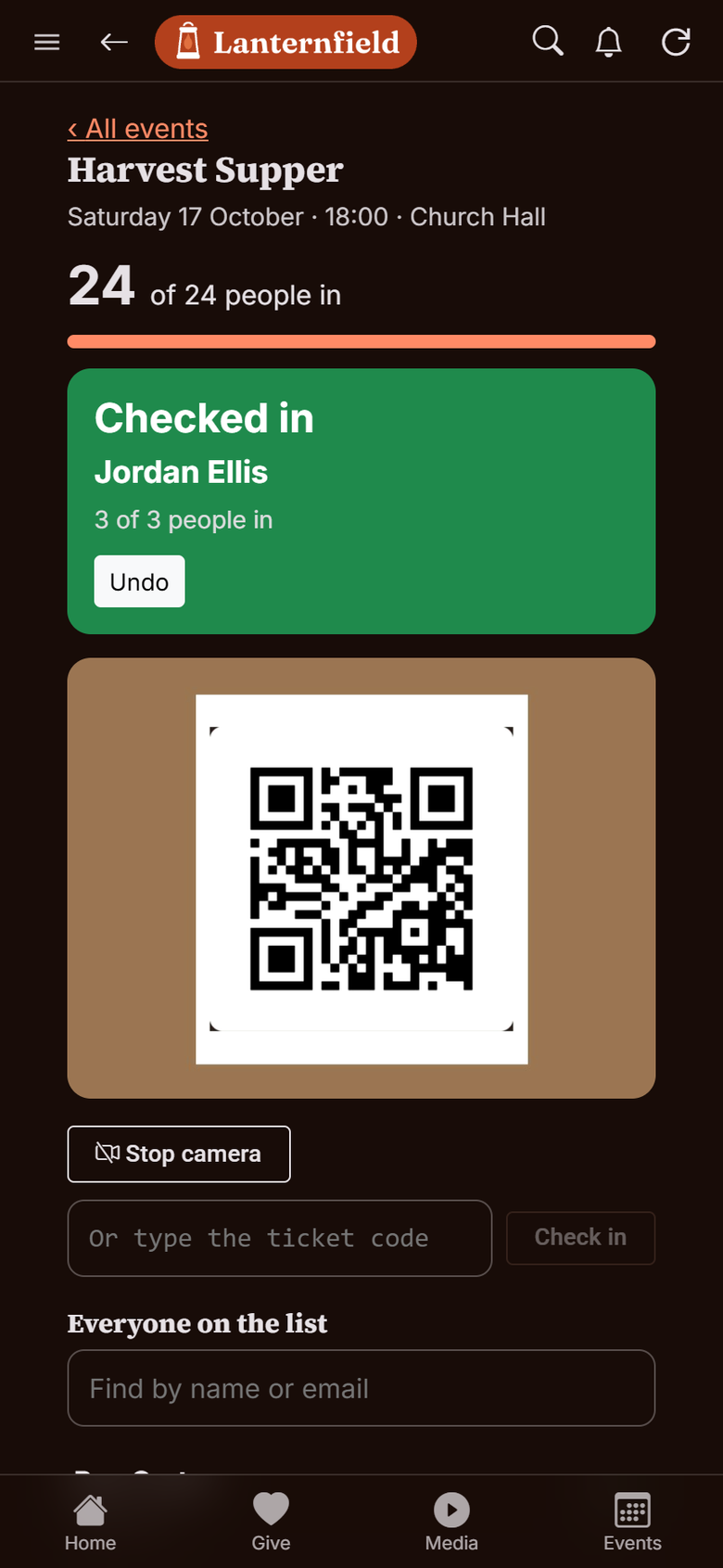
What the colours mean
- Green: Checked in
- Let them in. It shows their name, and how many of their party are in, such as "3 of 3 people in". Undo is there if you scanned the wrong ticket.
- Amber: Already checked in
- This ticket has been used. It shows when and by whom ("in at 22:01 by Jordan"). If the person says they haven't been in, politely check it with them, and speak to your organiser if you need to.
- Red: Ticket cancelled
- The booking was cancelled. Send them to your organiser.
- Red: Not paid yet
- They booked but the payment hasn't completed.
- Red: Ticket for a different event
- Their ticket is for another event of yours.
- Red: Ticket not found
- The code isn't one of your tickets. Try typing it, or search by name.


A booking for several people
One ticket can cover a family or a group. A scan checks in the whole party. If only some of them have arrived, use the list instead: each row has a − 3 + stepper to choose how many are coming in now, then Check in. The rest can be checked in later, and the row shows how many are in so far.
No QR code? Find them by name
- Type in Find by name or email to narrow the list, then tap Check in on their row.
- Or ask for the ticket code (the twelve letters and numbers under the QR) and type it in the box, then Check in.
No signal
The door screen carries on. You'll see No signal — using the list saved on this device, and every scan is answered from the saved list and queued.

- Queued scans are sent automatically when the signal returns. Press Try now to send them sooner.
- When they arrive, the service checks them again. If two phones scanned the same ticket while offline, only the first counts, and nobody is counted twice.
- If a ticket is "Not on this device's list", it was booked after your phone last updated. Try again when you have a signal, or note the person's name and let them in at the organiser's say-so.
- Undo needs a signal.
If something goes wrong

- The camera won't start — allow the camera for the app in your phone's settings. You can still type the code or search by name.
- The code won't scan — ask them to turn their screen brightness up, or hold still for a second. Or type the code.
- I checked in the wrong person — tap Undo on the green answer (needs a signal), or ask your organiser to use Undo check-in in the portal.
- "Sign in to check people in." — you've been signed out. Sign in again, with a signal.
Your name is recorded each time you check someone in or undo it, and your organiser can see who did what, and when, in the portal's audit log. It's there so mistakes are easy to untangle, not to count your scans.