

Follow-up boards
A follow-up board is a row of stages (New, Contacted, Connected…) with a card for each person you are following up. Cards move along the stages as things happen, volunteers work them from their phones, and nothing quietly gets forgotten.
How it fits together
- A board is one journey: new visitors, volunteer onboarding, a care list, room requests.
- Stages are its columns. A stage is Working (still in progress), Done (it went well) or Closed (it ended without that: not interested, couldn't reach). Each can have a checklist and a target number of days.
- A card is one person on one board. It carries who they are, who is looking after it, the checklist, a history of everything that happened, and how to reach them.
- Members are the people, a team or a group who work a board's cards. They do it in the app, with no dashboard login.
There are two places to go. Follow-up boards is where you set boards up. Follow-ups is where you work them: the board, a list, and the card panel. In the app, volunteers work their cards under Follow-ups, and staff set boards up under Admin menu → Follow-up boards.
Setting up a board
- Open Follow-up boards and add one. Start from a template (new visitors, getting started, volunteer onboarding, membership, care and welfare, requests, room requests) or from scratch. If Settings → Is a church app is on, the templates use church wording (Pastoral care, Prayer requests, Baptism); otherwise they use general wording.
- Give it a name, a colour and a description. Tick Confidential if only its members and managers should ever see its cards.
- Choose New follow-ups are assigned to: nobody in particular, one fixed person, in turn across a team (one after another), or whoever on a team has the fewest open cards. This applies only when nobody was chosen when the card was made.
- Shape the stages: names, colours, their type, and a target days for how long a card should stay there. The tasks button on a stage opens its checklist, the step name the person sees (below), the flow it runs and its automatic moves.
- Add members and managers: people, a team or a group. Managers can reach the same editor from Manage on their board in the app.
- Choose what members may do: see every follow-up (or only their own), pick one up, pass one on, and whether they are told about new ones.
How cards arrive
- From a form. On a form's Follow-up actions, Create a task chooses the board and the stage the card starts in. A second form from someone already on that board adds to their card instead of making a duplicate. See Building forms.
- From a flow. A flow's Create task step chooses a board and starting stage in the same way. See Flows.
- By hand. Add a card from the board, and pick the person.
Working a card
Open a card in the portal, or in the app, to see the person, the stage and its checklist, and the card's history. From a phone a volunteer can:
- Pick up a card nobody has, or pass it to another member.
- Move it on to another stage.
- Tick the checklist, one item at a time.
- Add a note, and mark it private if only the team should see it.
- Log a call: reached them, voicemail, or no answer, with a try again in N days.
- Call, text, WhatsApp or email the person in one tap.
Every change is recorded in the card's history against a named person. A message sent to the person from a flow shows there too, with the channel that got through.
Cards that move on by themselves
Open a stage and look under Moves on by itself. Each rule reads When they…, then a thing the person did, then the stage to move to. The thing can be:
- join a group (any, or a particular one), or join a team
- sign up for an event, check in or be marked present
- watch media content, or finish or fall behind a daily series
- give for the first time, get the app, or submit a form
- reply to something the board sent them
The first rule that matches wins. The card moves and its history says why (“Joined Tuesday Group, moved to In a group”). A rule only reacts to things that happen after the card began, and fires once per card.
Replies, and what they have done since
When someone replies to a text, a WhatsApp message or an in-app message the board sent them, the reply lands on their card, and whoever looks after it is told. Staff answer from the card, on the channel the person wrote on. A reply is only filed on a card when the board has sent that person something.
A card also shows Since the follow-up began: groups and events joined, teams, attendance, daily series progress, whether they have the app, and how many media content items they have watched.
Stages that run flows
A stage can start a flow when a card arrives at it: Runs this flow when a card arrives. So a stage can send a welcome, wait a few days, add a tag, or create a checklist item, anything a flow can do. If the card moves on, the waiting flow stops. The flow must be one that starts with Card arrives at a board stage.
The Send on the best channel step reaches the person once, on the first channel that works: the app notification, then WhatsApp, then a text, then email. It skips any channel they have opted out of.
When a card is late
A card is late once it has been in a stage longer than that stage's target days. Under When a card is late on the board, choose who is told:
- Tell the assignee, straight away.
- Tell the owner after a number of hours.
- Tell a team after a number of hours (the same or a different delay).
Each person or team is told once per stage. Leave the hours blank to switch a step off. The notification opens the card, ready to hand it to someone else.
Advice
- Start with one board and three or four stages. Add more when you feel the need, not before.
- Make the target days honest. If everything is always late, nobody believes the alerts.
- Use Confidential for care and welfare, and keep its members few.
- Let the automatic moves do the boring part, so people only drag a card when a human decision is needed.
Reports
Each board has a Report button (in the portal on Follow-up boards, and in the app on the board's settings page). It is for the people who manage the board. Choose a period from the last 7 days to the last year:
- New, Finished and Closed: cards made, moved into a Done stage, and moved into a Closed stage in that period, with a chart by week (weeks start on Monday).
- Where cards are: for each stage, how many cards are in it now, how many are past target, how many came in during the period, and the average days cards spent there before moving on.
- How cards ended: the reasons given when cards were closed.
- Who has what: each person's open cards, how many are late, and how many they finished. Cards nobody has are one line at the end.

The report never shows notes, replies or what anyone watched.
A weekly summary for the owner
Tick Tell the owner how it did each week in the board's settings and choose an owner under When a card is late. Every Monday morning the owner gets one short note, for example “New visitors: 4 new, 2 past target, 3 finished this week.” It goes by the app notification and email, never by text. A week with nothing at all sends nothing. Boards that existed before this was added start with it switched off, so nothing begins by itself.
Your next steps: what the person sees
A board can be shown to the people it is about. Tick Show it to the people on it as their next steps, then open each stage you want them to see and give it a Step name for the person (for example Have a first meeting). A stage with no step name is never shown to them. The “Getting started” and “Volunteer onboarding” templates come with step names ready.

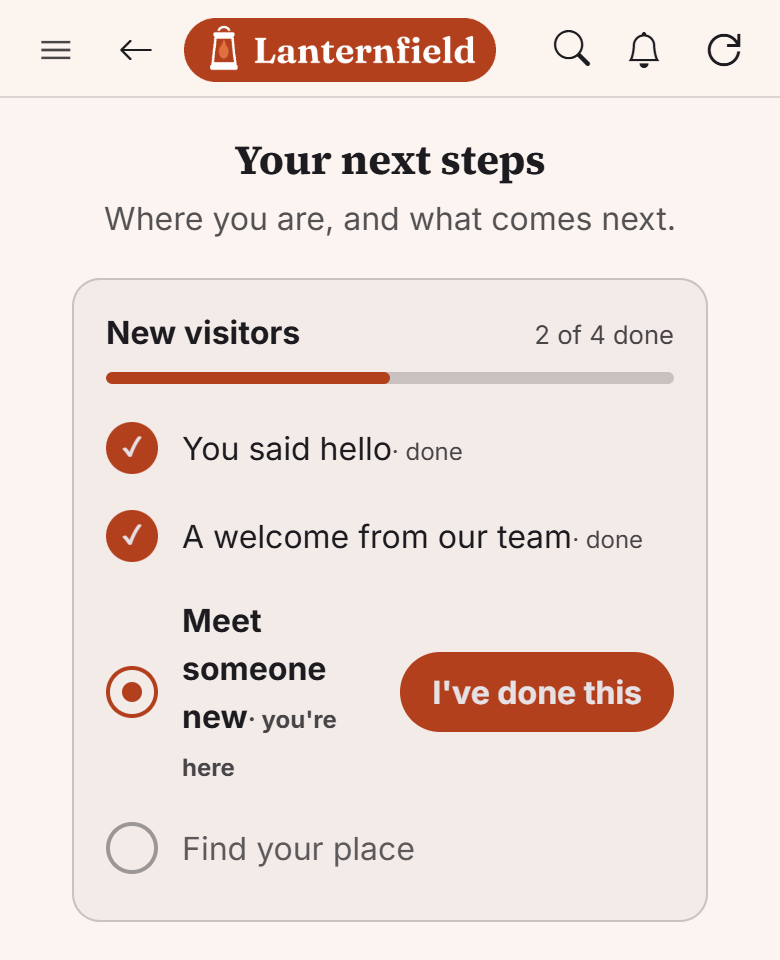
- Each person sees a short checklist of their own: the steps in order, the ones they have done ticked, and the one they are on.
- Tick The person can tick this step themselves on a stage and they get an I've done this button. It moves their card to the next stage, writes it in the card's history under their name, and tells whoever looks after the card.
- Members find it under Account → Your next steps (it only appears when there is something for them), or you can put the Your next steps widget on any page in the page builder. It shows nothing for someone with no steps.
They are matched by their own profile or the email on their account, never by name. They never see your stage names, notes, checklists or who is looking after them. A card that was closed without finishing is not shown to them, and confidential and archived boards never are.
New families at the check-in kiosk
On the children's Check-in screen, I'm new lets a first-time family register themselves: the guardian's name and phone (and email if they like), their children and ages, and anything to know. It creates the household and the children, ready to check in straight away, and one card for the whole family on a board so someone follows up. A guardian already in your address book is used, not copied.
Choose which board receives them by ticking Cards from the check-in kiosk's I'm new come here on that board (only one board has it). If none is chosen, the New visitors board is used, and failing that the default board. A family that registers again while their card is still open is added to it as “came back”.
A QR code for a connect card
On Forms every form's public link has a QR code button. It shows the code and a Download button, so you can print it on a connect card: scanning it opens the form, and the form's follow-up action puts the person on the board you chose.