

Slides, music & alignment (Ques Editor)
The Ques Editor is where everything timed against a recording comes together — the captions, the slides your presentation software projected, the music that was detected, and the segments of your service plan — all laid out against the waveform so you can see whether they line up. Open it from the media content list with an item selected.
The ques editor in Heartisan Studio
Right-click a recording in the media content list and choose Edit ques…. A recording that's still importing can't be opened yet.
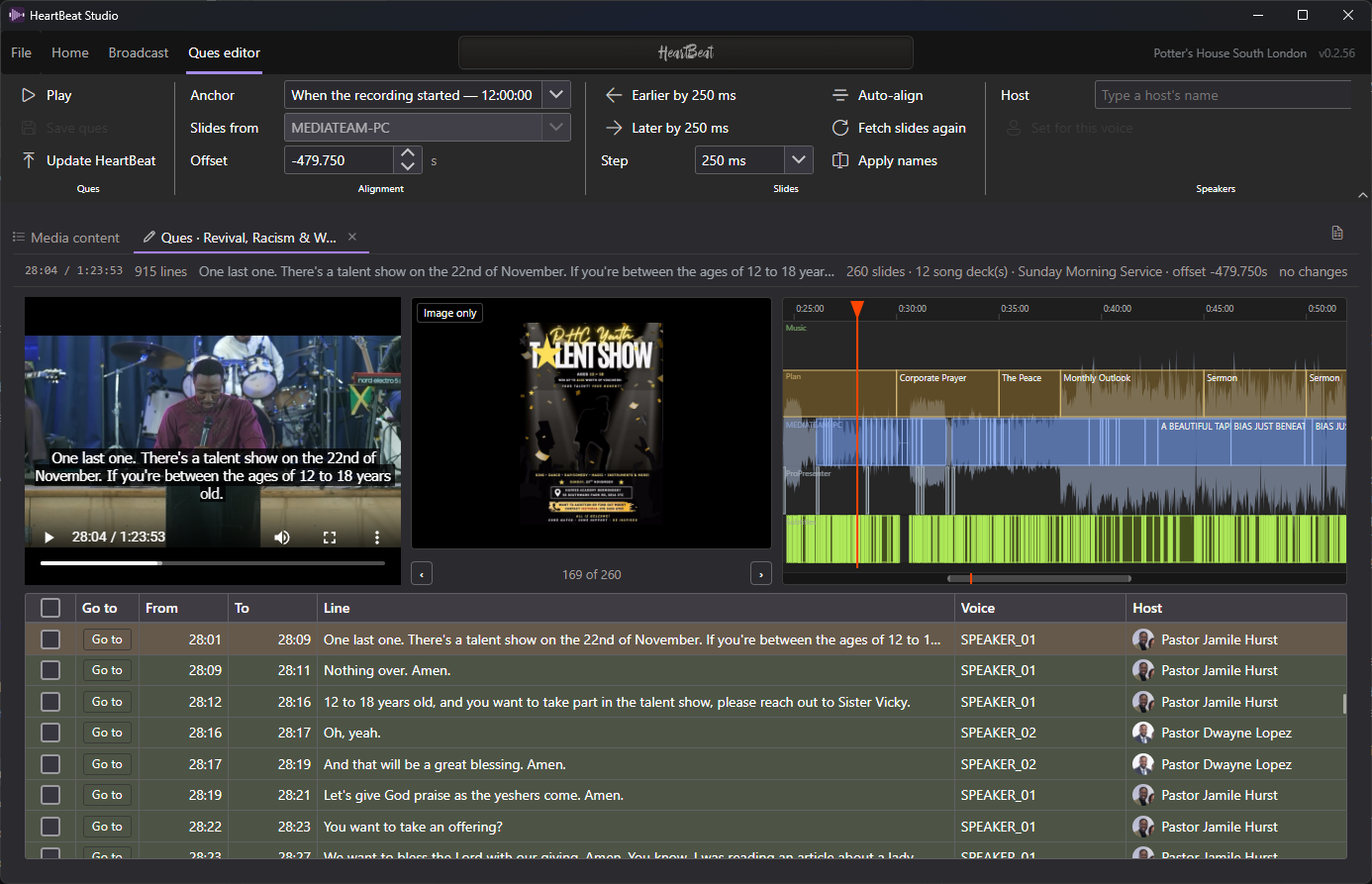
Every part of the editor is a panel
The Recording, the Timeline, the Transcript, the Slide (when slides were captured) and Call to actions are all panels, arranged the same way as the clip editor's: each is a tab, you drag a tab onto another group's tabs or onto a group's edge to put it where you want it (drop it on the right-hand edge of the right-most group for a column of its own down the right of the window), drag the handles between them to size them, and the ⋮ at the end of the tabs resets the layout. Moving the recording or the timeline doesn't stop the video or lose your place, and a recording behind another tab keeps playing. The recording, the timeline and the transcript can't be closed. Each computer remembers the arrangement. See Arranging the panels.
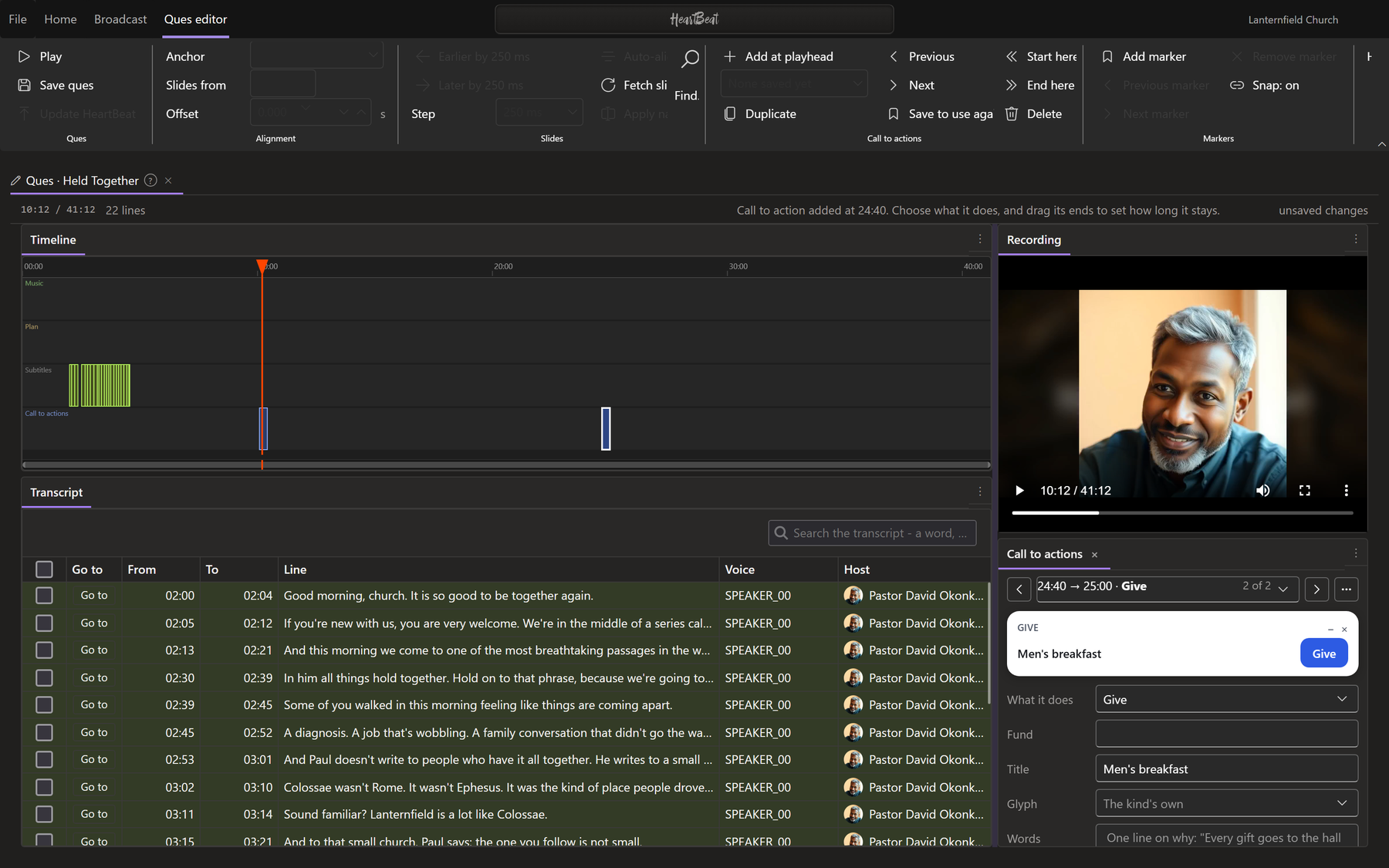
The Ques editor ribbon tab
While a ques editor is the tab in front, a Ques editor tab appears on the ribbon and is selected. It acts on the recording you're looking at, and disappears when you switch away. Fields that can't apply (no slides captured, say) are greyed out rather than hidden.
- Ques
- Play / Pause, Save ques (greyed until something has changed), Update Heartisan.
- Alignment
- Anchor (which moment slide times are measured from), Slides from (which capture PC's slides; only pressable when more than one reported), and Offset (seconds the slides are moved, positive is later: type a value and press Enter, or use its arrows).
- Slides
- Earlier by … / Later by …, Step (50 ms, 250 ms, 1 s or 5 s; the Offset arrows use it too), Auto-align, Fetch slides, Apply names, Find… (search slides and speech by their words).
- Markers
- Add marker, Previous marker, Next marker, Remove marker and Snap — marks to line things up with, and the pull onto them.
- Speakers
- Host (type to find one), then Set for "<voice>". Select a line in the grid first to choose the voice. The grid's Voice column is read-only; this is how a voice is credited.
One status row above the video shows the time, the line count, the line being spoken, the slide summary, messages (hover a cut-off message to read it all) and whether there are unsaved changes.
Resizing the areas
Point at the gap between two panels, and when the cursor becomes a resize arrow, drag. Double-click a handle to share the room equally again. Sizes are remembered on this computer for every recording, and keep their proportions in a smaller or bigger window.
Slides and the ProPresenter lane
- The slide panel says what it is. Words and no picture show the words, centred, labelled Text only. A picture with no words is Image only. A picture that can't be downloaded says Picture unavailable.
- Go to, in the first column of every line in the grid, moves playback to where that line starts.
- The ProPresenter lane, between the slide lanes and Subtitles, shows what the operator did as thin marks: pink for a look, green for a timer started, red for a timer stopped, gold for a stage message, grey for anything else. Hover one to see what it was, when, and on which machine. They move with the slides, because they're on the same clock. They only appear for what your capture PCs were told to watch; see What to watch.
Fetching slides, and choosing the anchor
Fetch slides asks Heartisan again for the slides captured around the recording, and rebuilds the slide layer at the current offset. It says how many came, how many fall outside the recording, and that Save ques keeps them. It is also how slides are added later: to a recording imported with no slides, or once a capture computer that was offline has uploaded its backlog. Choosing a different Anchor fetches again in that anchor's own window:
- Anchored on the recording's own start, it looks two hours either side.
- With only a date, it looks across the whole day.
- Where the day's captured slides form one clear run far from the item's own clock, Where the captured slides start is offered as an anchor.
- When nothing was captured, it says between which times it looked.
A transcript that finishes while you work
If a transcript finishes while the editor is open (from the jobs queue, a re-run, or another computer), it's merged in within a few seconds. The spoken lines are replaced, and slides and assigned hosts are left alone.
Sending the changes to the app
After Save ques on a recording that's already on Heartisan, Update Heartisan appears beside "Saved N lines." (and on the ribbon whenever there are no unsaved changes). It sends the saved ques and the caption files, updates the item's details including the slide alignment, and syncs. The status line says what was sent or what went wrong. A corrected word then shows in members' captions as well as the transcript. Translations aren't re-sent by this button, and it's greyed out for a recording never published to Heartisan.
Apply names in Heartisan Studio
After Auto-align has placed the slides, Apply names names each music clip already cut from the recording after the song deck that was on screen while it played, puts the clip on that song (making the song if it's new), and teaches the app what the song sounds like. Only a confident match is applied by itself. For the rest, the message says which name it would have given and how sure it was, so you can review them from the list. Cutting the clips is covered in Music clips & songs.
The timeline
Under the grid is a stacked timeline, a lane per kind of thing:
Music
Slides · STUDIO-PC
Slides · STAGE-PC
Plan
Subtitles- The waveform shows where the talking and the music are, so a misalignment is visible rather than guessed at.
- Zoom and scroll like a video editor — the wheel zooms about the pointer, shift+wheel or a middle-drag scrolls. Zooming in gives finer ruler marks and more detail in the waveform, not the same few marks spread further apart.
- Click anywhere to scrub; the playhead stays in view while you're zoomed in.
- The subtitle track is colour-coded like the grid above it — a line that has had a host assigned is green, the line playing right now is amber, a line with nobody against it stays grey. The two can be matched by eye while working through a recording.
- Hover any block to see what's in it — a slide's captured picture and its words, a subtitle's speaker and text, a service plan segment's name, with the times it covers. There is no wait before it appears and nothing is selected or moved by looking, so a whole service can be skimmed for the slide you want without seeking to each one.
The slide preview
To the right of the video, a preview shows what was on screen at the playhead, and follows as you scrub. Between two slides it keeps showing the one still up rather than going blank.
- Prev / next step slide by slide and take playback with them — the dependable way to land on one exact slide out of hundreds.
- Clicking a slide on the timeline does the same; double-clicking the preview frames that slide.
- A badge says what that slide actually carries — TEXT + IMAGE, IMAGE ONLY, TEXT ONLY or NOTHING CAPTURED — and its tooltip gives the totals across the whole recording.
Lining the slides up
The ProPresenter computer and the recorder are two different clocks, so the slides usually land a little early or late against the video. The Alignment and Slides groups on the Ques editor ribbon tab fix that once, for the whole recording:
- Auto-align
- Snaps the slides to the best correlation between the detected music and the song decks that were on screen. Start here.
- Drag the slides lane
- Shove them by hand if the automatic answer isn't right.
- Offset
- The figure itself, to the millisecond. It's stored on the item, so it's never worked out twice.
- Earlier by / Later by, and Step
- Watch the video, see a slide land late, and step everything until it matches. The step goes from 1 ms to ten minutes, so the same control does the coarse pass and the final trim, and it's remembered between recordings.
Saving keeps the alignment. The offset and anchor are saved with the ques, so reopening the editor doesn't put the old times back. It lines up from the date and time on the item by default, keeps the service plan still while the slides are nudged, and answers to space, the arrow keys and a sideways scroll.
Markers and snapping
A marker is a pencil mark on the timeline — “the song starts here” — and a dragged lane of slides is pulled onto it, the way a clip is in a video editor. Markers are kept beside the recording as you make them. They are never sent to the app and are not part of Save ques.
- Add a marker
- Click the timeline so it is in front and press M to mark the playhead, or press Add marker on the ribbon's Markers group.
- Go to one
- Shift+M goes to the next marker and Ctrl+Shift+M to the one before (or Next marker and Previous marker). Click a marker's flag in the ruler to go to it.
- Move or remove one
- Drag its flag along the ruler. With a flag picked, Delete (or Remove marker) takes it away.
- Snap
- With Snap: on, dragging the slide lanes — or a cut's edge, in the clip editor — near a marker or the playhead lands exactly on it, and a yellow line shows what it caught. Scrubbing the playhead is pulled onto markers too. Hold Alt to drag freely for one drag, or press Snap to turn it off.
Finding a slide by its words
Find… in the ribbon's Slides group opens a search strip above the video. Type some of the words — in any order, capitals and punctuation don't matter — and it lists every captured slide and every spoken line that has them, with the time each sits at now.
- It looks at everything that was captured around the recording, not only what the timeline draws. A slide the recording starts too late to show appears with a dashed edge and a minus time (“−02:10” is two minutes ten before the start), and says it is outside the recording. The strip names how many slides it looked through and between which times.
- Click a row to play from there. Start at playhead beside a slide moves every slide by the amount that puts that one where the playhead is — the quickest way to line slides up by what was said: find the spoken line, find the slide with the same words, press it.
Which time to line them up from
When the slides come out matched to the wrong service entirely — not a second or two out, but a different part of the day — the problem is which time they are being measured against. Anchor on the ribbon lets you choose:
- The recording's own start, or
- The date and time set on the recording.
It says how far apart the two are. Previously the recording's start was used silently, so correcting the time on the item changed nothing.
More than one ProPresenter
Each ProPresenter reports under its own name, and each gets its own coloured track instead of everything being interleaved into one row. Slides from on the ribbon is a tick list of every machine that reported during this recording, with how many slides each sent, so you can change your mind about which to use — it re-imports from the machines ticked and rebuilds everything that follows. Tick one, several or all of them: slides from a machine left unticked are left out when the ques are saved. A broadcast started with particular ProPresenter computers chosen (on Devices, say) opens with those ticked.
(all machines) is only offered when more than one reported. Dragging any slide track shifts them all: the machines share one capture clock, so they align together or not at all.
Naming the music
Music detected in the recording used to be called “Music 1, 2, 3” and renamed by hand. Apply names now writes the names for you, taking the best evidence available:
- The song deck that was on screen at the time.
- Failing that, the song order from your service plan.
- Failing that, the audio fingerprint.
- Failing that, the words that were sung.
Names are only applied when the match is strong enough to trust, and whichever source wins also teaches the fingerprint what that song sounds like — so the next recording recognises it by ear even with no slides captured. It also links the songs to your songs library and records which service plan the recording captured, which is what fills the app's Music section.

Writing the description
The designed description page is written from these same captions — right-click the recording in the media content list and choose Description. See Descriptions & designs.
If no slides appear
- “No ProPresenter events were found” — it names the window it searched and what anchored it. A recording date that doesn't match when ProPresenter was actually running is the usual cause.
- Slides already on the timeline came from an earlier import and are unaffected by a search that finds nothing new.
- A service that couldn't be reached says so, distinctly from one that reported nothing.
- Hundreds of slides on the timeline but only a handful in the image picker is expected — most slides are lyrics and points, which carry words and no picture.