


Your media.Your machine.Your own AI.
Heartisan Studio is the desktop app that runs the AI on your own computer: transcribing, working out who is speaking, matching voices to your hosts, drafting descriptions, picking categories, finding the music and encoding the stream. Your recordings never leave your machine to be processed.
- Bring inFrom the desk or YouTube
- TranscribeOn your machine
- SpeakersNamed, not numbered
- DescribeDraft and tags
- EncodeAdaptive streams
- PublishApps, web, website

What Studio makes, your members use.
The AI's work doesn't stay in a desktop app. Every transcript, speaker, category, song and translation Studio produces lands in your app, where your audience reads, searches and listens to it.
-
Transcripts that follow the speaker
Every word, timed to the audio, with each line credited to the person who said it. In the app, the line being spoken is lit as the recording plays.
Made by transcription and speaker recognition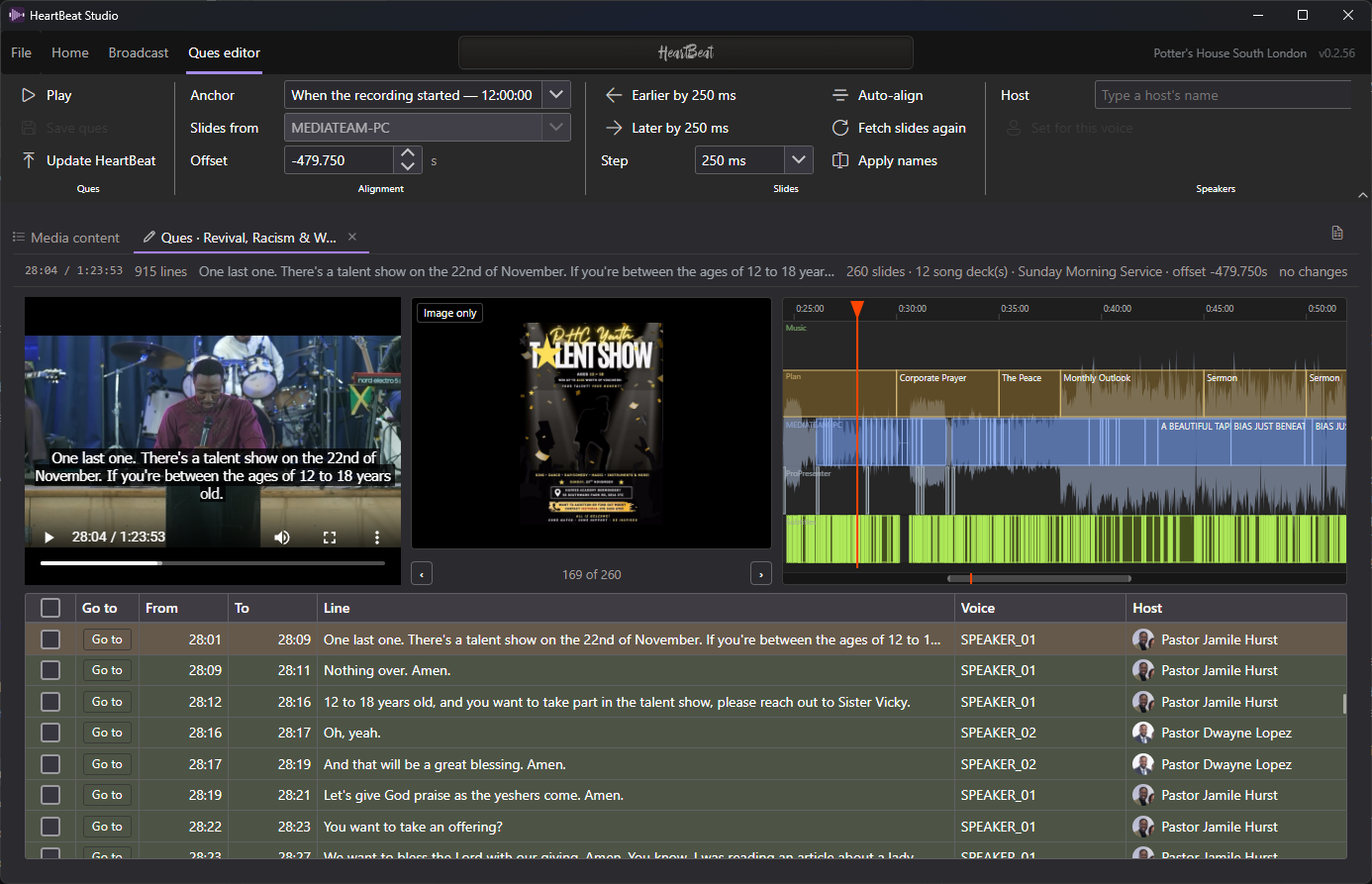

-
Search inside every word said
Because every recording is transcribed, a half-remembered phrase finds the minute it was said, with the quote and a timestamp that opens the recording there.
Made by transcription, across the whole library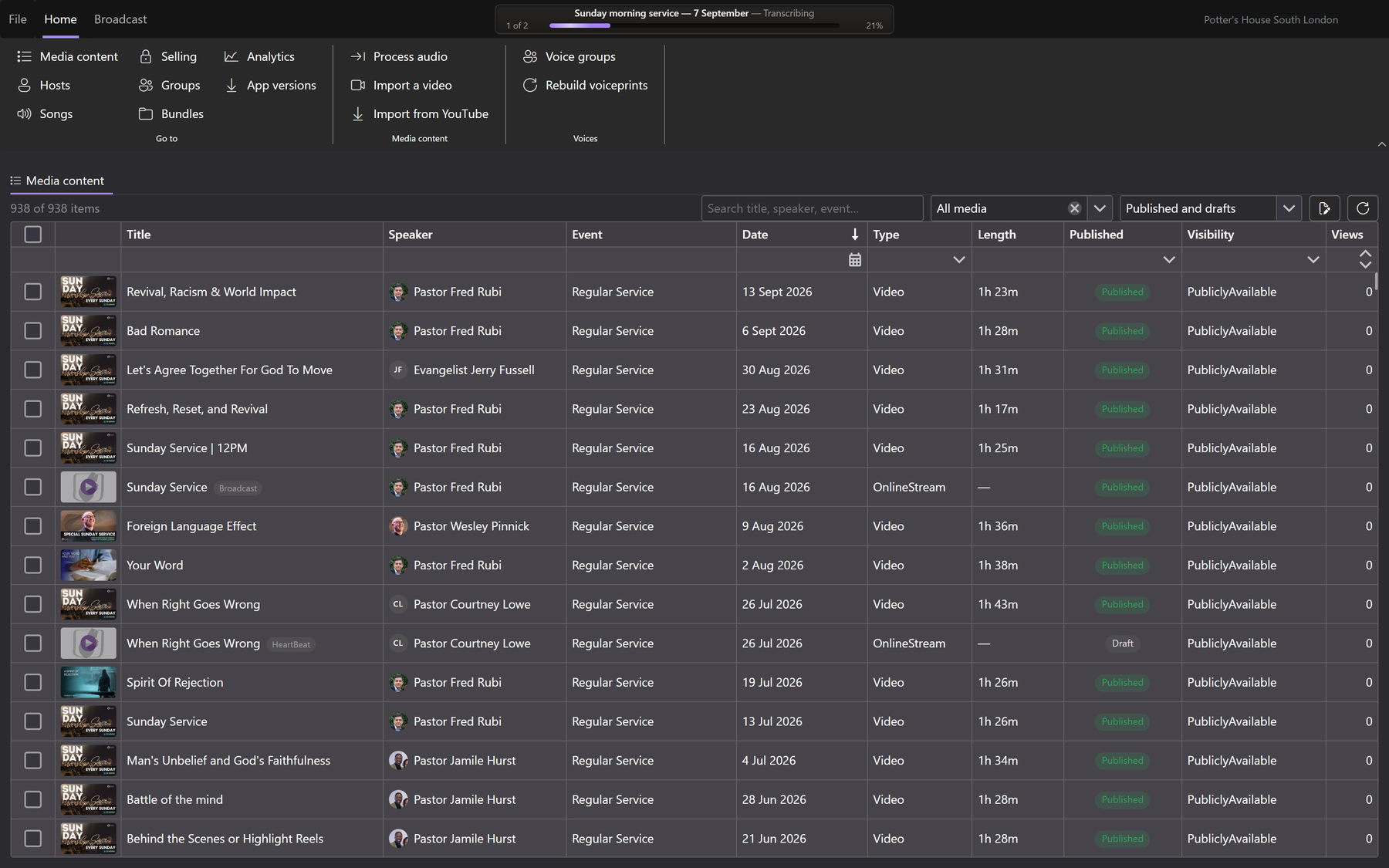

-
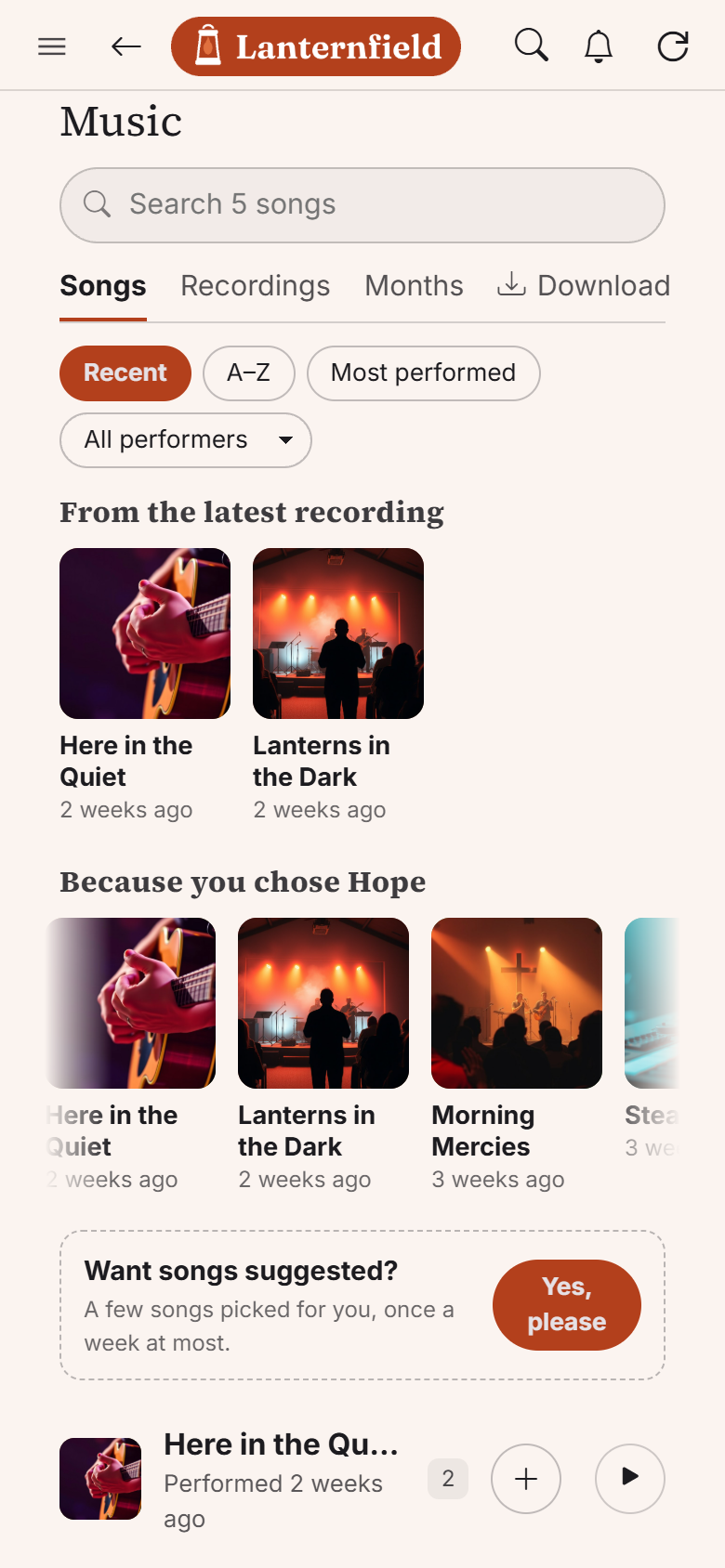
The music, found, named and clipped
Studio finds the songs and performances in a recording, names them and cuts each into a clip of its own that still links back to the full recording. The app can then list what was performed and when, and people can go straight to the song. Whether members see it, and what it's called, is your choice.
Made by music detection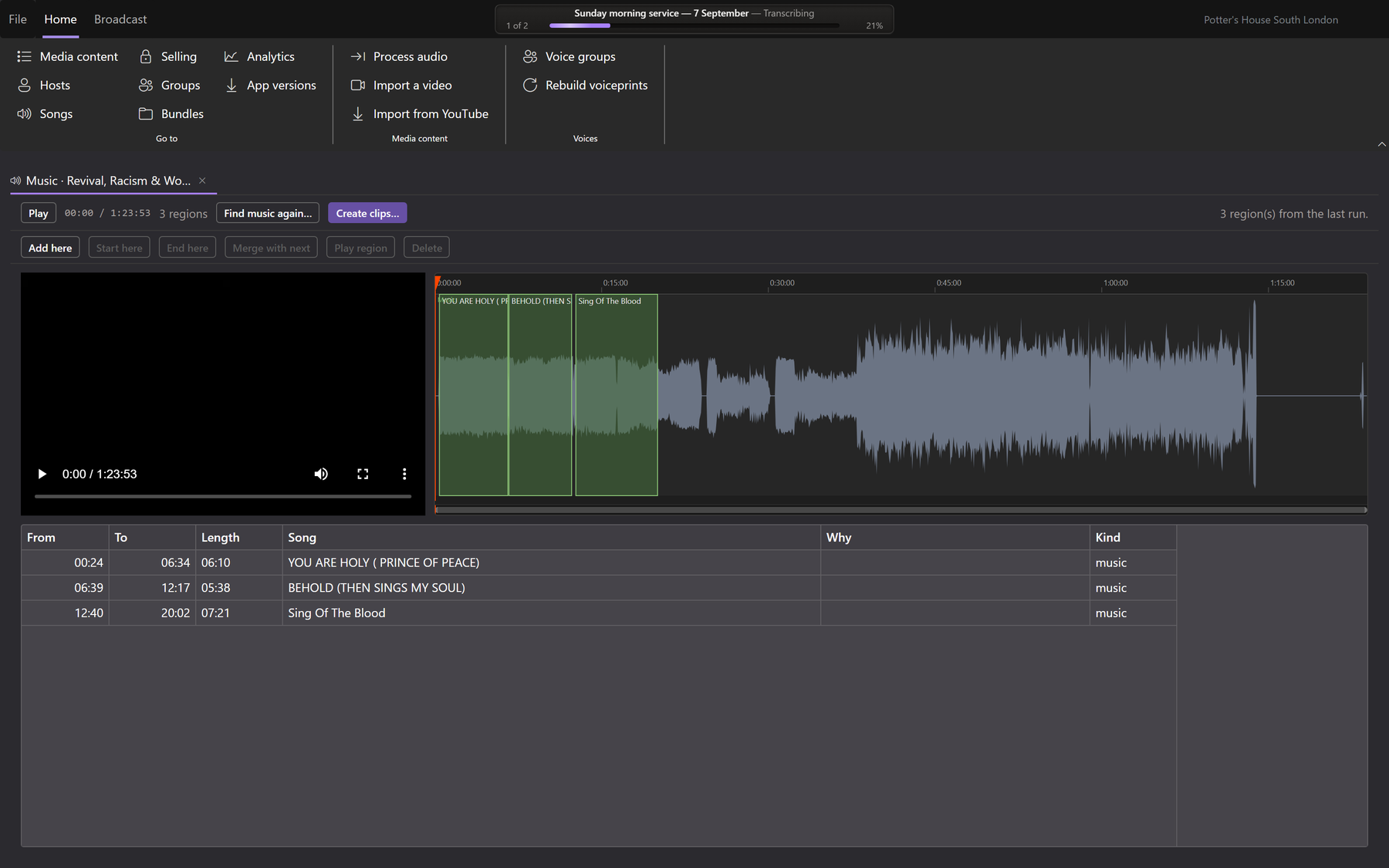
-
Every recording filed by what was said
Studio suggests the categories for each recording from its transcript. They become the topics people pick from in the app, and what "Suggested for you" is built on.
Made by Categorise with AI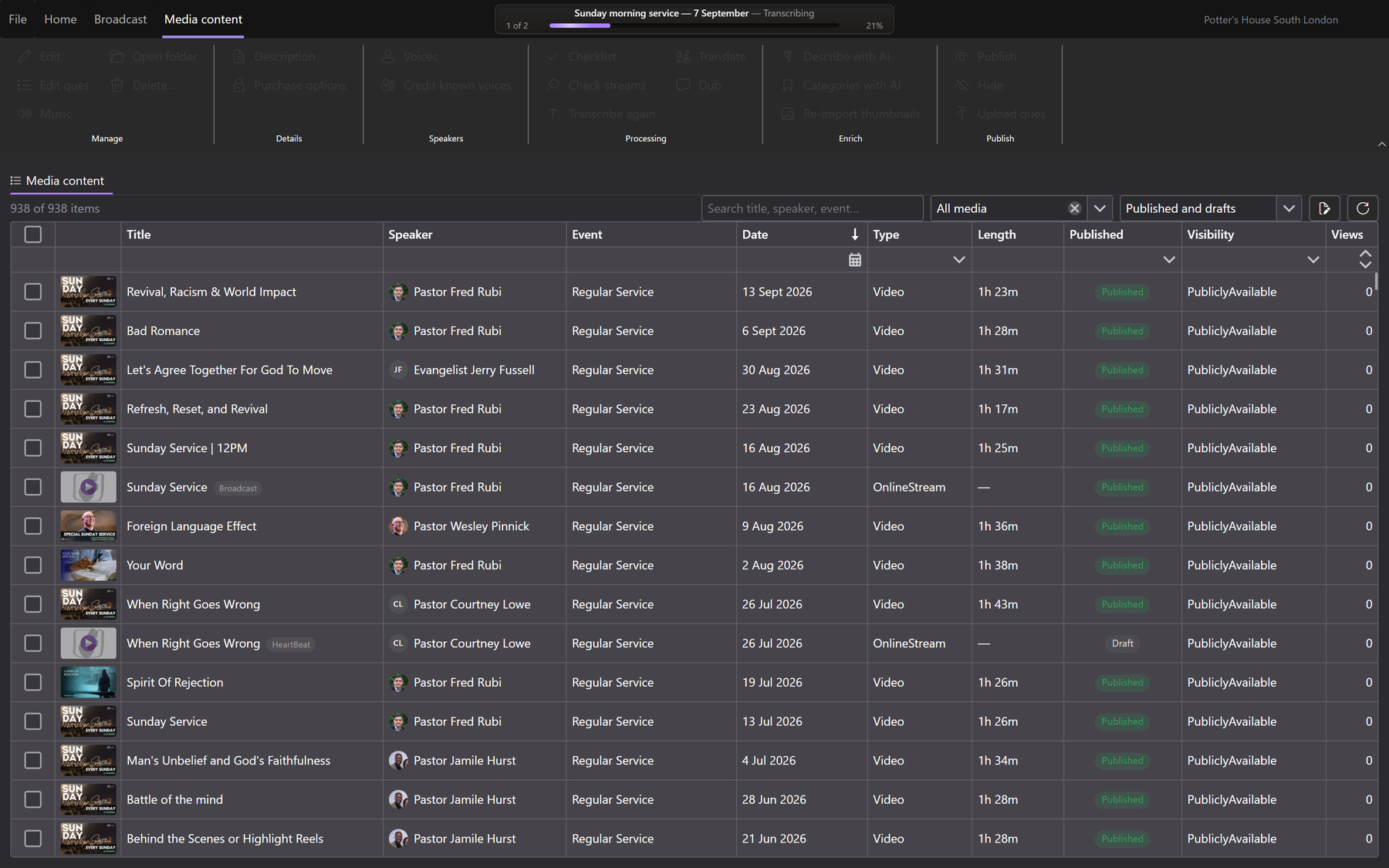

-
Heard in their own language
Studio learns the voices of the people who speak, and can speak a translation in the speaker's own voice. Members choose the spoken language and subtitles once, and every recording follows.
Made by translation and dubbing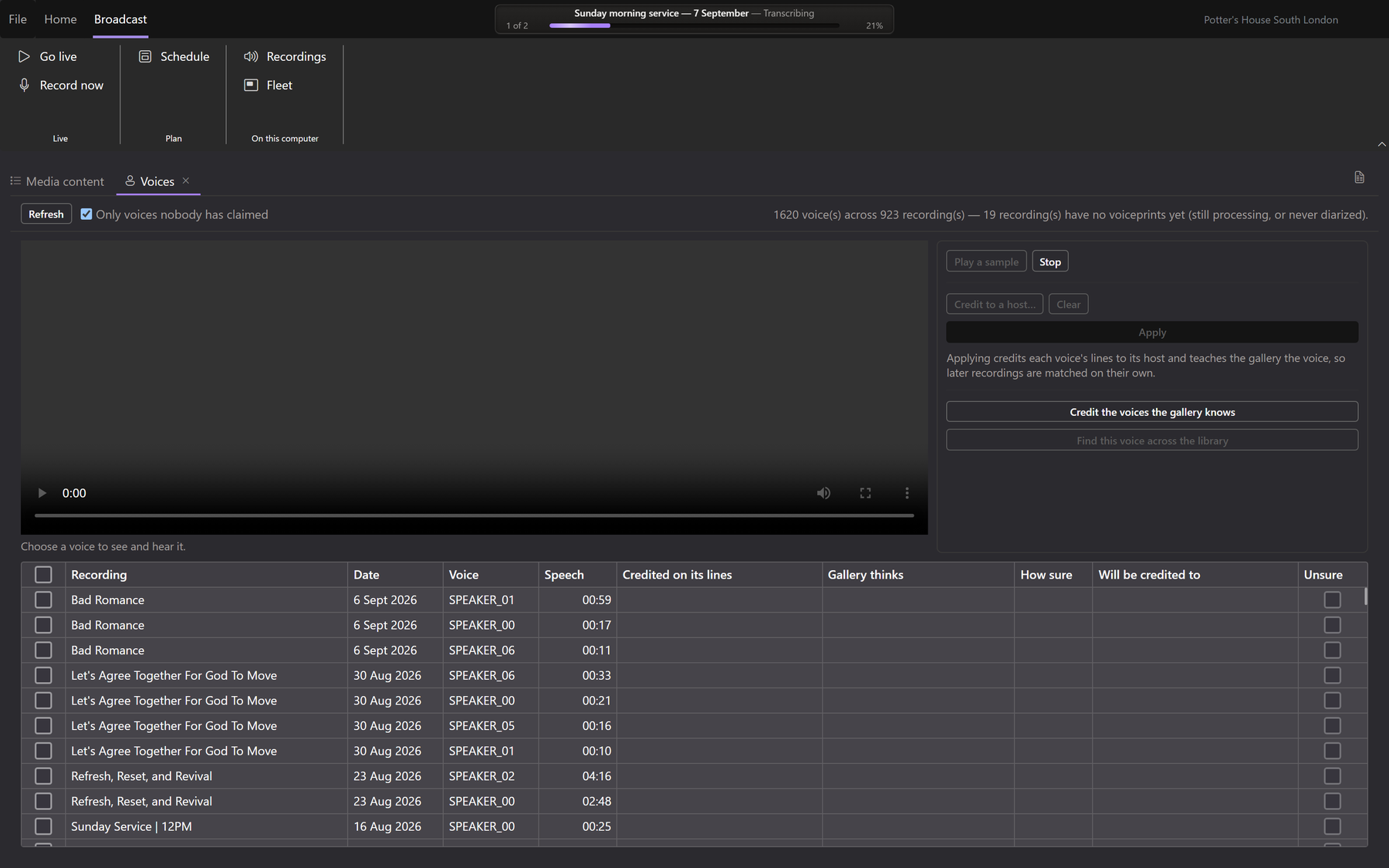

Real screens from our development organisation's Studio and app.
Publishing takes longer than recording.
It finishes at midday. It goes out on Thursday, because in between there's exporting, naming, uploading, a description, a thumbnail, and all of it again for each platform.
The usual pipeline
- Export, wait, export again in another format
- Upload the same file to three or four places, one at a time
- Write the title, description and categories four times
- Pay a cloud service per minute to transcribe, and hand it your audio
- Master files scattered across services you don't control
With Heartisan Studio
- Drop the file in and walk away; the AI runs on your machine
- Transcript, speakers, a draft description and categories come back
- Stream files are made locally from your master
- Everything stays on your own storage
- One publish reaches the apps, the web app and your website
The steps you'd otherwise do by hand.
- Bring it in
- From the desk, the camera, the podcast rig or a YouTube live stream, which becomes a fully processed video, not a leftover link.
- Transcription
- A timed transcript of the whole recording, made on your machine, ready to search, correct and publish.
- Who spoke, and when
- A two-hour panel becomes an attributed transcript instead of a wall of text.
- Host matching
- "Speaker 1" becomes a real name automatically, and it learns your regulars.
- Descriptions and categories
- A draft description, key points and suggested tags from what was actually said. You edit rather than start blank.
- Music detection and clips
- Music found and separated from speech, for chapters, trimming and knowing what you played, and each song cut into a clip that still links back to its recording.
- Clip before you import
- Cut the start and end off a video file or a YouTube live stream before it comes in, with an intro and outro if you like, and set its time from your usual service times. Only the part you keep is processed, and the slides line up with it.
- Keep the whole video, too
- The part you cut away is kept beside the clip, transcribed once, so you can look back at what was said before and after, and cut another clip later without starting over.
- Fix a recording that's already up
- Open any video or sound recording from the library to cut it, add an intro and outro, or mend its sound, then save it as a new item or put it in the original's place. The original is kept beside it.
- Clean up the sound
- Fans, room hum, hiss, mains hum, uneven volume, clicks and clipping, mended on your own computer: on the whole recording or only the stretch you select. Every step can be undone, and the file you started from is never changed.
- Say the missing sentence
- Type the words and Studio speaks them in the speaker's own voice, on your computer, put in at the playhead or over the stretch that went wrong. The picture holds its frame while they play.
- Titles, from two dozen looks
- Choose from a gallery of twenty-three: a name and role in a dozen styles, a scripture reference, a series card, an announcement strip or a banner. They are drawn in a real typeface so they are spelt exactly as typed, and come in by fading, sliding, rising, typing on or building up over the part of the video you choose. Or animate one with a ComfyUI workflow of your own. On a 40-minute service in the usual format it takes seconds, not a re-render.
- Music, with or without lyrics
- Music made on your computer from a few words and, if you want, lyrics: put in at a point, or mixed under a stretch of the talk where it dips whenever someone speaks. Cover a song, change a voice or clean one up with the workflows you choose.
- A picture to cut away to
- Studio reads what is being said and suggests moments that deserve a picture; you choose it (drawn on your computer, stock, or your own), or have a short clip made from a description by a ComfyUI workflow of yours, and it fades in while the speaker carries on. Nothing goes on without you, and moments about people, children, grief or God are marked for care.
- Your own ComfyUI workflows
- Run workflows you have built over parts of a video, make music or sound effects from a few words, or carry a still frame on into moving picture. They are your workflows and your models; Studio runs them and puts the result back where it belongs.
- Events, even offline
- Add and edit your app's events with every setting the portal has, with a picture and background drawn by AI from what the event says about itself. Changes are sent at the next sync.
- Previews for TVs
- A short silent preview clip and skip-bar pictures made for each video when you publish it, so your TV app feels like a streaming service.
- Translation and dubbing
- The transcript in other languages, and the talk spoken in them in a voice cloned from the speaker, with the room still audible underneath.
- A fleet, not a machine
- Every quality and language is its own job, shared across every computer that has opted in.
- Local stream encoding
- Adaptive stream files made on your machine and written to your storage.
- The broadcast archives itself
- When a video broadcast ends, the processing computer can add it to the library, transcribe, name, translate and dub it, and send back only what changed. Nobody imports it on Monday.
- Sound in both ears
- A mono desk on one side of a stereo interface is noticed from the sound itself and sent to both ears, live and in the archive. Recordings already in one ear are mended in a batch.
- Pictures that fit the talk
- A cover drawn from what the recording's title and description say, with the title set on it in a real typeface, so it's always spelt right.
- Publish and fix
- One action publishes everywhere, on a schedule if you like. Fix a title or a trim and republish.
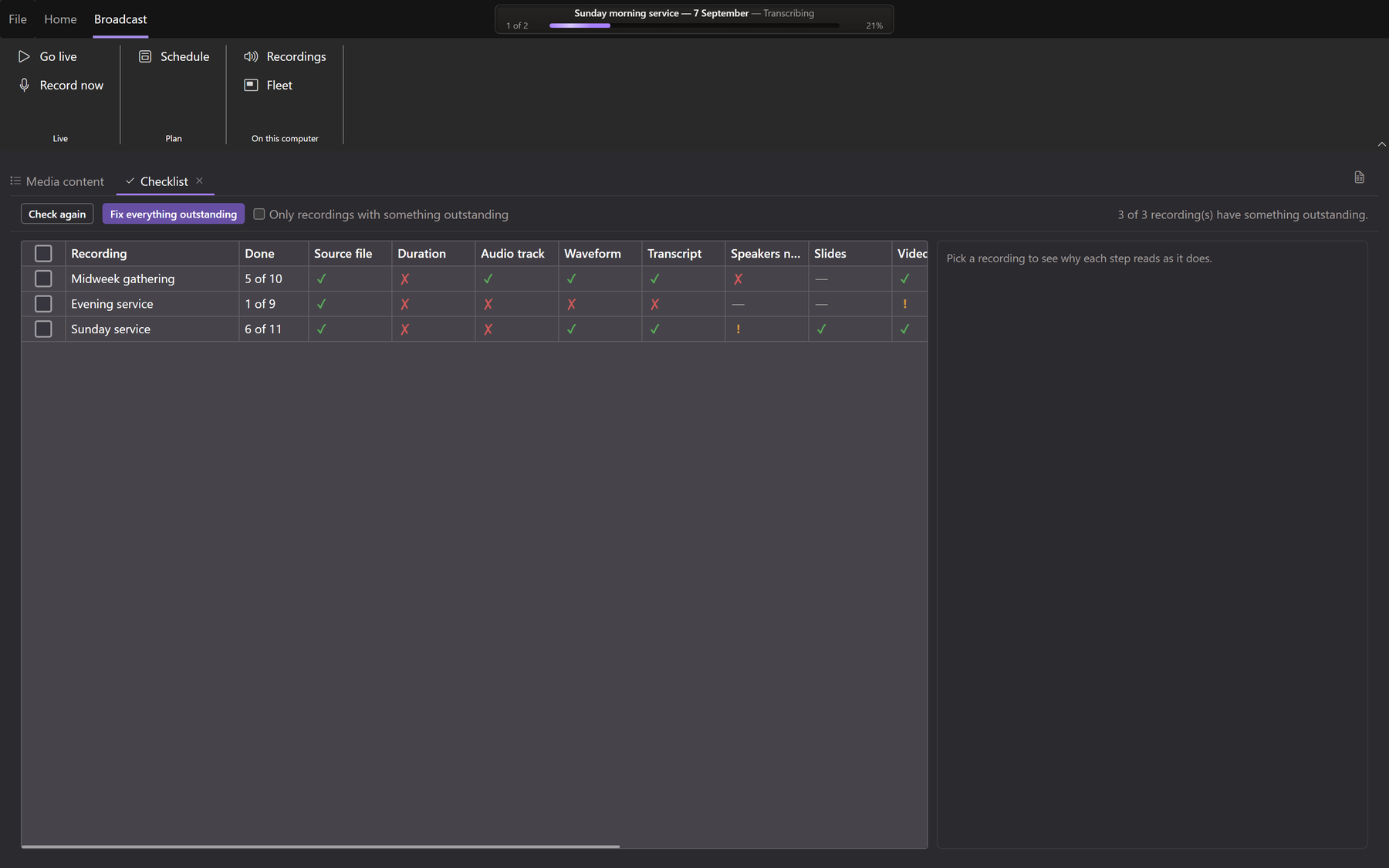
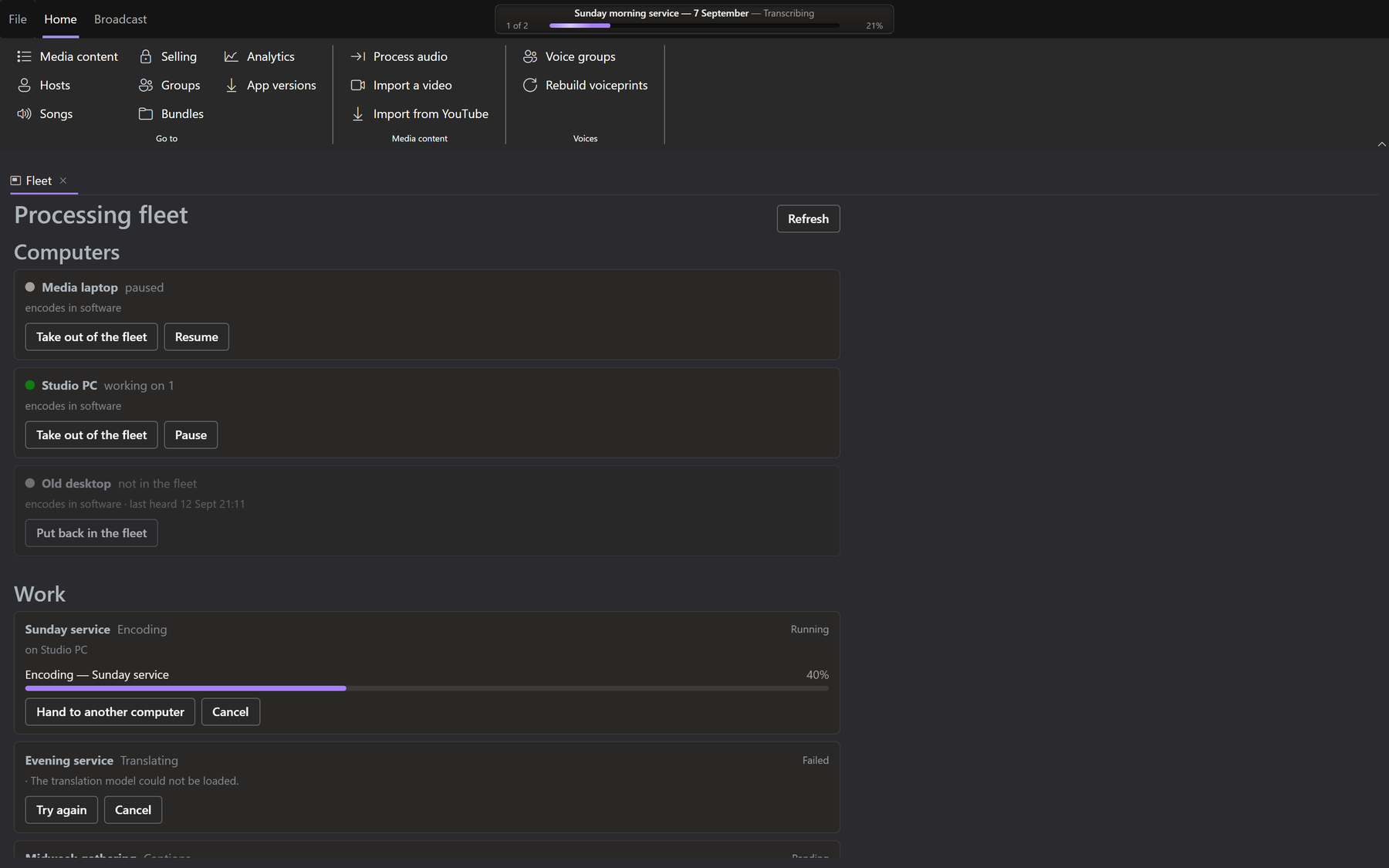
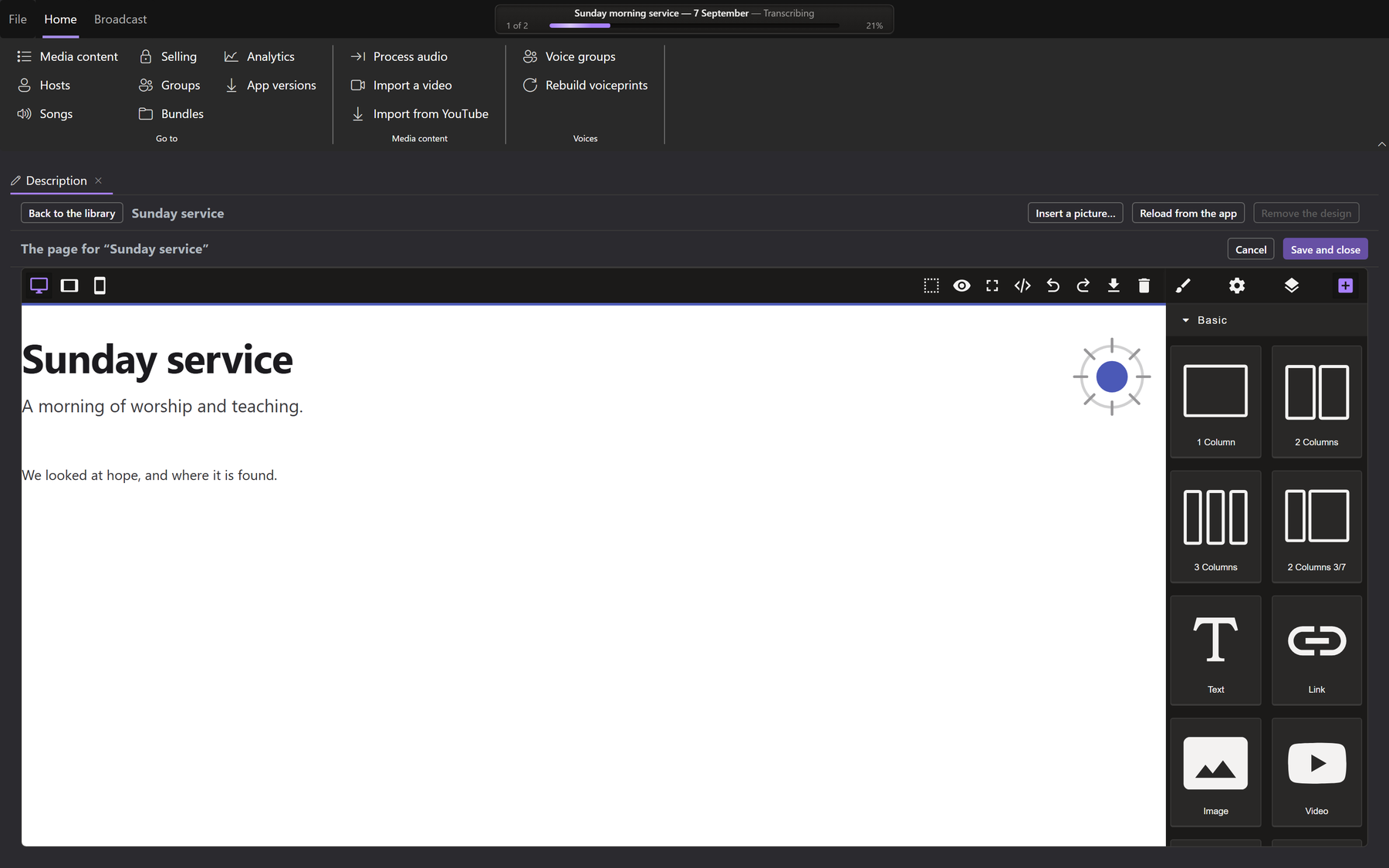
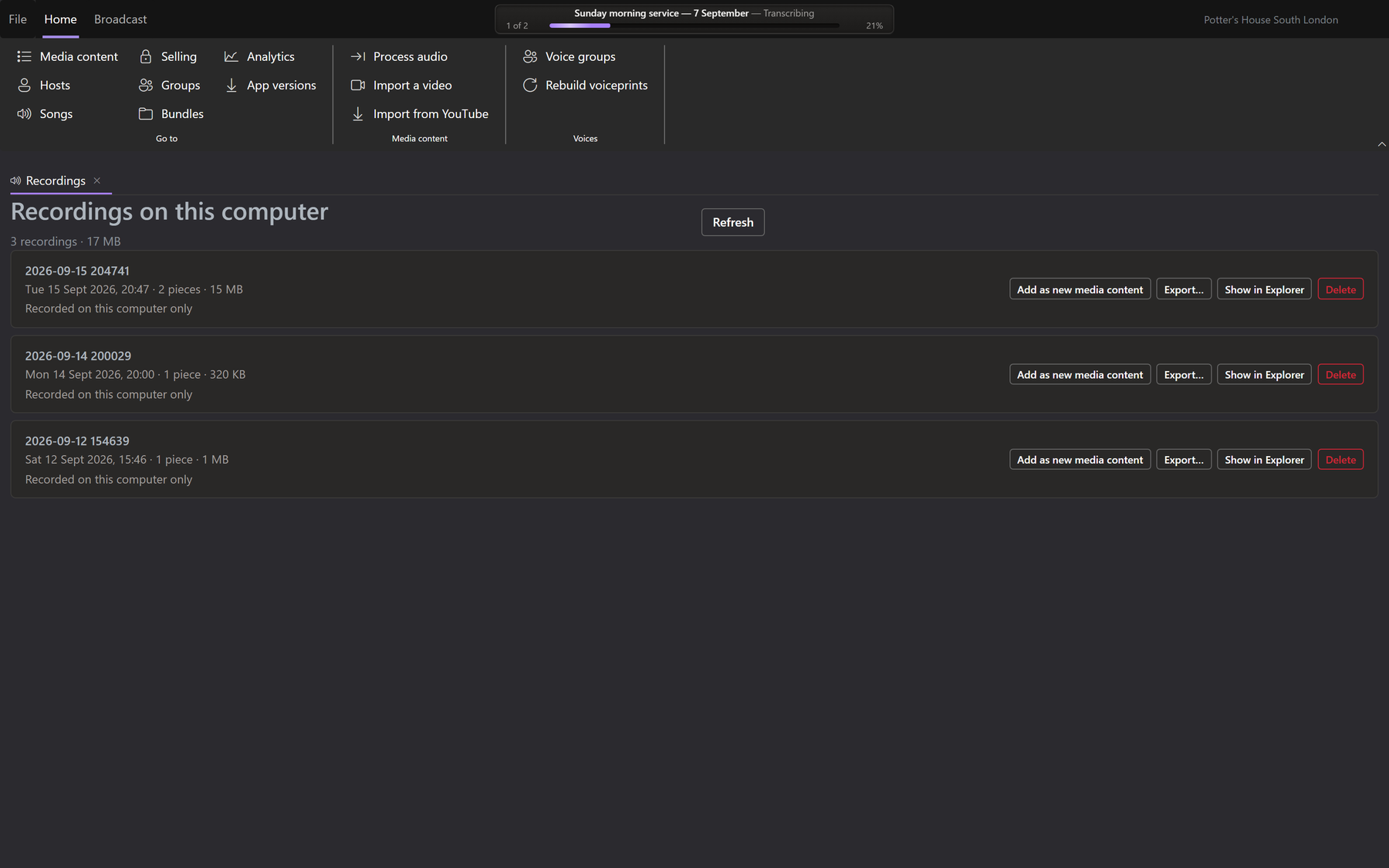
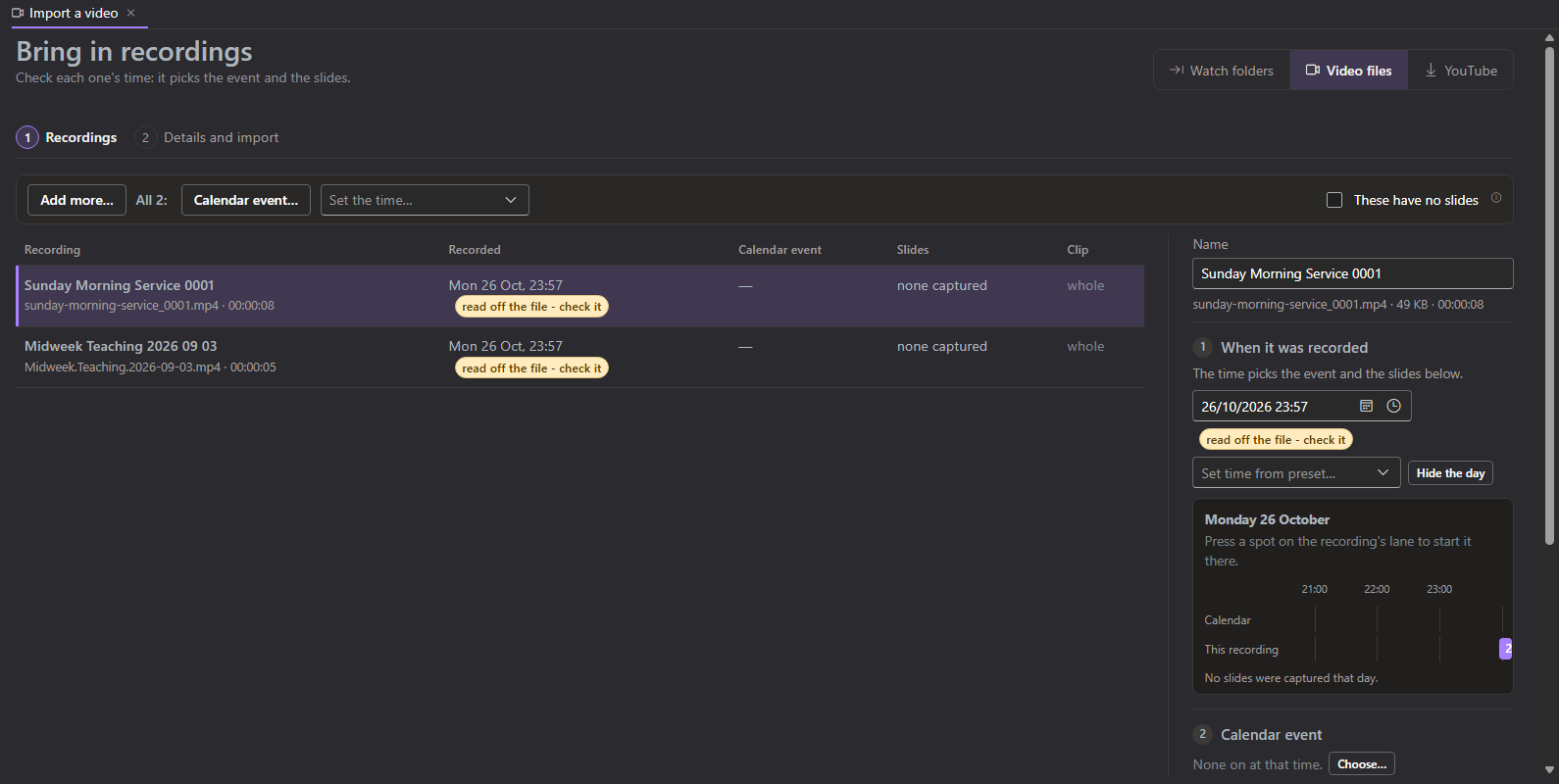
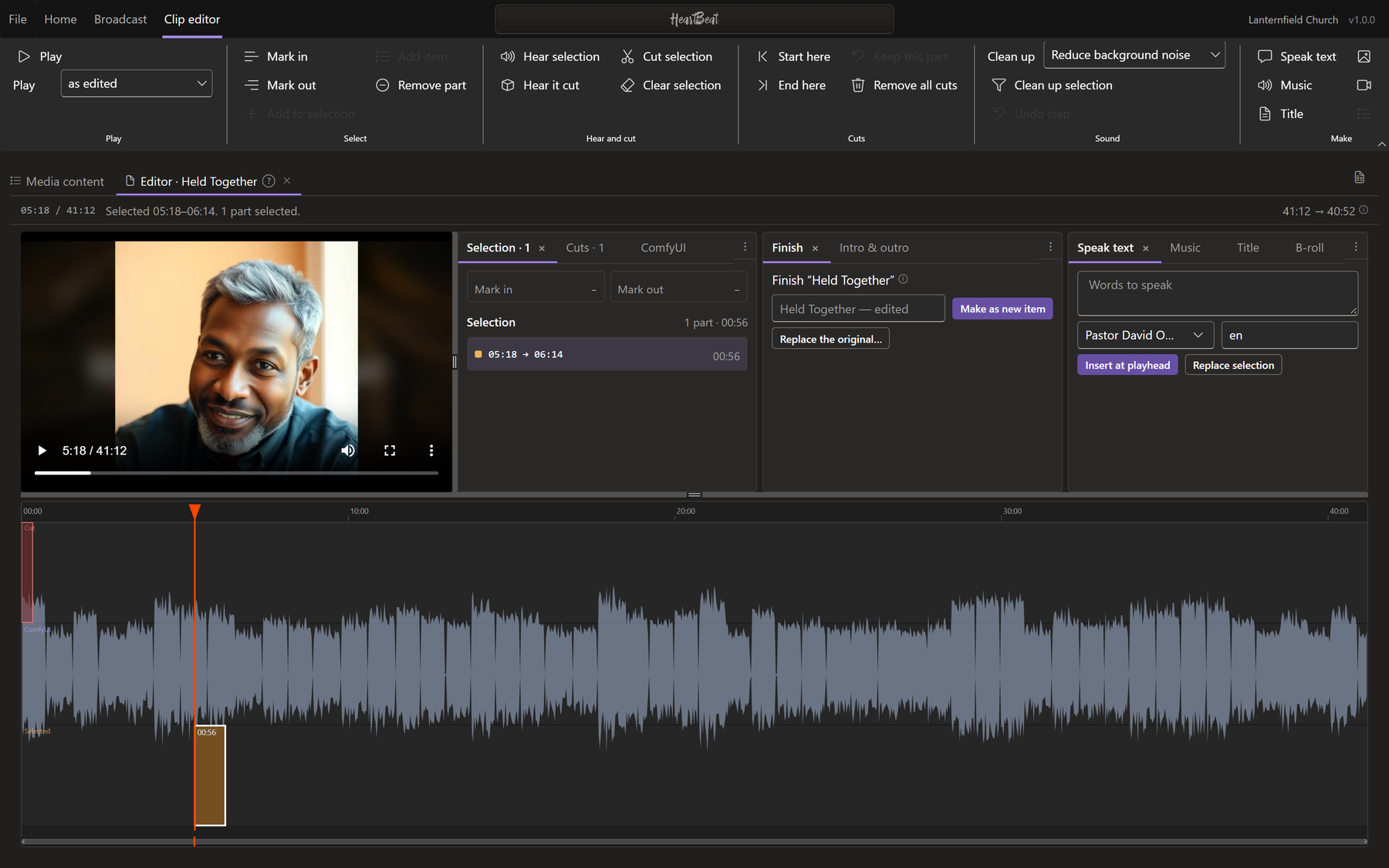
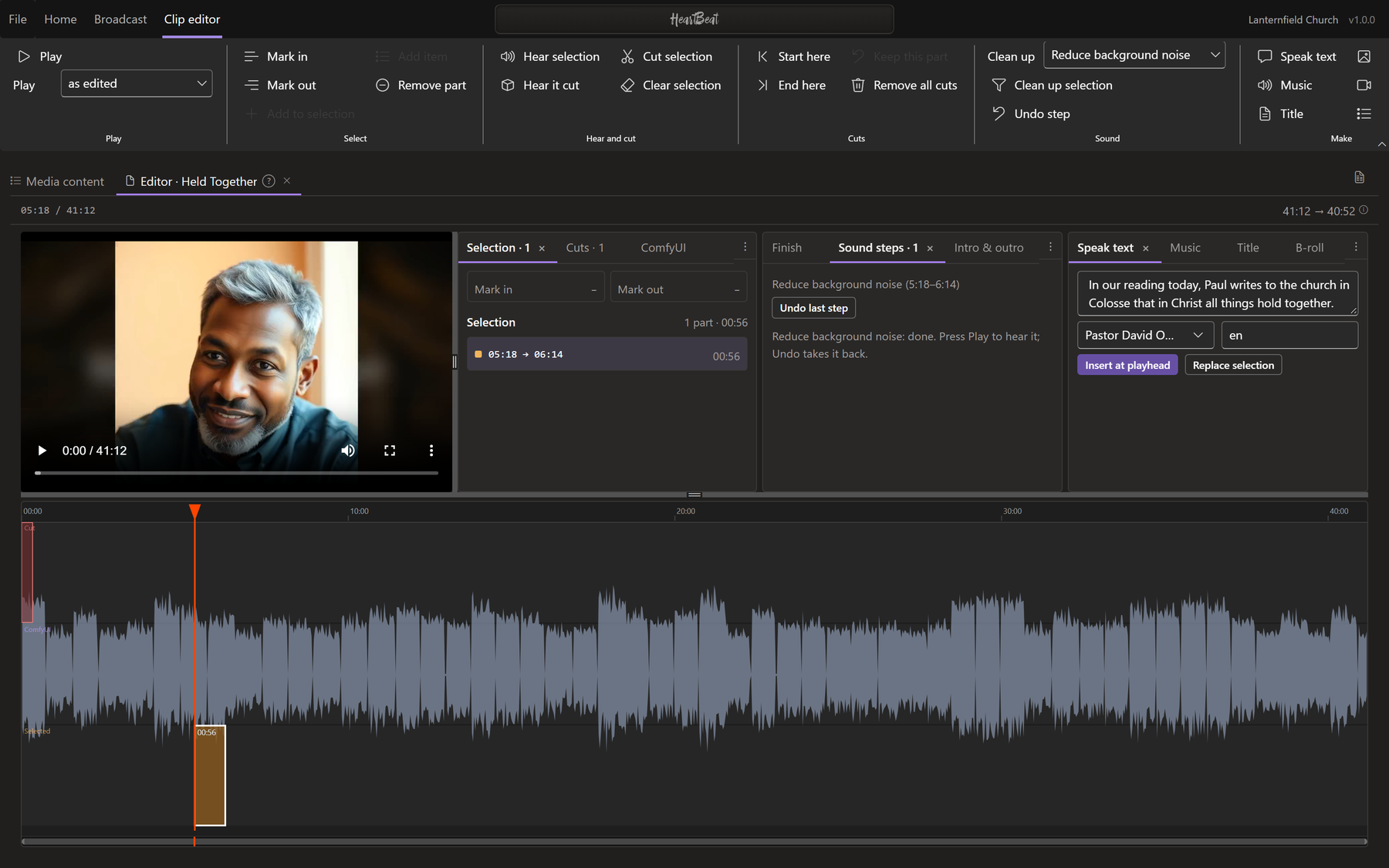
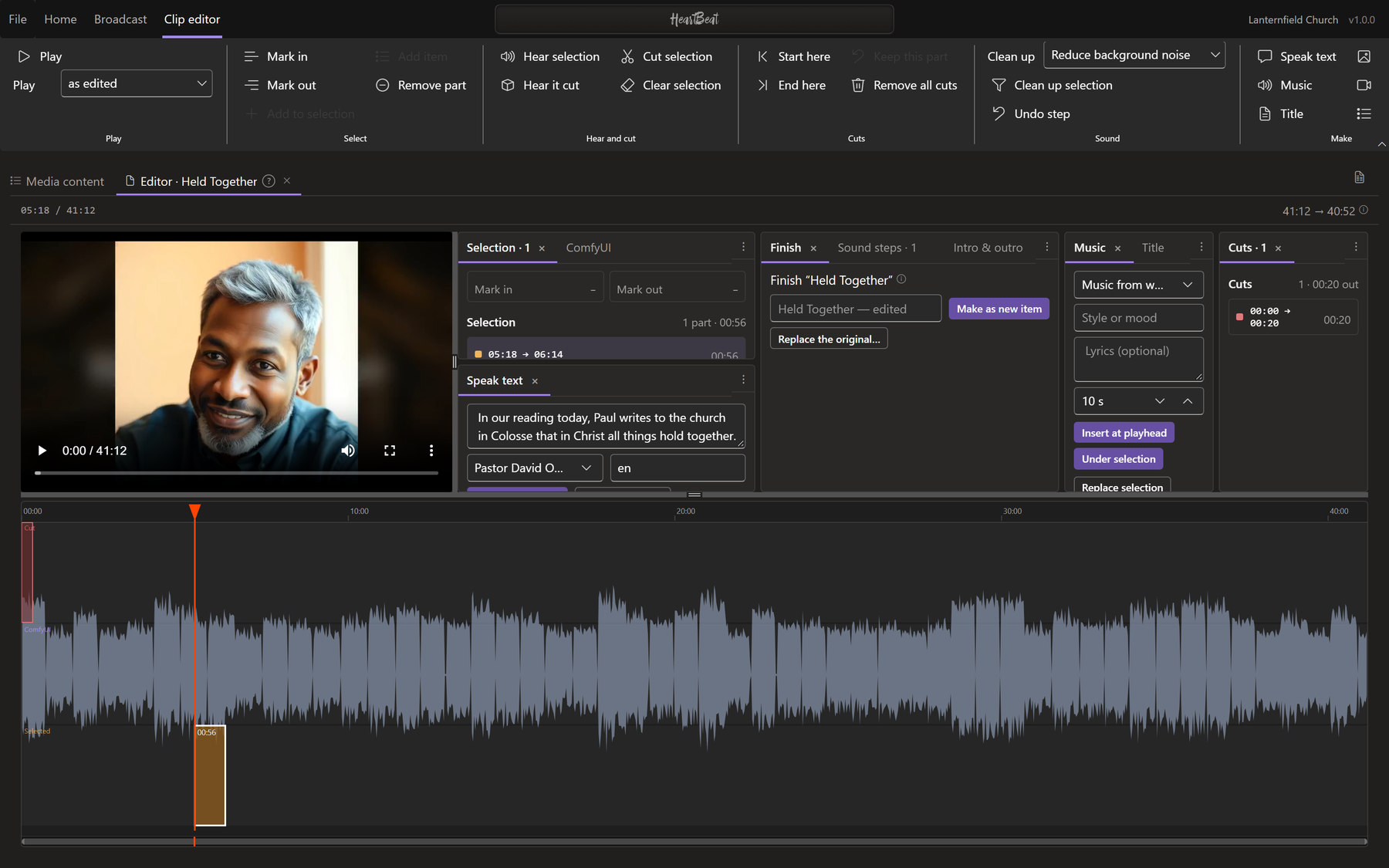

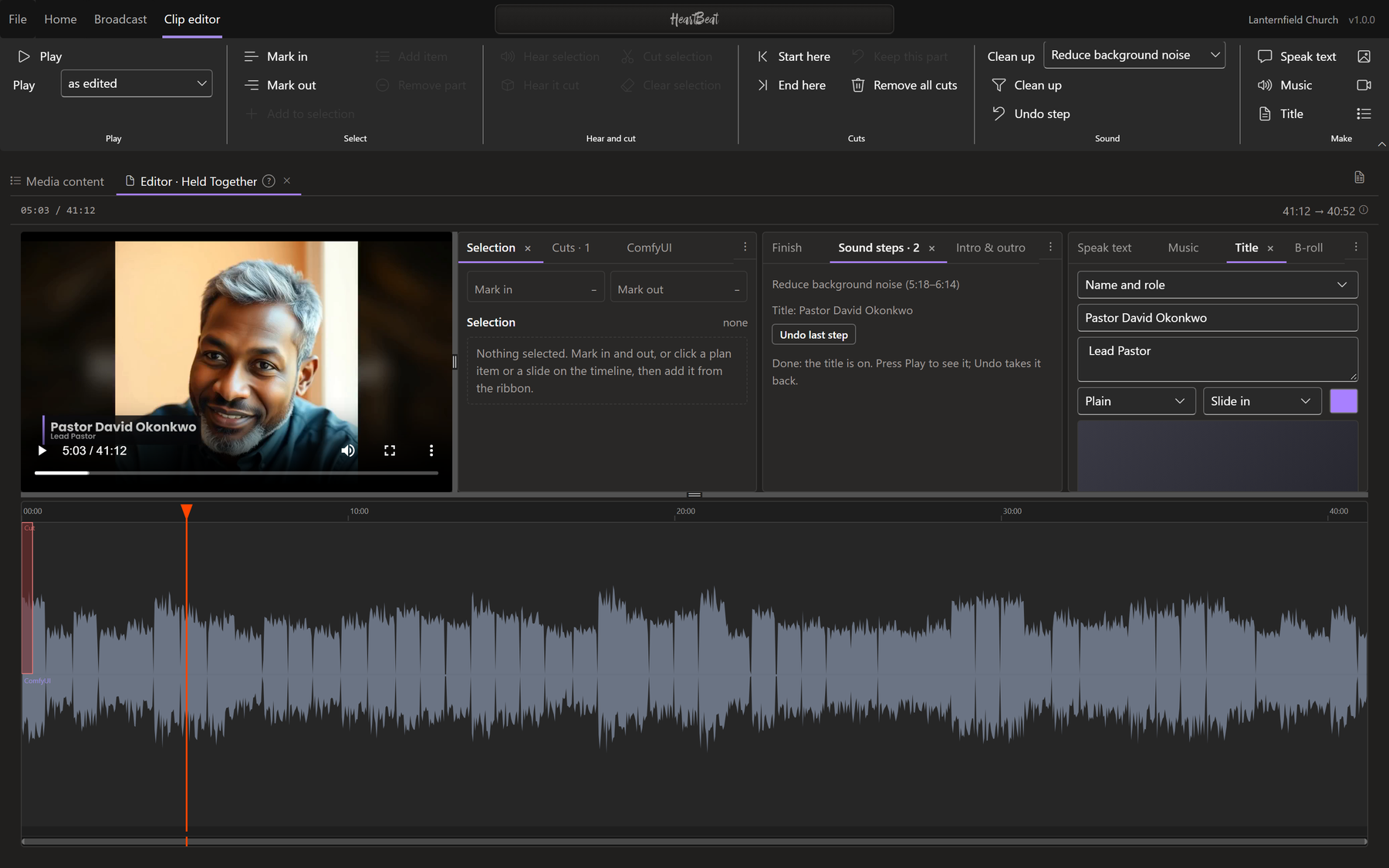
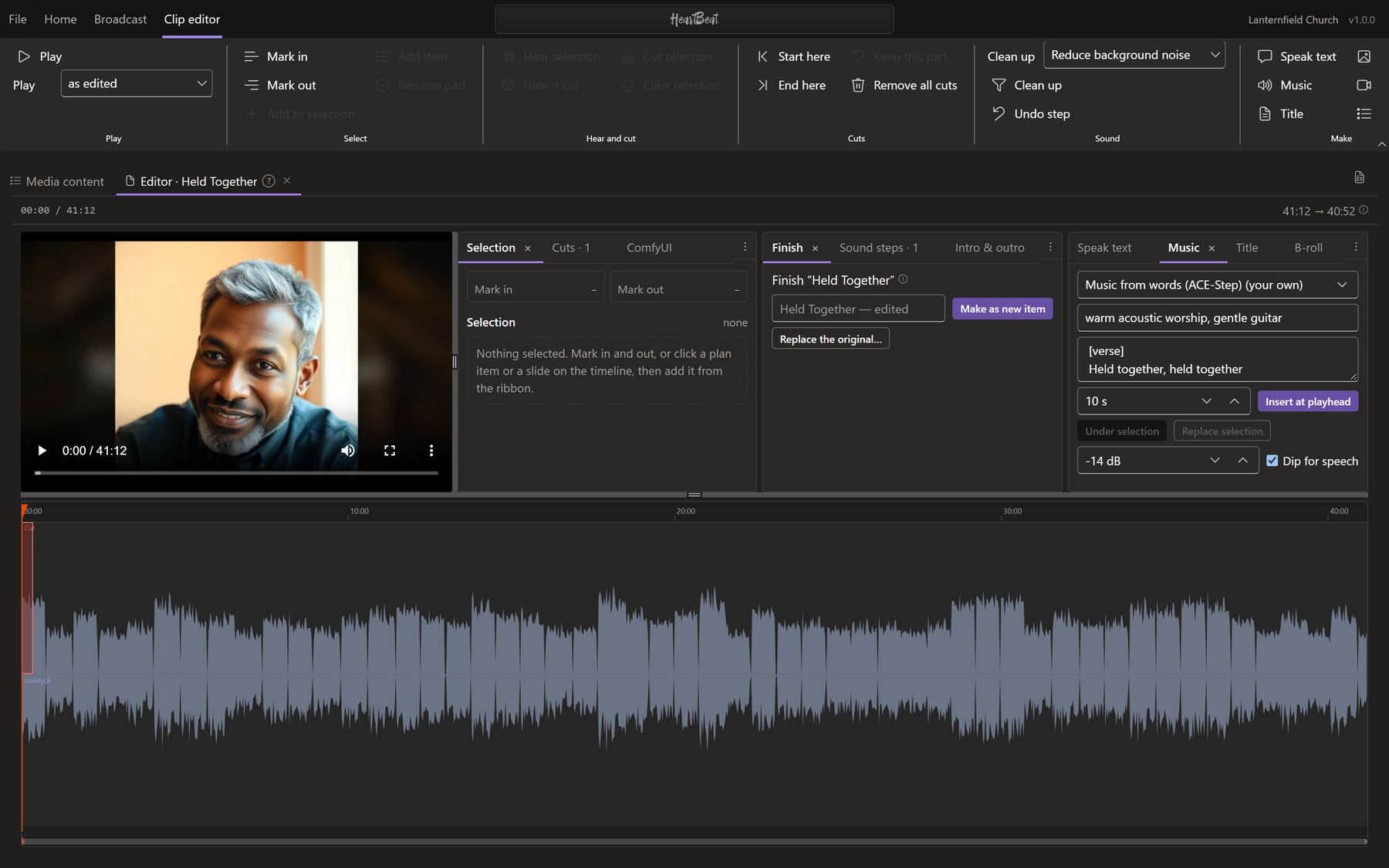
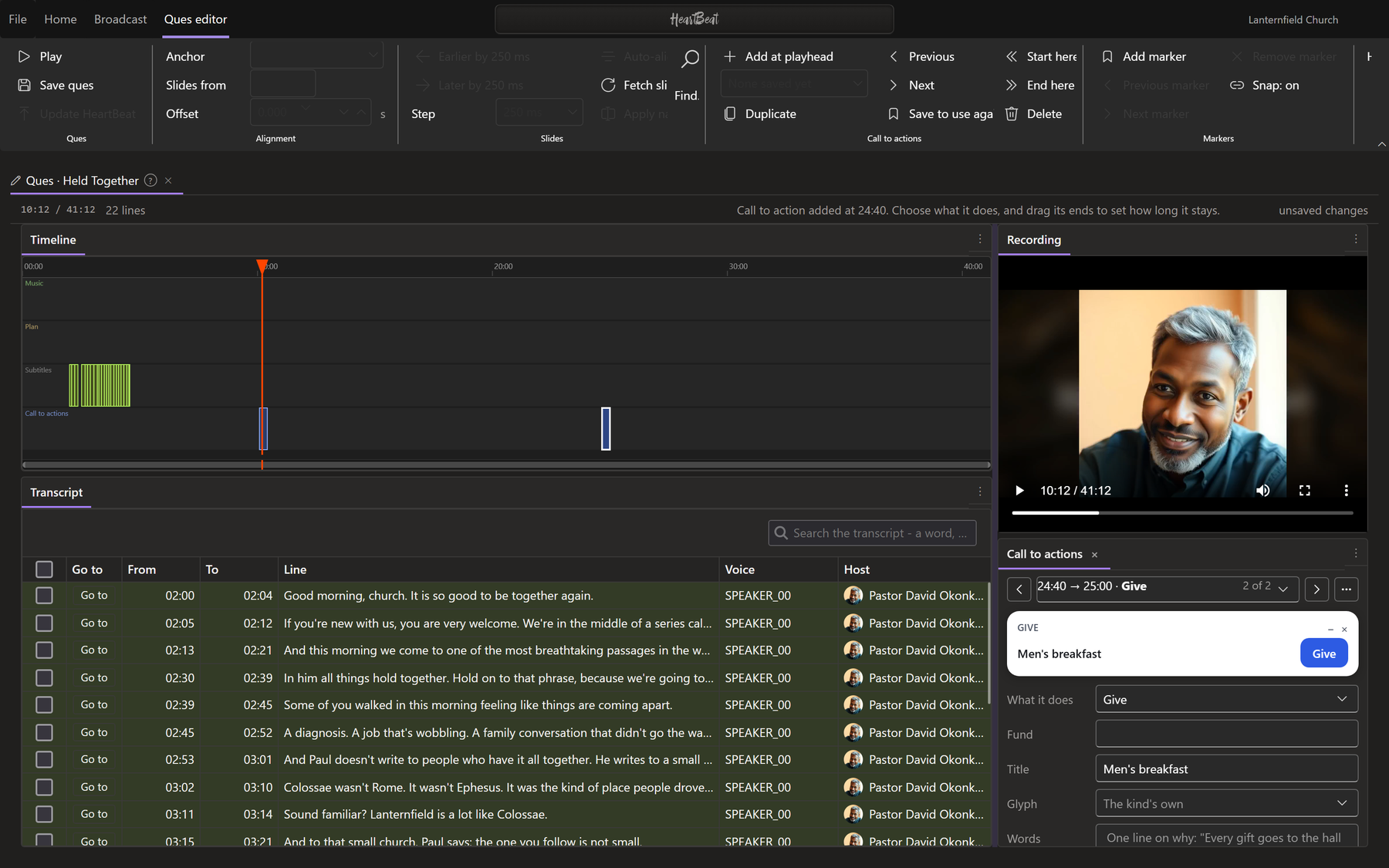
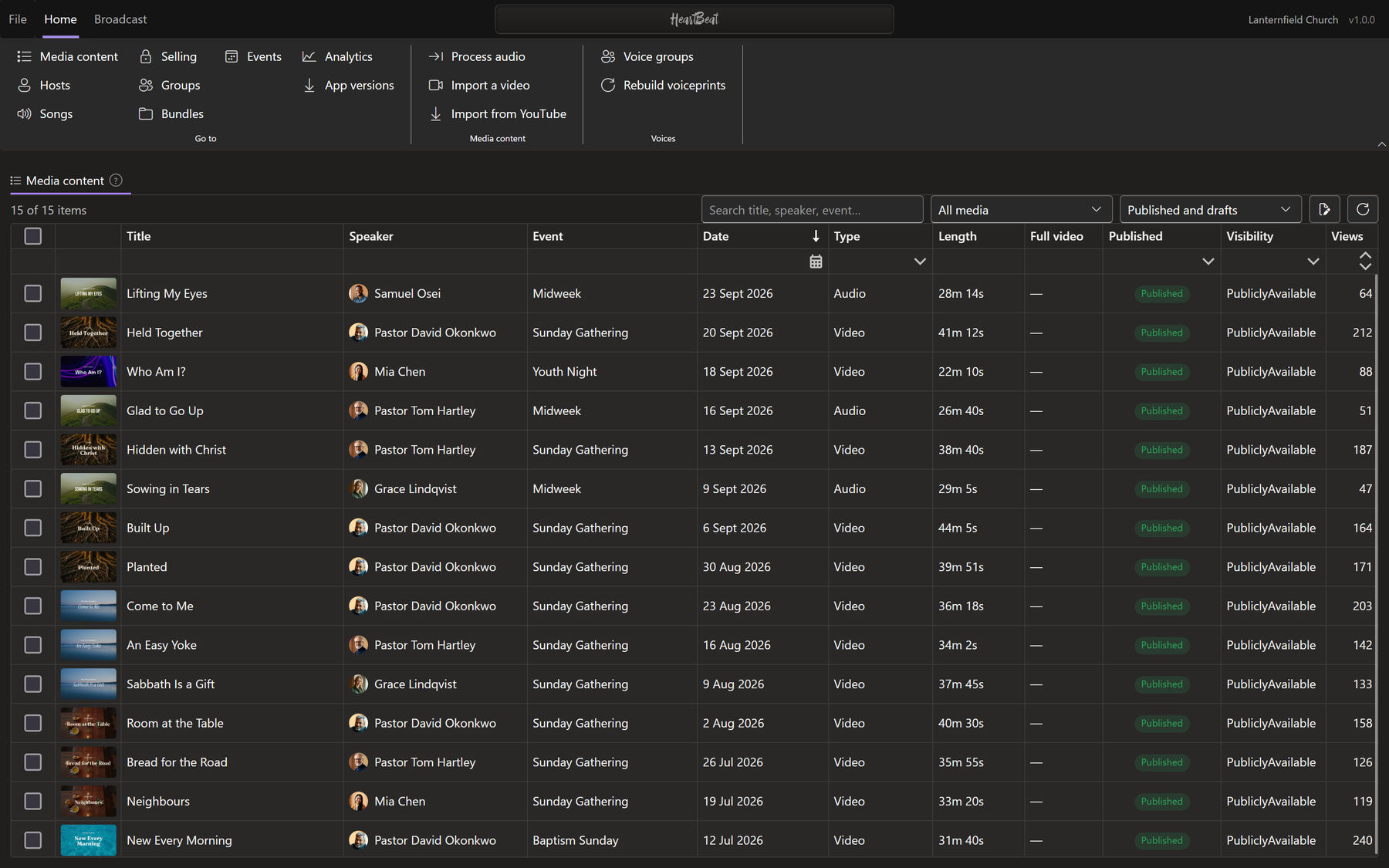
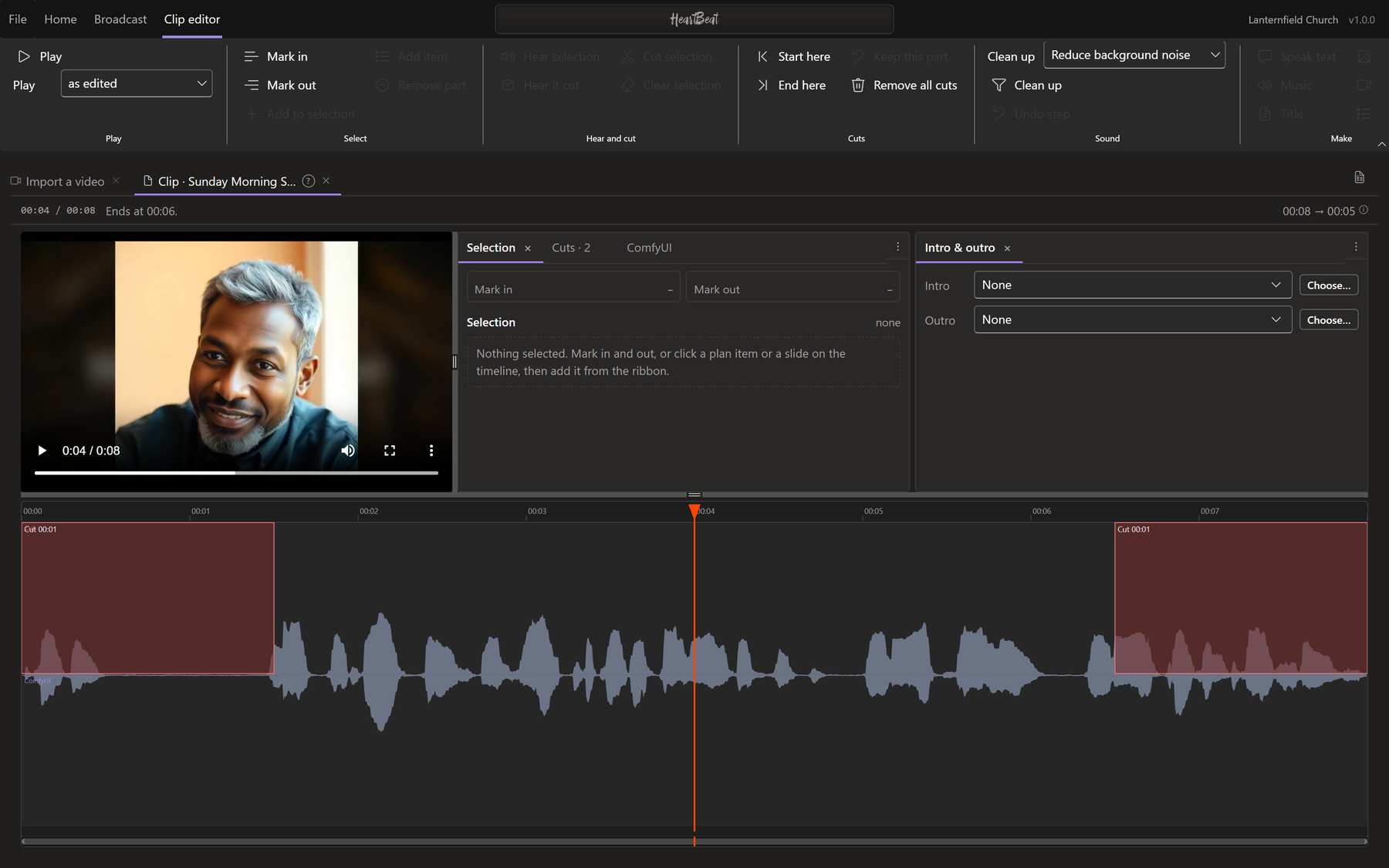
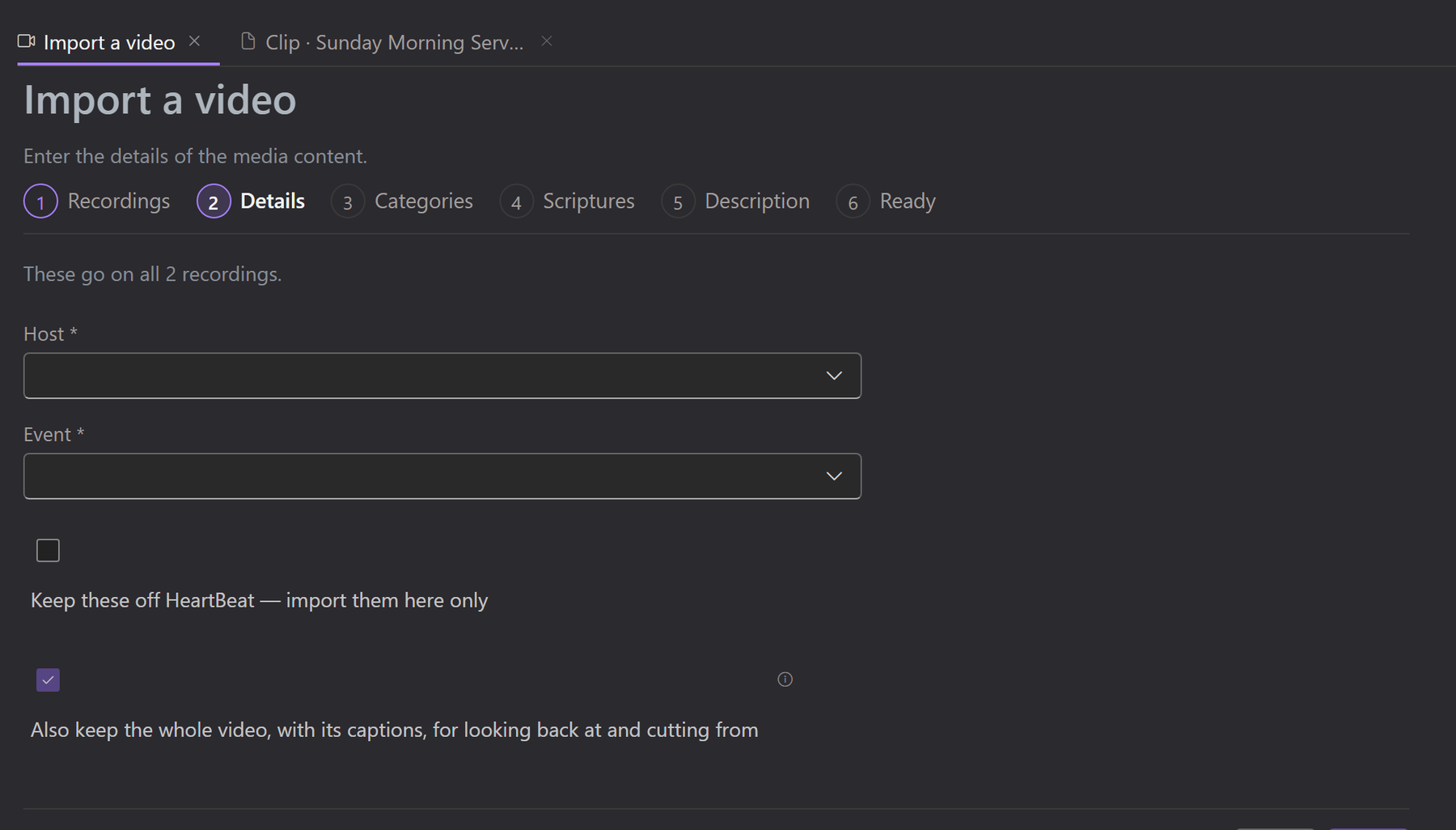
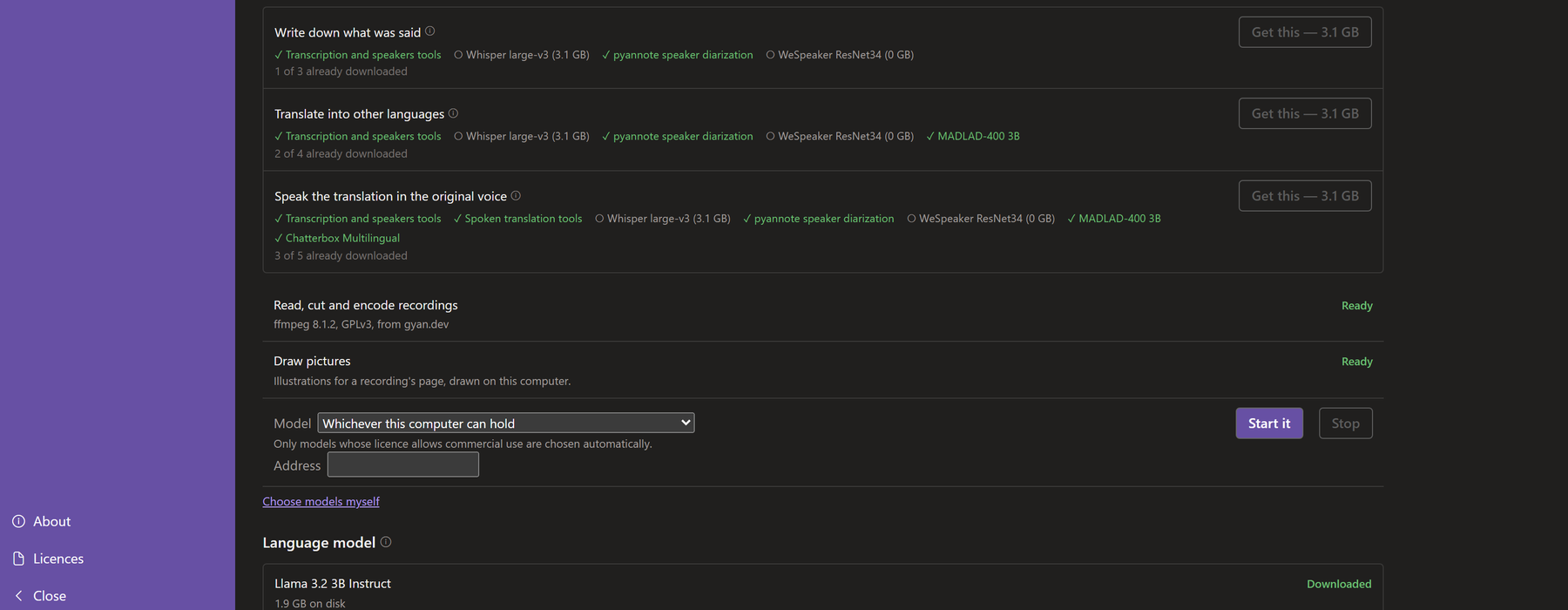
Real Studio screens. The checklist, fleet and description screens show sample data; the editor, media content and import screens show a made-up demonstration organisation, with pictures and a recording made for the demonstration; the rest show our development organisation's library.
The AI runs where your data already lives.
Cloud tools take your recordings onto their servers and charge by the minute. Studio does the opposite: the models run on your own Windows or Mac machine, against files on your own storage.
- No upload to be processed
- Large master files never crawl up a domestic connection to someone else.
- No per-minute bill
- It runs on hardware you already own.
- Nothing to hand over
- Sensitive or unreleased recordings are never sent anywhere to be analysed.
- Publishing is the only network step
- And only the finished output you chose goes out.

It's just files, in a folder you chose.
Your library is ordinary files on your own disk, not locked in a database only Studio can open. Keep the folder wherever you like, synced by whatever you already use.
- Your sync tool
- Resilio Sync, Syncthing, Nextcloud, OneDrive, Dropbox, or any folder that syncs.
- Your storage
- A NAS, a local drive, your own server, or a cloud you already pay for. No storage markup from us.
- Yours to take
- An open layout: back it up, move it, or walk away with it.
Hear the booth from the office.
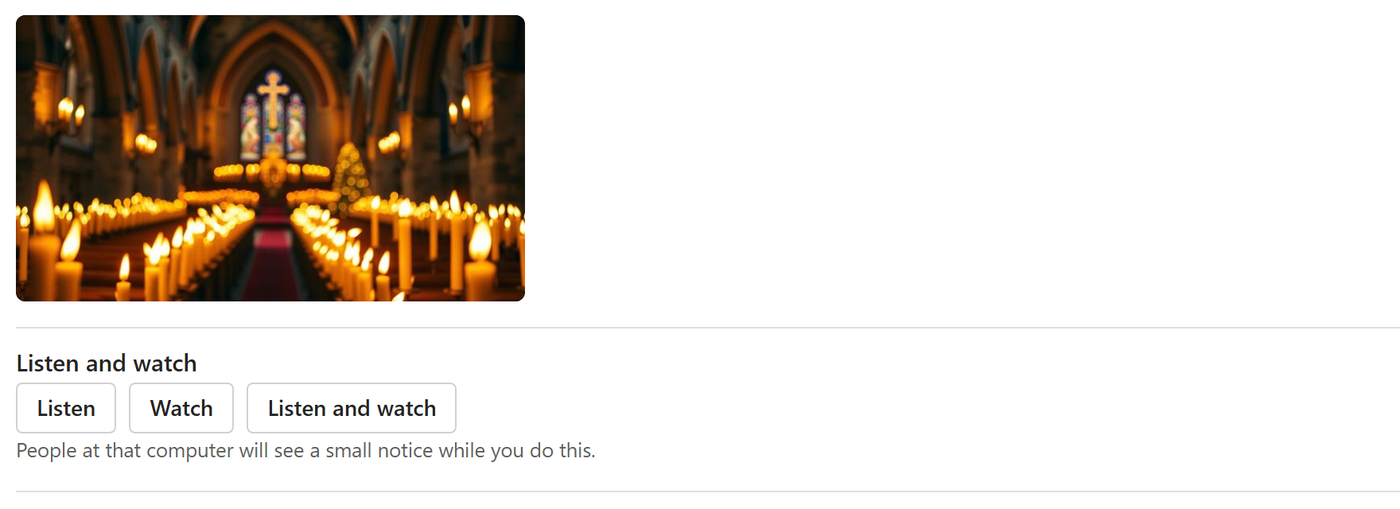
Every Studio computer shows up in the portal, the app and other Studios. Choose one and listen to its sound input, or look through its camera, without starting a broadcast, to check a mix or find a hum before the doors open.
- Listen, watch, or both
- Sound in your browser a few seconds behind, in mono: enough to judge a mix. The camera as live pictures.
- Nobody is monitored in secret
- A small notice in Studio on that computer says who, what and from where, and the person's name goes in its history. Each computer can switch it off.
- Nothing is recorded
- Sound and pictures pass through the service in memory and are gone.
- Pick the channels
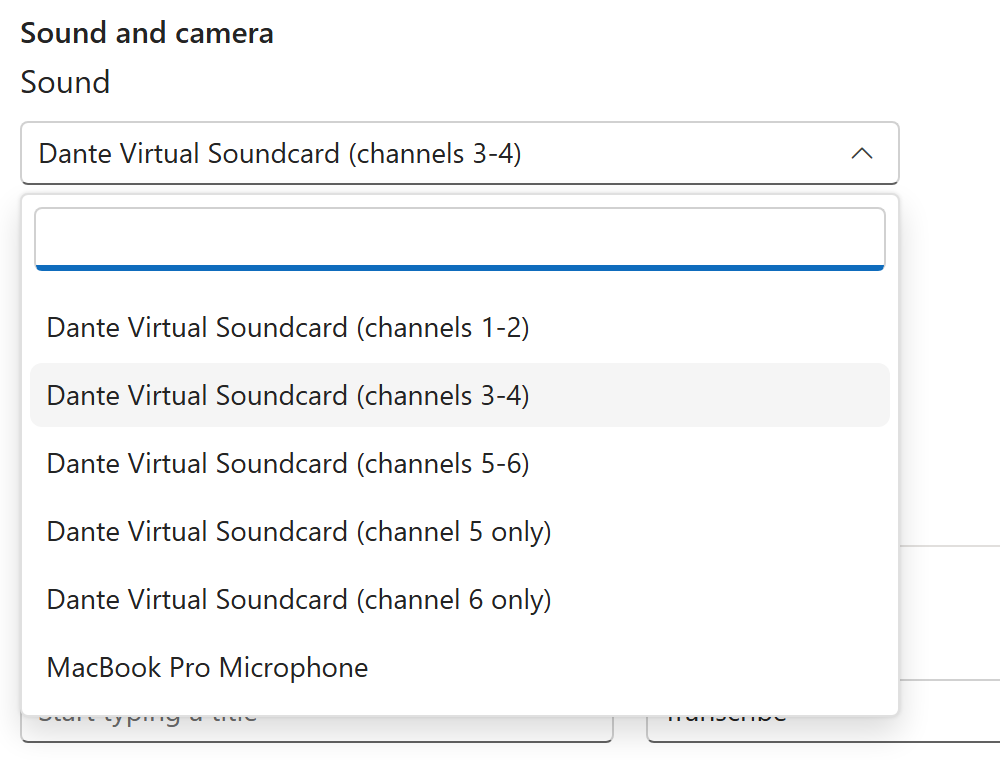
- On a Mac, a Dante Virtual Soundcard or a 16-channel mixer is listed as stereo pairs and single channels, so you choose exactly the channels you want to record or broadcast.

No internet? Keep working.
Bring in, transcribe, organise and encode with the network unplugged. Publishing and syncing wait, and go out the moment you're online and ready.
A transcript is worth more than the video
Once a recording is text, attributed to the right people, it becomes searchable, quotable and accessible to people who can't or don't want to listen.
Updates are our problem
Studio keeps itself current in the background on Windows and Mac. New models and fixes arrive without a project, and your library, being your files, is never touched by an update.
The specifics.
- Platform
- A Windows and Mac desktop app, signed and self-updating.
- Where AI runs
- Entirely on your own machine. No third-party upload for processing and no per-minute charge.
- Transcription
- Local speech-to-text with a timed transcript, editable before publishing.
- Speakers
- Separated automatically and matched to your hosts, so attributions are named, not numbered.
- Descriptions
- Draft descriptions, key points and suggested categories and tags, generated locally for you to edit.
- Music
- Musical sections detected for chapters and trims, split at ProPresenter deck boundaries where a live event was captured, so each clip is named after its song.
- Translation
- Transcripts in more languages, in bulk across a back catalogue, without disturbing corrections made to the source.
- Dubbing
- A spoken track in another language, voice-cloned from the speaker, with the original ducked underneath and music left at full volume.
- Editing
- Cuts, an intro and an outro, sound clean-up and spoken corrections, each a step that can be taken back. The panels around the video are tabs you drag where you want them, and the arrangement is remembered on that computer.
- Fleet
- Several installations share one recording's jobs. Opt-in per machine, with remote install and queue control from any of them.
- Hardware
- Encoders proved by a test encode rather than assumed: NVIDIA, AMD and Intel, with more than one card used at once.
- Permissions
- Presets from Administrator to Viewer, with individual permissions on top. A volunteer who only records sees only the recording screen.
- Undo
- Hourly limits on bulk deletes, and anything deleted or hidden in the last 30 days can be put back from the portal.
- Audit
- Work in Studio is recorded alongside the portal's: who changed what, when, and from which computer.
- Storage
- Ordinary files in a folder you choose, synced by your own tool.
- Offline
- All processing works with no connection; publishing and syncing complete when you're back online.